
1. Uvod
Thank you for choosing the BIGASUO BGP23 Portable Projector. This device integrates an Android 9.0 operating system, offering a versatile entertainment and presentation solution. It supports HD resolution (1280x720P) and features multiple connectivity options including HDMI, USB, VGA, and AV. This manual provides essential information for setting up, operating, maintaining, and troubleshooting your projector to ensure optimal performance.
2. Sigurnosne informacije
- Napajanje: Koristite samo navedeni adapter za napajanje. Osigurajte jačinu zvukatage matches your local power supply (220 Volts).
- ventilacija: Ne blokirajte ventilacijske otvore. Osigurajte dovoljno prostora oko projektora za pravilan protok zraka kako biste spriječili pregrijavanje.
- plasman: Postavite projektor na stabilnu, ravnu površinu. Izbjegavajte postavljanje na direktnu sunčevu svjetlost, u blizinu izvora topline ili u okruženja s visokom vlagom ili prašinom.
- Zaštita očiju: Ne gledajte direktno u sočivo projektora kada je lamp je uključen, jer jarko svjetlo može uzrokovati oštećenje oka.
- čišćenje: Disconnect the power before cleaning. Use a soft, dry cloth for the exterior and a lens cleaning kit for the lens.
- Rastavljanje: Ne pokušavajte sami rastavljati ili popravljati projektor. Za sve servisne radove obratite se kvalifikovanom osoblju.
3. Sadržaj paketa
Provjerite da li se sve stavke nalaze u vašem paketu:
- BIGASUO BGP23 Projector
- Daljinski upravljač
- Adapter za napajanje
- HDMI kabl
- AV kabel
- Uputstvo za upotrebu
- Tripod (may vary by package)
4. Proizvod je gotovview
Upoznajte se s komponentama i interfejsima projektora.
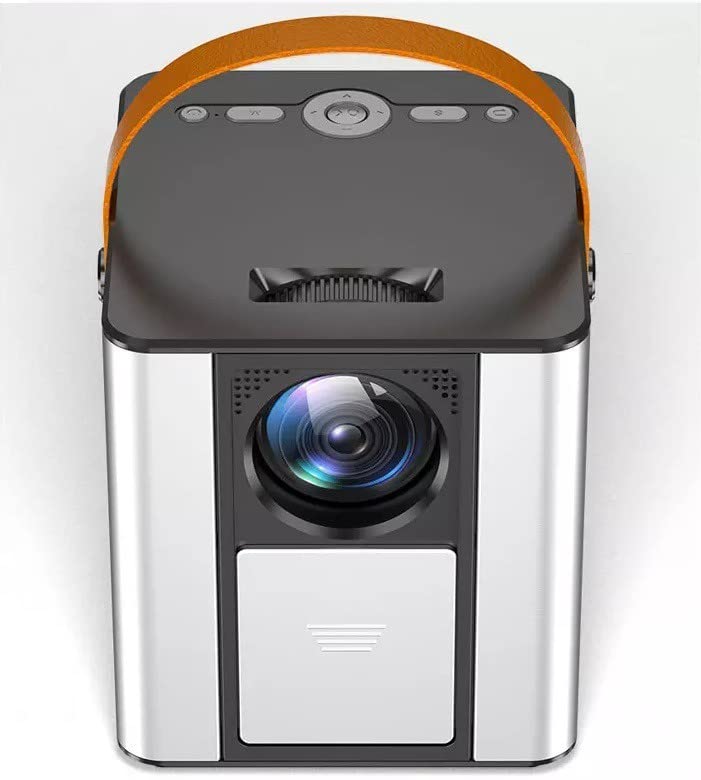
Slika 4.1: Prednja strana view of the BIGASUO BGP23 Portable Projector with its lens and carrying handle.
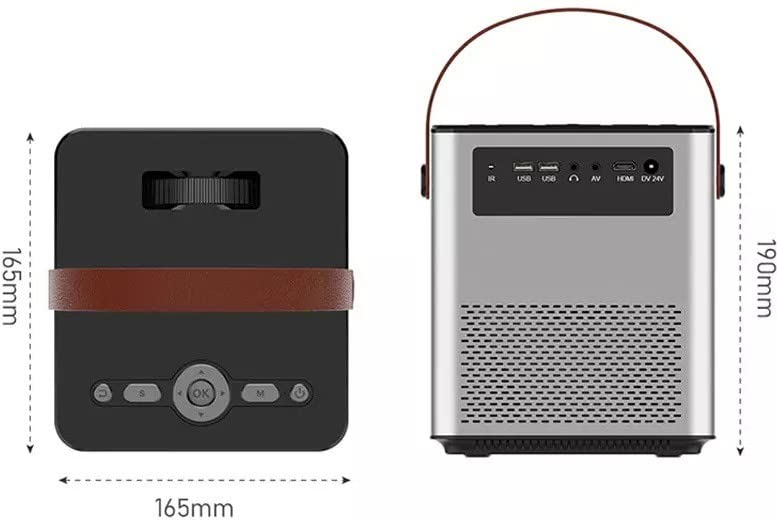
Figure 4.2: Dimensions of the BIGASUO BGP23 Projector and a view of its rear panel, showing various input/output ports.
4.1. Interfaces and Controls
- Objektiv: Projektuje sliku na ekran.
- Prsten za fokus: Podešava jasnoću slike.
- Keystone Correction Knob: Ispravlja trapezoidno izobličenje slike.
- IC prijemnik: Za signale daljinskog upravljanja.
- USB portovi: For connecting USB storage devices (e.g., flash drives) for media playback.
- HDMI priključak: For connecting external devices like laptops, gaming consoles, or media players.
- VGA port: Za povezivanje starijih računara ili uređaja.
- AV priključak: Za povezivanje starijih audio/video uređaja.
- Audio izlaz (3.5 mm): Za povezivanje eksternih zvučnika ili slušalica.
- Ulazna snaga: Povezuje se na strujni adapter.
- Kontrolna tabla: On-device buttons for basic navigation and settings.
5. Podešavanje
5.1. Početno smještaj
- Postavite projektor na stabilnu površinu ili ga sigurno montirajte.
- Position the projector at an appropriate distance from the projection surface (wall or screen) to achieve the desired image size.
5.2. Priključak za napajanje
- Spojite adapter za napajanje na ulazni priključak za napajanje projektora.
- Uključite adapter za napajanje u odgovarajuću električnu utičnicu.
- Pritisnite dugme za napajanje na projektoru ili daljinskom upravljaču da uključite uređaj.
5.3. Podešavanje slike
- Fokus: Okrećite prsten za fokusiranje na objektivu projektora dok projicirana slika ne postane oštra i jasna.
- Keystone korekcija: If the image appears trapezoidal (wider at the top or bottom), adjust the keystone correction knob until the image is rectangular.
6. Uputstvo za upotrebu
6.1. Daljinski upravljač
The included remote control allows for convenient operation of the projector. Ensure AAA batteries are installed (not included).
6.2. Android operativni sistem
The projector runs on Android 9.0, providing access to various applications and features.
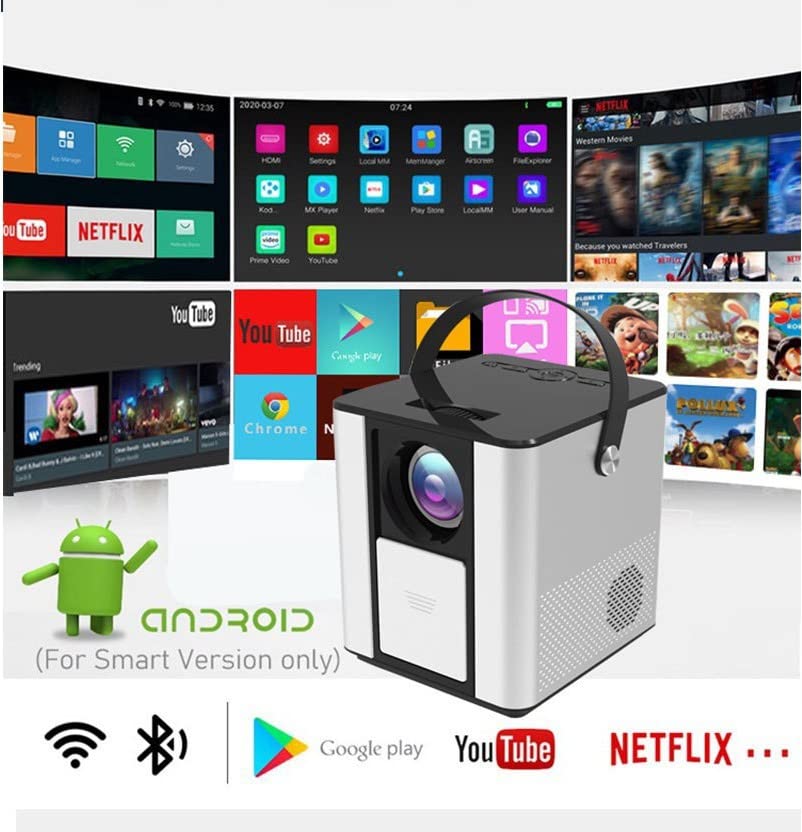
Figure 6.1: The Android interface of the BIGASUO BGP23 Projector, showing various pre-installed application icons.
- Navigacija: Use the arrow keys on the remote to navigate through the Android interface. The 'OK' button selects items.
- Početni ekran: Access pre-installed apps like YouTube, Netflix, and the Google Play Store.
- Postavke: Access system settings for Wi-Fi, Bluetooth, display, sound, and more.
- Instalacija aplikacije: Preuzmite i instalirajte dodatne aplikacije iz Google Play trgovine.
6.3. Ažuriranja sistema
To ensure compatibility and optimal performance, regularly check for and install system updates. Navigate to the system settings to find the update option. If you encounter software incompatibility issues, updating the system is recommended.
7. Povezivanje
7.1. HDMI veza
Connect external devices such as laptops, Blu-ray players, or gaming consoles using an HDMI cable. Select the HDMI input source from the projector's input menu.
7.2. Reprodukcija USB medija
Insert a USB flash drive into one of the USB ports. The projector's file manager will typically detect the drive, allowing you to browse and play supported media file(video zapisi, fotografije, muzika).
7.3. Wireless Projection (Screen Mirroring)
The projector supports wireless screen mirroring from compatible smartphones and tablets. Refer to the projector's on-screen instructions for specific steps to connect your device via Wi-Fi.
7.4. Bluetooth audio
Connect external Bluetooth speakers or headphones to the projector for enhanced audio. Navigate to the Bluetooth settings in the Android OS, enable Bluetooth, and pair with your desired audio device.
8. Održavanje
- Čišćenje sočiva: Use a professional lens cleaning cloth and solution to gently clean the projector lens. Avoid touching the lens with bare hands.
- Eksterijerno čišćenje: Obrišite vanjski dio projektora mekom, suhom krpom. Ne koristite abrazivna sredstva za čišćenje ili rastvarače.
- Održavanje ventilacije: Povremeno provjeravajte i čistite ventilacijske rešetke kako biste spriječili nakupljanje prašine, koja može ometati protok zraka i uzrokovati pregrijavanje.
- Skladištenje: When not in use for extended periods, store the projector in a cool, dry, dust-free environment, preferably in its original packaging or a protective case.
9. Otkrivanje problema
Ako naiđete na probleme s projektorom, pogledajte sljedeće uobičajene probleme i rješenja:
| Problem | Moguće rješenje |
|---|---|
| Nema snage | Ensure the power adapter is securely connected to both the projector and a working power outlet. Check the power button. |
| No Image / No Signal | Verify the input source is correctly selected (e.g., HDMI 1, USB). Check cable connections (HDMI, VGA, AV) for looseness or damage. Try a different cable or device. |
| Mutna slika | Adjust the focus ring on the lens. Ensure the projection distance is within the recommended range. Clean the lens if it is dirty. |
| Trapezoidal Image | Adjust the keystone correction knob until the image is rectangular. Ensure the projector is placed perpendicular to the screen. |
| Daljinski upravljač ne reaguje | Check and replace the batteries in the remote control. Ensure there are no obstructions between the remote and the projector's IR receiver. |
| Applications Not Working / Software Issues | Check for and install any available system updates. Clear the cache of the problematic application. If the issue persists, consider a factory reset (backup data first) or contact customer support. |
| Nema zvuka | Check the volume settings on both the projector and the connected source device. If using external speakers, ensure they are properly connected and powered on. Verify Bluetooth pairing if using wireless audio. |
10. Specifikacije
The following are the technical specifications for the BIGASUO BGP23 Projector:
- Brand: BIGASUO
- Model: BGP23
- Operativni sistem: Android 9.0
- Vrsta prikaza: LCD
- Nativna rezolucija: 1280 x 720 piksela
- Podržana rezolucija: 1920 Pixels (Full HD)
- Omjer širine i visine: 16:9
- Tehnologija povezivanja: Bluetooth, HDMI, USB, VGA, AV
- Bluetooth verzija: 5.0
- Voltage: 220 Volts
- Wattage: 50 Watts
- Brzina osvježavanja: 60 Hz
- Dimenzije proizvoda: 10 x 25 x 10 cm
- Težina artikla: 2.5 kg
- Form Faktor: Prijenosni
- Vrsta montaže: Tabletop Mount
11. Garancija i podrška
For warranty information and technical support, please refer to the warranty card included with your product or visit the official BIGASUO support website. Contact information for Bigasuo Support Team is typically provided with the product documentation.