
1. Uvod i krajview
Thank you for choosing the Ninkear L12Pro Gaming Mini PC. This compact yet powerful desktop computer is designed to deliver exceptional performance for a wide range of applications, from demanding gaming and 4K video editing to business productivity and multi-display setups. Featuring an Intel Core i9-12900HK processor, 32GB of RAM, and a 1TB NVMe SSD, the L12Pro offers a seamless and responsive computing experience. This manual provides essential information for setting up, operating, maintaining, and troubleshooting your new Mini PC.
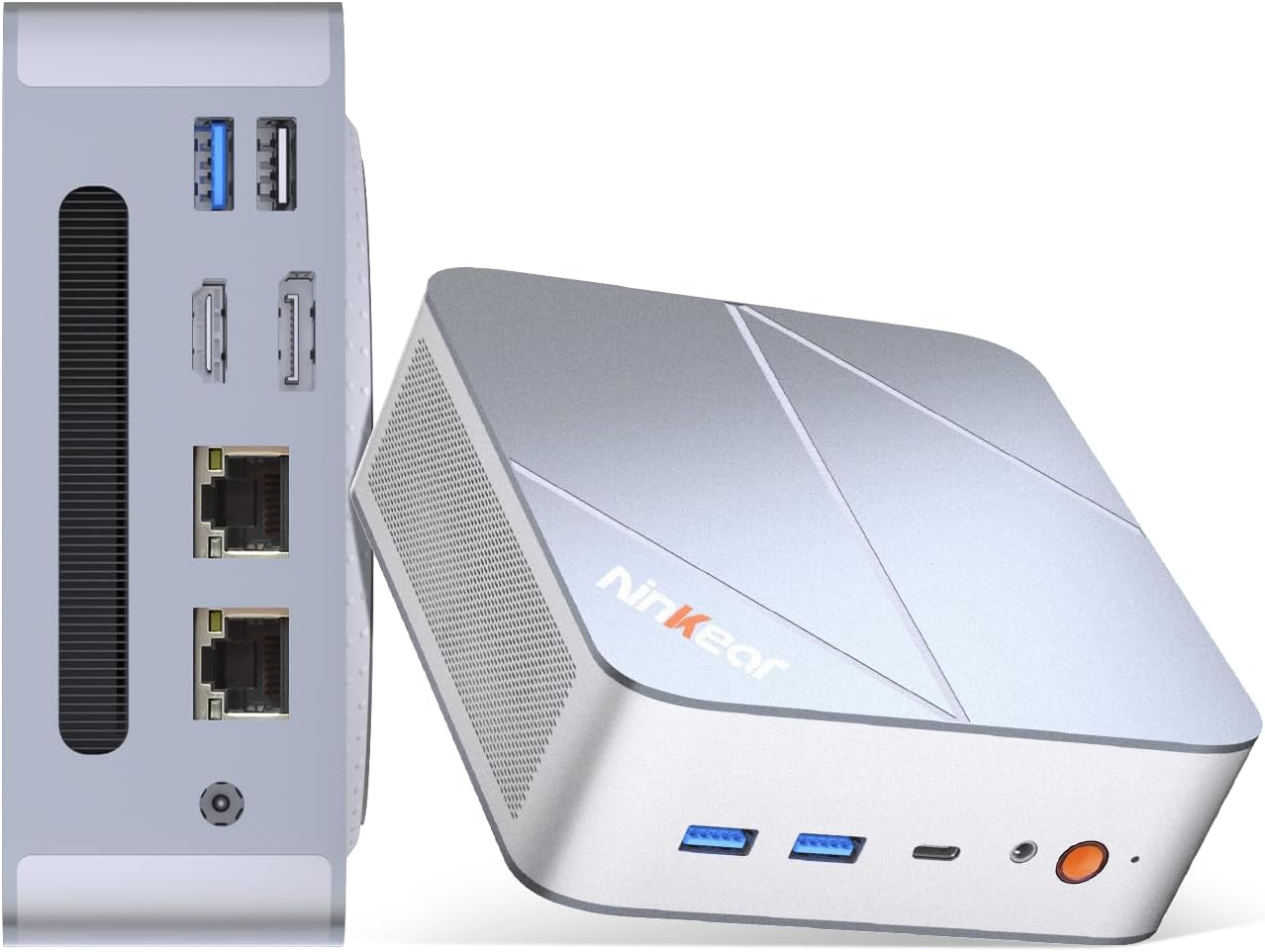
Figure 1.1: Ninkear L12Pro Mini PC - Front and Side View s lukama.
2. Značajke proizvoda
- Lightning-Fast Performance: Powered by Intel’s 12th Gen i9-12900HK processor (14 cores, 20 threads, up to 5.0GHz), capable of handling 4K video editing, coding, and intensive multitasking.
- High-Speed Memory & Storage: Equipped with 32GB DDR4 RAM and an ultra-fast 1TB NVMe SSD for instant file access, smooth application performance, and rapid boot times.
- Triple 8K UHD Display Support: Create an immersive multi-screen setup with HDMI 2.0 (up to 4K@60Hz), DisplayPort 1.4 (up to 8K@60Hz), and USB4/Thunderbolt 4 (up to 8K@60Hz) outputs.
- Compact and Flexible Design: Small form factor allows for versatile placement behind monitors, under desks, or in backpacks, offering powerful desktop capabilities in a portable size.
- Napredno povezivanje: Features USB4.0, USB-C, WiFi 6, Bluetooth 5.2, dual 2.5G LAN ports, and multiple USB 3.2 Gen 2 and USB 2.0 ports for comprehensive peripheral support and high-speed data transfer.
- Efikasan sistem hlađenja: Designed with an all-metal cooling system for quiet and efficient operation, ensuring stable performance even under heavy loads.
- Proširiva pohrana: Supports additional M.2 NVMe PCIe SSD (up to 4TB) and an optional 2.5-inch HDD for expanded storage capacity.

Figure 2.1: Key Features and Specifications Overview.

Figure 2.2: Triple 8K Display Setup for Enhanced Productivity.

Figure 2.3: Comprehensive Connectivity Options.
3. Šta se nalazi u kutiji
Prilikom otvaranja paketa, molimo Vas da se uvjerite da su prisutni svi sljedeći elementi:
- Ninkear L12Pro Mini PC
- HDMI kabl
- Adapter za napajanje
- Korisnički priručnik (ovaj dokument)
4. Vodič za postavljanje
Follow these steps to set up your Ninkear L12Pro Mini PC:
- Raspakujte Mini PC: Pažljivo izvadite Mini PC i svu dodatnu opremu iz ambalaže.
- Povežite se s ekranom:
- Connect one end of the HDMI cable (included) to the HDMI port on the Mini PC and the other end to an available HDMI input on your monitor or TV.
- For DisplayPort or USB4/Thunderbolt 4 connections, use appropriate cables (not included) to connect to compatible displays.
- For triple display setup, connect additional monitors using the available DisplayPort, USB4/Thunderbolt 4, or a USB-C to HDMI/DP adapter (not included).
- Povežite periferne uređaje:
- Plug your USB keyboard and mouse into any available USB ports on the Mini PC.
- If using wireless peripherals, ensure their receivers are plugged into a USB port.
- Povežite se na napajanje: Plug the power adapter into the DC-in port on the Mini PC, then plug the other end into a power outlet.
- Mrežna veza (opcionalno):
- For a wired connection, connect an Ethernet cable from your router or modem to one of the 2.5G LAN ports on the Mini PC.
- For a wireless connection, the Mini PC supports WiFi 6. You will configure this after the initial boot.
- Početno pokretanje: Press the power button on the front of the Mini PC. The system will power on and begin the initial setup process for Windows 11 Pro. Follow the on-screen instructions to complete the operating system setup.
5. Uputstvo za upotrebu
5.1 Uključivanje/isključivanje napajanja
- Uključeno: Pritisnite dugme za napajanje jednom.
- Isključi: Kliknite na dugme Start u sistemu Windows, a zatim izaberite Napajanje > Isključi.
- Ponovno pokretanje: Kliknite dugme Start u sistemu Windows, a zatim izaberite Napajanje > Ponovo pokreni.
- Prisilno isključivanje: If the system is unresponsive, press and hold the power button for approximately 5-7 seconds until the unit powers off. Use this only as a last resort.
5.2 Konfiguracija ekrana
The Ninkear L12Pro supports up to three independent displays simultaneously. After connecting your monitors, Windows will typically detect them automatically. If not, or to configure display settings:
- Right-click on an empty area of your desktop.
- Select "Display settings".
- From here, you can detect displays, arrange them, change resolution, and set display modes (Extend, Duplicate, Second screen only).
5.3 Mrežna povezivost
- Žični (Ethernet): Ensure an Ethernet cable is connected to one of the 2.5G LAN ports. Windows will automatically establish a connection.
- Bežično (Wi-Fi):
- Click the Wi-Fi icon in the system tray (bottom right of the taskbar).
- Odaberite željenu Wi-Fi mrežu s popisa.
- Unesite mrežnu lozinku ako se to od vas zatraži i kliknite na "Poveži se".
5.4 Povezivanje vanjskih uređaja
The Mini PC offers a variety of ports for connecting external devices:
- USB portovi: Use USB 3.2 Gen 2 ports for high-speed devices like external hard drives or SSDs, and USB 2.0 for standard peripherals like keyboards, mice, or printers.
- USB4/Thunderbolt 4: This versatile port supports high-speed data transfer (40Gbps), video output, and power delivery (with compatible devices).
- Audio Jack: Spojite slušalice ili vanjske zvučnike na 3.5 mm audio priključak.
6. Održavanje
Proper maintenance ensures the longevity and optimal performance of your Ninkear L12Pro Mini PC:
- Držite otvore za ventilaciju čistima: Ensure the ventilation openings on the Mini PC are not obstructed. Blocked vents can lead to overheating and reduced performance.
- Redovno čišćenje: Koristite meku, suhu krpu za čišćenje vanjštine Mini PC-a. Za prašinu u ventilacijskim otvorima koristite komprimirani zrak. Ne koristite tekuća sredstva za čišćenje direktno na uređaju.
- Ažuriranja softvera: Regularly update your Windows operating system, drivers, and applications to ensure security, stability, and performance.
- Sigurno gašenje: Uvijek pravilno isključite Mini PC putem operativnog sistema kako biste spriječili oštećenje podataka.
- Uslovi okoline: Operate the Mini PC in a clean, dry environment, away from direct sunlight, excessive heat, and humidity.

Figure 6.1: Smart Cooling System for Quiet Operation.
7. Otkrivanje problema
If you encounter issues with your Ninkear L12Pro Mini PC, refer to the following common problems and solutions:
| Problem | Mogući uzrok | Rješenje |
|---|---|---|
| Nema snage | Adapter za napajanje nije priključen; Problem sa utičnicom; Neispravan adapter za napajanje. | Provjerite je li adapter za napajanje sigurno priključen na Mini PC i ispravnu utičnicu. Pokušajte s drugom utičnicom. |
| Nema displeja | Monitor not connected; Incorrect input selected on monitor; Faulty cable; Display driver issue. | Check display cable connections. Ensure monitor is on and set to the correct input source (HDMI, DP, USB-C). Try a different cable or monitor. Update display drivers in Windows. |
| Nema internet veze (žična) | Ethernet kabel isključen; Problem s ruterom/modemom; Problem s mrežnim upravljačkim programom. | Check Ethernet cable connection. Restart your router/modem. Check network adapter settings in Windows Device Manager. |
| Nema internet veze (Wi-Fi) | Wi-Fi disabled; Incorrect password; Router too far; Driver issue. | Ensure Wi-Fi is enabled in Windows. Re-enter Wi-Fi password. Move closer to the router. Update Wi-Fi drivers. |
| Sporo performanse | Too many applications running; Overheating; Low disk space; Malware. | Close unnecessary applications. Ensure vents are clear. Free up disk space. Run a malware scan. |
8. Specifikacije
Detailed technical specifications for the Ninkear L12Pro Mini PC:
| Feature | Detalj |
|---|---|
| Brand | Ninkear |
| Broj modela | L12Pro |
| Procesor | Intel Core i9-12900HK (14 Cores, 20 Threads, up to 5.0GHz) |
| RAM | 32GB DDR4 (proširivo do 64GB) |
| Skladištenje | 1TB NVMe SSD (M.2 PCIe 3.0, Expandable up to 4TB) |
| Grafički koprocesor | Intel Iris Xe grafika (96EU) |
| Maksimalna rezolucija ekrana | 8K (7680x4320) via DisplayPort/USB4, 4K (4096x2160) via HDMI |
| Video izlazi | 1x HDMI 2.0, 1x DisplayPort 1.4, 1x USB4/Thunderbolt 4 |
| USB portovi | 3x USB 3.2 Gen 2, 1x USB 2.0, 1x USB4/Thunderbolt 4 (Type-C) |
| Mreža | Dual 2.5G LAN (RJ45), WiFi 6 (802.11ax) |
| Bluetooth | Bluetooth 5.2 |
| Operativni sistem | Windows 11 Pro |
| Težina artikla | 2.51 funte (otprilike 1.14 kg) |
| Dimenzije | 10.44 x 6.73 x 2.79 inča (dimenzije pakovanja) |
| Boja | Premium Brushed Silver |
9. Garancija i podrška
The Ninkear L12Pro Mini PC comes with a standard manufacturer's warranty. For specific warranty terms and conditions, please refer to the documentation included with your purchase or visit the official Ninkear website.
For technical support, troubleshooting assistance, or any inquiries regarding your product, please contact Ninkear customer service through their official channels.
Online podrška: Posjetite Ninkear Store on Amazon za često postavljana pitanja i opcije kontakta.