
1. Uvod
Welcome to the JMGO PicoPlay Portable Mini Projector user manual. This guide provides essential information for the safe and efficient use of your new projector. Please read it thoroughly before operation and retain it for future reference.
Sigurnosne informacije
- Do not look directly into the projector lens when the device is operating.
- Držite uređaj dalje od vode ili drugih tečnosti.
- Osigurajte odgovarajuću ventilaciju kako biste spriječili pregrijavanje.
- Koristite samo isporučeni adapter za napajanje.
- Avoid dropping or subjecting the projector to strong impacts.
2. Proizvod je gotovview
The JMGO PicoPlay is a versatile portable mini projector designed for immersive entertainment. It combines a 1080P FHD projector, an immersive Bluetooth speaker, and dynamic ambient lighting.
Ključne karakteristike:
- 1080P Full HD rezolucija: Delivers crisp and clear images up to 200 inches.
- 400 ISO Lumens: Provides bright visuals for various environments.
- Google TV with Licensed Netflix: Access a wide range of streaming apps and content.
- 8W Dolby Audio Speakers: Offers rich and powerful sound.
- 88° Rotatable Gimbal: Allows flexible projection angles from wall to ceiling.
- Automatic Image Optimization: Features auto-focus, auto-keystone correction, and intelligent screen alignment.
- 3D and HDR10 Support: Enhances visual depth and color.
- Prijenosni dizajn: Kompaktan i lagan za lak transport.
- Način ambijentalnog svjetla: Customizable lighting to set the mood.
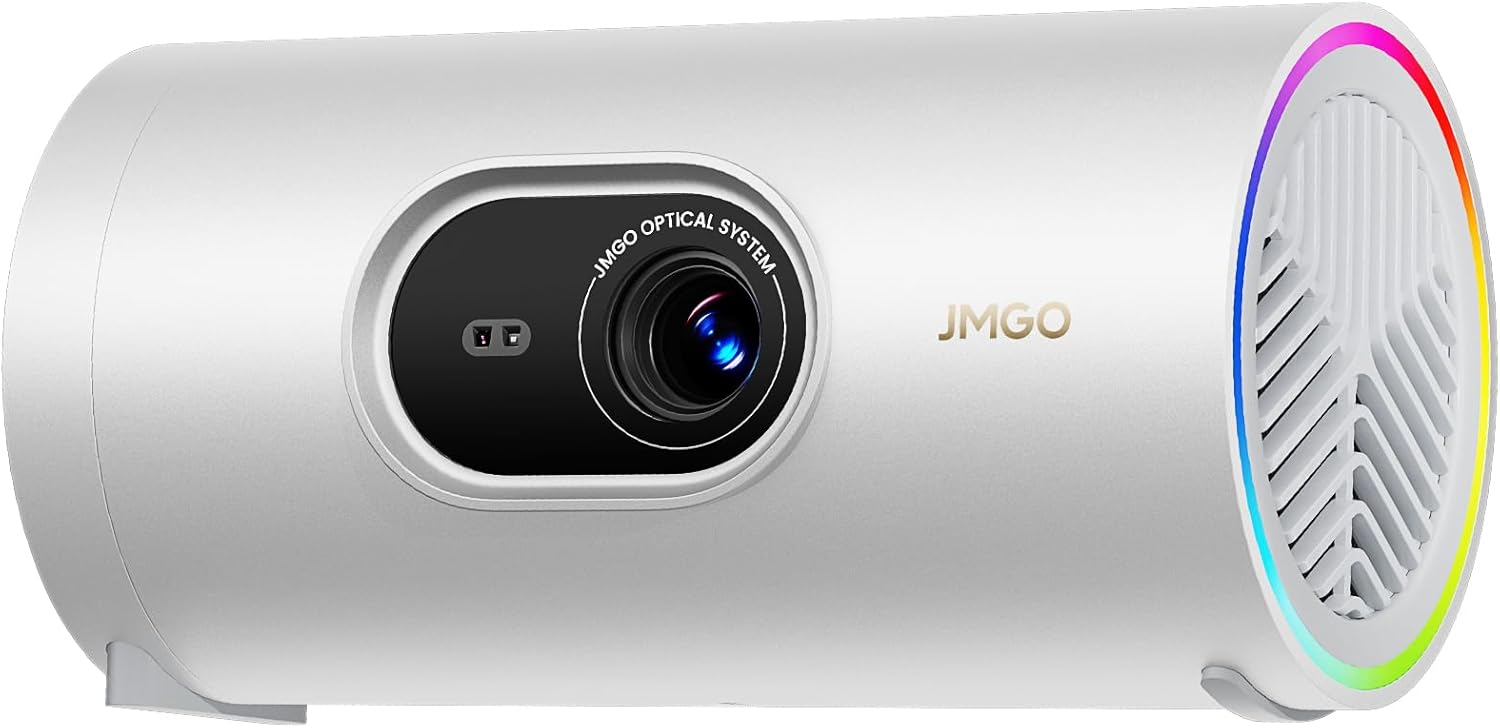
Figure 2.1: The JMGO PicoPlay Portable Mini Projector, showcasinzbog njegovog kompaktnog dizajna i objektiva.
Šta je u kutiji:
- JMGO PicoPlay Projector
- Uputstvo za upotrebu
- Daljinski upravljač
- Kabl za napajanje
- Optical Filter (for ambient light mode)
- Torbica za nošenje

Figure 2.2: All items included in the JMGO PicoPlay packaging.
3. Podešavanje
3.1 Uključivanje
- Spojite priloženi kabel za napajanje na ulazni priključak za napajanje projektora.
- Uključite adapter za napajanje u zidnu utičnicu.
- Alternatively, connect to a 65W Type-C external battery for portable use (sold separately).
- Pritisnite dugme za napajanje na projektoru ili daljinskom upravljaču da uključite uređaj.

Figure 3.1: The PicoPlay projector connected to an external battery for extended use.
3.2 Initial Setup & Remote Pairing
- Upon first power-on, the projector will guide you through the initial setup process.
- Follow the on-screen instructions to select your language and connect to a Wi-Fi network.
- To pair the remote control, press and hold the indicated buttons on the remote until pairing is successful.
- Log in to your Google account to access Google TV features and licensed Netflix.
3.3 Podešavanje slike
The PicoPlay features Flexismart System for automatic image optimization:
- auto-fokus: Projektor automatski podešava fokus za jasnu sliku.
- Auto-Keystone Correction: Ispravlja iskrivljene slike uzrokovane ugaonom projekcijom.
- Inteligentno poravnanje ekrana: Automatically aligns the projected image to the screen or wall.
- 88° Rotatable Gimbal: Manually adjust the projection angle by rotating the projector on its base to project from wall to ceiling.

Figure 3.2: Illustration of the automatic focus, keystone correction, and screen alignment.

Figure 3.3: The projector's 88° rotatable gimbal allows for flexible projection angles.
4. Uputstvo za upotrebu
4.1 Navigacija i kontrole
Control your PicoPlay using the included remote control, the JMGO app, or the touch buttons on the device.
- daljinski upravljač: Use the directional pad and dedicated buttons for navigation, volume, and quick access to apps like Netflix and YouTube.
- On-Device Touch Buttons: Located on the projector, these buttons allow basic control for volume, power, and menu navigation.
- JMGO App: Download the official JMGO app for advanced control and settings adjustments from your smartphone.

Figure 4.1: Various control methods for the PicoPlay projector.
4.2 Povezivanje
The PicoPlay offers multiple connectivity options:
- HDMI (ARC): Povežite eksterne uređaje poput laptopa, igraćih konzola ili Blu-ray plejera.
- USB-A: Za povezivanje USB diskova ili drugih perifernih uređaja.
- USB-C: Za unos napajanja ili prijenos podataka.
- Wi-Fi: Povežite se na kućnu mrežu za streaming i online funkcije.
- Bluetooth: Pair with external speakers or use the PicoPlay as a standalone Bluetooth speaker.

Slika 4.2: Pozadi view of the PicoPlay showing available ports.
4.3 Using Google TV & Streaming
With integrated Google TV, you can access a vast library of entertainment:
- Navigate the Google TV interface to browse movies, TV shows, and apps.
- Enjoy licensed Netflix directly on the projector.
- Use Google Cast to stream content from your smartphone or tablet.
- Koristite Google Assistant za glasovne komande.

Figure 4.3: The Google TV home screen displaying available streaming applications.
4.4 Bluetooth način rada zvučnika
Transform your PicoPlay into a powerful Bluetooth speaker:
- Place the projector in a vertical position.
- Select Bluetooth speaker mode from the menu or by pressing the dedicated action button.
- Pair your smartphone or other Bluetooth device with the PicoPlay to play music.
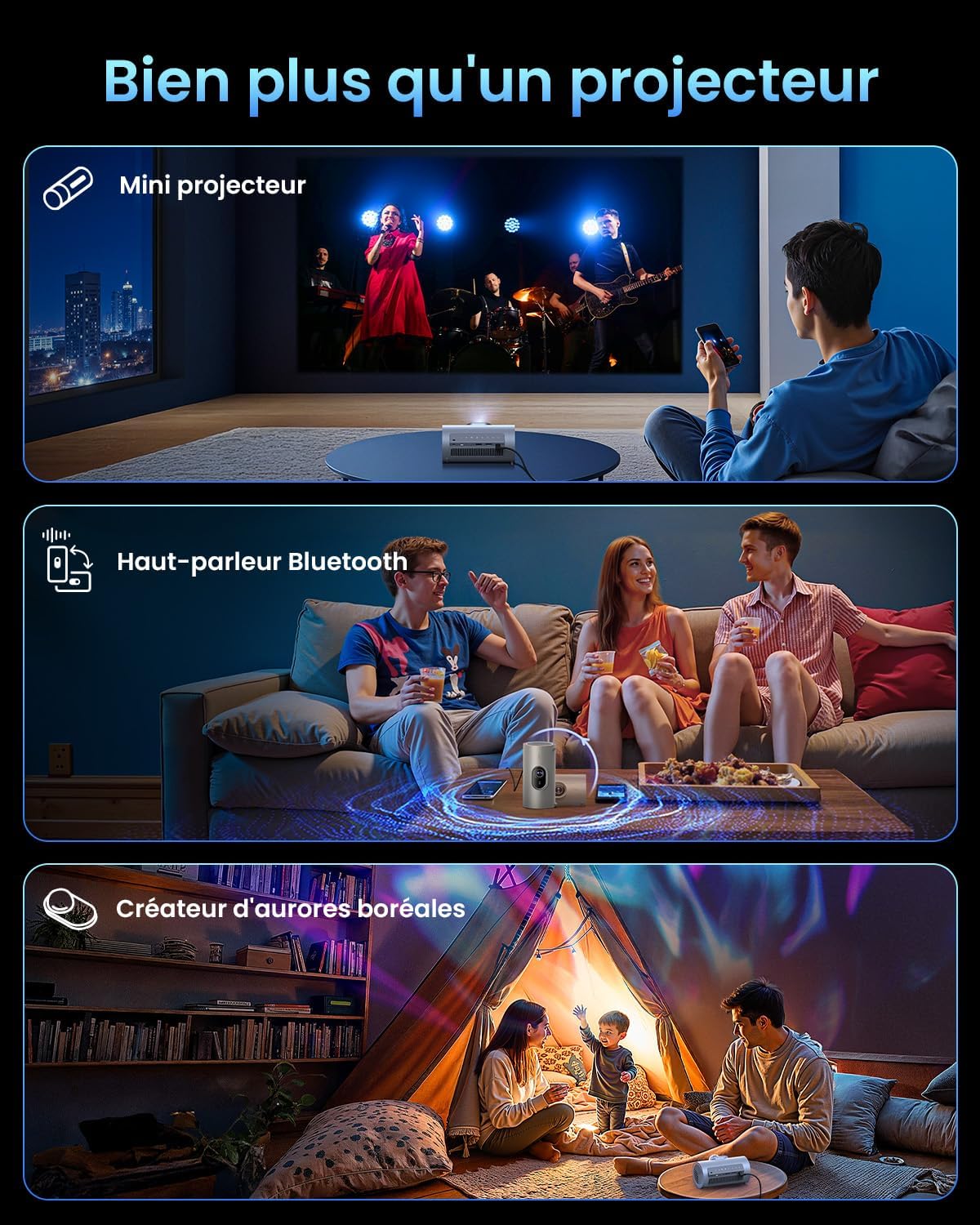
Figure 4.4: The PicoPlay in Bluetooth speaker mode, providing immersive audio.
4.5 Ambient Light Mode
Use the optical filter to create dynamic ambient lighting:
- Attach the optical filter to the projector lens.
- Select Ambient Light mode from the settings.
- Customize colors and effects to create your desired atmosphere.

Figure 4.5: The PicoPlay projecting customizable ambient lighting.
5. Održavanje
5.1 Čišćenje
- Objektiv: Koristite meku krpu bez dlačica, posebno dizajniranu za optička sočiva. Ne koristite abrazivna sredstva za čišćenje.
- Eksterijer: Obrišite vanjski dio projektora mekom, suhom krpom. Za tvrdokorne mrlje koristite blago suhu krpu.amp krpom i odmah osušite.
- Ventilacijske rešetke: Use a soft brush or compressed air to gently remove dust from the ventilation grilles.
5.2 Skladištenje
When not in use, store the projector in a cool, dry place, away from direct sunlight and extreme temperatures. Use the provided carrying pouch for protection during transport or storage.
6. Otkrivanje problema
Uobičajeni problemi i rješenja:
| Issue | Mogući uzrok | Rješenje |
|---|---|---|
| Nema snage | Kabl za napajanje nije priključen; problem sa utičnicom. | Provjerite je li kabel za napajanje sigurno spojen. Pokušajte s drugom utičnicom. |
| Nema slike | Neispravan ulazni izvor; kabel labav; poklopac objektiva postavljen. | Select correct input source. Check HDMI/USB connections. Remove lens cap. |
| Zamućena slika | Out of focus; projector too close/far. | Allow auto-focus to adjust. Adjust projector distance from screen. |
| Iskrivljena slika | Projector not aligned with screen. | Allow auto-keystone correction to adjust. Manually adjust if needed. |
| Nema zvuka | Volume too low; external audio device connected. | Increase volume. Disconnect external audio or select internal speakers. |
7. Specifikacije
| Feature | Detalj |
|---|---|
| Brand | JMGO |
| Model | PicoPlay |
| Display Technology | DLP, LED |
| Native Resolution | 1920 x 1080 (Full HD) |
| Osvetljenost | 400 ISO lumena |
| Audio | 8W Dolby Audio Speakers |
| Povezivanje | Wi-Fi, HDMI (ARC), USB-A, USB-C |
| Posebne karakteristike | HDR10, 3D, APP Control, Google TV, Netflix, 88° Rotatable Gimbal, Auto-focus |
| Dimenzije (D x Š x V) | 8.5 x 8.5 x 16.6 cm |
| Form Factor | Prijenosni |
| Preporučena upotreba | Home cinema, Gaming, Business, Education |
8. Garancija i podrška
8.1 Garancija proizvođača
The JMGO PicoPlay projector comes with a 2-year manufacturer warranty. Please retain your proof of purchase for warranty claims.
8.2 Korisnička podrška
For technical assistance, troubleshooting, or warranty inquiries, please contact JMGO customer service. You can find contact information on the official JMGO webweb-mjestu ili putem vašeg prodavača.

Za više informacija posjetite JMGO Brand Store.