
Uvod
This manual provides essential information for setting up, operating, maintaining, and troubleshooting your Acer AL15-33P laptop. Please read this guide thoroughly to ensure proper use and to maximize the lifespan of your device.
Setup
1. Raspakivanje i prvi pregled
Carefully remove the laptop and all accessories from the packaging. Check for any visible damage. The package should include the laptop, power adapter, and this user manual.

Front view of the Acer AL15-33P laptop with the screen displaying the Windows desktop.
2. Povezivanje napajanja
- Connect the AC adapter cable to the power adapter.
- Plug the DC output connector of the power adapter into the power input port on the side of your laptop.
- Uključite mrežni kabel u električnu utičnicu.
Baterija će se automatski početi puniti. Preporučuje se da je potpuno napunite prije prve upotrebe.
3. Početno pokretanje i podešavanje Windowsa
- Otvorite poklopac laptopa.
- Press the power button, typically located on the keyboard deck or side, to turn on the laptop.
- Follow the on-screen instructions to complete the Windows 11 setup process. This includes selecting your region, language, accepting terms, and setting up a user account.
Upravljanje laptopom
1. Korištenje tastature i touchpada
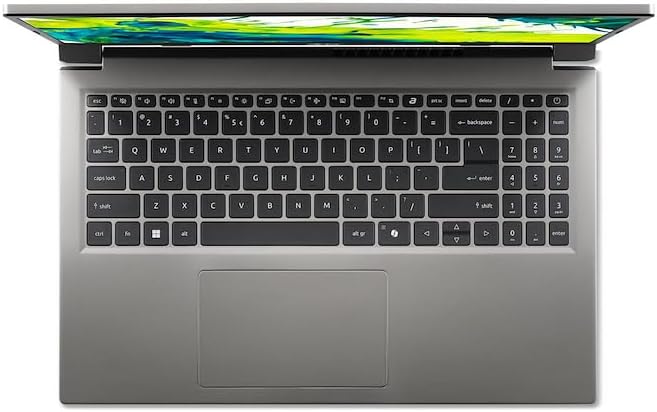
Odozgo view tastature i touchpada laptopa.
- tastatura: The laptop features a full-size keyboard. Use the function (Fn) key in combination with F-keys for special functions like adjusting brightness, volume, or enabling/disabling Wi-Fi.
- Touchpad: The integrated touchpad supports multi-touch gestures. Tap to click, use two fingers to scroll, and pinch to zoom.
2. Povezivanje perifernih uređaja
Your Acer AL15-33P laptop is equipped with various ports for connecting external devices.

Right side of the laptop showing ports including USB and audio jack.

Left side of the laptop showing ports including power, USB-C, HDMI, and USB-A.
- USB portovi: Povežite USB uređaje kao što su eksterni tvrdi diskovi, miševi ili tastature.
- HDMI priključak: Connect an external monitor or TV for a larger display.
- Audio Jack: Povežite slušalice ili spoljne zvučnike.
- USB-C priključak: For data transfer and potentially display output or charging, depending on the specific model configuration.
3. Bežično povezivanje
- Wi-Fi: Da biste se povezali na bežičnu mrežu, kliknite na ikonu Wi-Fi u programskoj traci, odaberite svoju mrežu i unesite lozinku ako je potrebno.
- Bluetooth: To pair Bluetooth devices, go to Windows Settings > Bluetooth & devices, and turn on Bluetooth.
4. Upravljanje napajanjem
- Režim spavanja: Zatvorite poklopac ili odaberite 'Sleep' iz menija Start da biste laptop prebacili u stanje niske potrošnje energije.
- Isključivanje: To turn off the laptop completely, go to the Start menu, click the Power icon, and select 'Shut down'.
- Ponovno pokretanje: To restart the laptop, go to the Start menu, click the Power icon, and select 'Restart'.
Održavanje
1. Čišćenje laptopa
- Koristite meku krpu koja ne ostavlja dlačiceampvodom ili sredstvom za čišćenje ekrana da biste očistili ekran.
- Za tastaturu i kućište koristite meku krpu. Izbjegavajte jake hemikalije ili abrazivne materijale.
- Periodically use compressed air to clear dust from the cooling vents to prevent overheating.
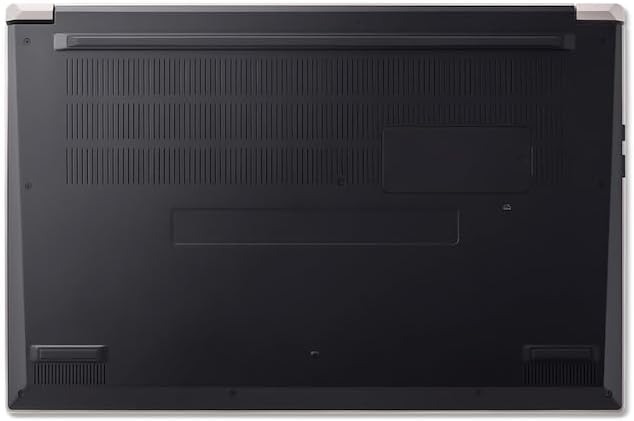
Dno view of the laptop, highlighting the ventilation grilles.
2. Održavanje baterije
- Izbjegavajte često potpuno pražnjenje baterije.
- Ako laptop skladištite duži period, provjerite da li je baterija napunjena na otprilike 50-70%.
- Operate the laptop in a moderate temperature environment.
3. Ažuriranja softvera
Regularly update your operating system and drivers to ensure optimal performance and security. Windows Update can be accessed via Settings > Windows Update.
4. Upravljanje skladištem
Periodično review i izbrišite nepotrebne files to free up storage space. Utilize cloud storage or external drives for backups of important data.
Rješavanje problema
This section addresses common issues you might encounter with your Acer AL15-33P laptop.
| Problem | Moguće rješenje |
|---|---|
| Laptop se ne uključuje. | Ensure the power adapter is securely connected and the outlet is working. Try a different outlet. If the battery is completely drained, it may take a few minutes to show signs of life after plugging in. |
| Ekran je prazan ili crn. | Check if the laptop is powered on. Try pressing Fn + F6 (or the corresponding display toggle key) to cycle through display modes. Connect an external monitor to check if the issue is with the laptop's screen. |
| Problemi s Wi-Fi vezom. | Ensure Wi-Fi is enabled (Fn + F3 or check Windows settings). Restart your router and modem. Check if other devices can connect to the Wi-Fi network. Update Wi-Fi drivers. |
| Laptop radi sporo. | Close unnecessary applications. Check Task Manager for processes consuming high CPU or memory. Run a disk cleanup. Ensure Windows and drivers are up to date. |
Specifikacije
The following are key specifications for the Acer AL15-33P model. Note that specific configurations may vary.
- Model: Acer AL15-33P
- procesor: Intel Core i3-N355
- RAM: 8GB
- Skladištenje: 512GB SSD
- Prikaz: 15.6 inča
- Operativni sistem: Windows 11
- Brand: Acer
Garancija i podrška
Your Acer AL15-33P laptop comes with a standard manufacturer's warranty. Please refer to the warranty card included with your product for specific terms and conditions, including the warranty period and coverage details.
Za tehničku podršku, preuzimanje upravljačkih programa ili upite o uslugama, posjetite službenu Acer podršku website or contact Acer customer service directly. Have your laptop's serial number ready when contacting support.
Acer podrška Webstranica: www.acer.com/support