
Ninkear MBOX 11
Ninkear MBOX 11 Mini PC User Manual
Model: MBOX 11 | Brand: Ninkear
1. Proizvod je gotovview
The Ninkear MBOX 11 Mini PC is a compact and powerful computing solution designed for various applications, from office work and home entertainment to light gaming and educational use. Featuring an Intel N150 processor, 16GB DDR4 RAM, and a 512GB M.2 SSD, it offers efficient performance in a small form factor. Its dual 4K display support and multiple connectivity options make it a versatile choice for modern computing needs.
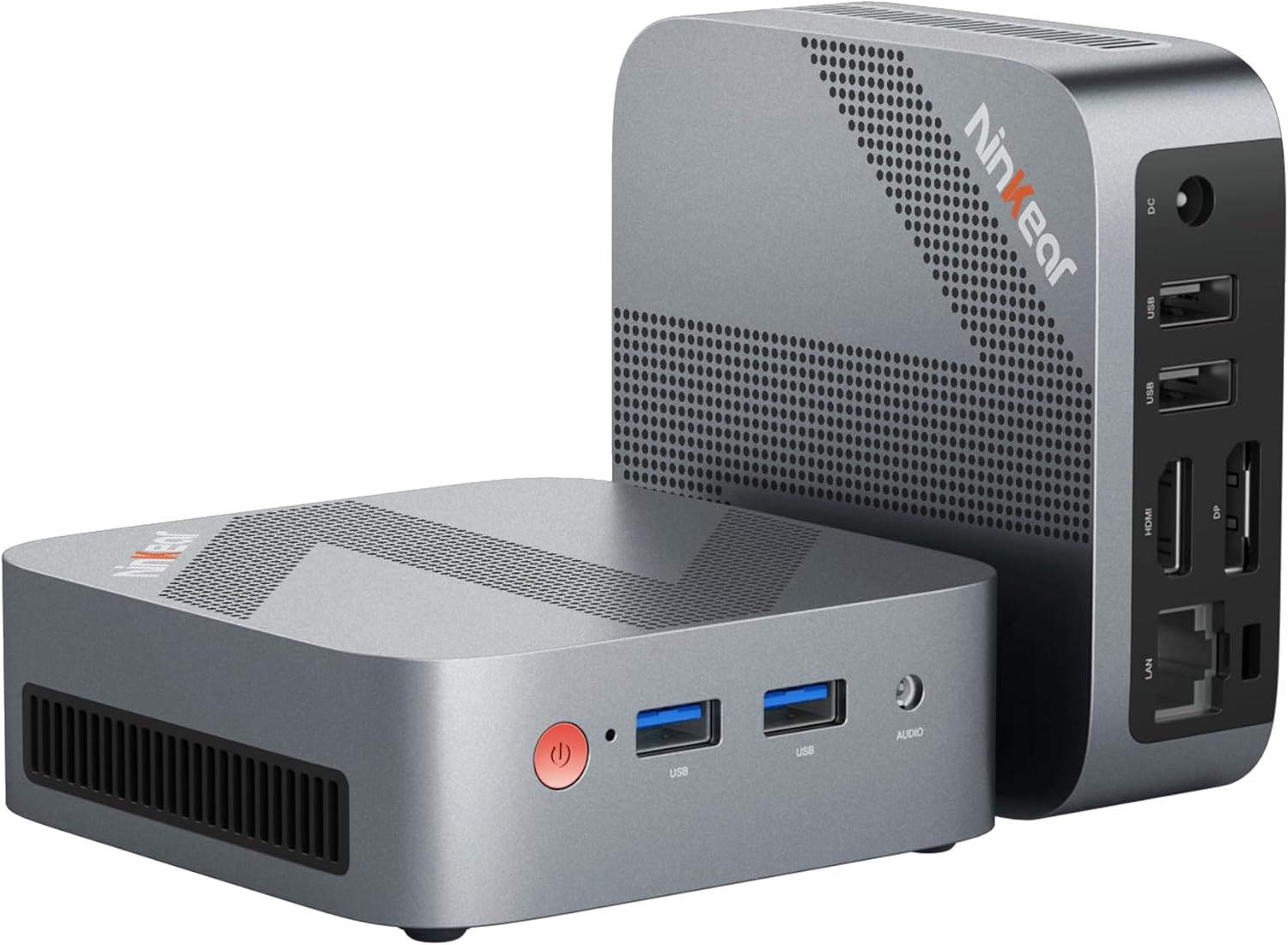
Figure 1: The Ninkear MBOX 11 Mini PC, showcasing its compact design and available ports on the front and rear. The device is small enough to fit in the palm of a hand, emphasizing its portability.
2. Šta je uključeno
Upon unboxing your Ninkear MBOX 11 Mini PC, please verify that all the following components are present:
- Ninkear MBOX 11 Mini PC
- Uputstvo za upotrebu
- Adapter za napajanje i kabl
- HDMI kabl
- Fixed Bracket (for VESA mounting)

Figure 2: All items included in the Ninkear MBOX 11 Mini PC package. This visual guide helps users confirm they have received all necessary accessories for setup.
3. Vodič za postavljanje
Follow these steps to set up your Ninkear MBOX 11 Mini PC for the first time:
- Povežite se na napajanje: Plug the power adapter into the DC-in port on the back of the Mini PC, then connect it to a power outlet.
- Poveži se sa ekranom: Use the provided HDMI cable to connect the Mini PC to your monitor or TV. The Mini PC also supports DisplayPort (DP) for dual display setups.
- Povežite periferne uređaje: Plug in your USB keyboard and mouse into the available USB 3.0 ports on the front or USB 2.0 ports on the back.
- Mrežna veza (opcionalno): For a wired internet connection, connect an Ethernet cable from your router to the RJ45 LAN port on the back of the Mini PC. Alternatively, you can use the built-in Wi-Fi 5 for wireless connectivity.
- Uključeno: Press the power button located on the front of the Mini PC. The device will boot up, and you will see the Ninkear logo followed by the Windows 11 setup screen.
- Početna instalacija Windowsa: Follow the on-screen prompts to complete the Windows 11 setup, including language selection, network configuration, and user account creation.

Slika 3: Detaljno view of the Mini PC's multi-interface design, highlighting the front USB 3.0 ports, audio jack, and rear LAN, HDMI, DP, USB 2.0, and DC-in ports. This image assists users in correctly connecting their peripherals and displays.
4. Uputstvo za upotrebu
The Ninkear MBOX 11 Mini PC comes pre-installed with Windows 11, offering a familiar and intuitive user experience. Its powerful specifications ensure smooth operation for a variety of tasks.
4.1. Performanse i multitasking
Equipped with an Intel N150 processor and 16GB DDR4 RAM, the Mini PC handles multiple applications simultaneously with ease. The 512GB M.2 SSD ensures fast boot times and quick loading of files and programs. This configuration is ideal for:
- Produktivnost u kancelariji: Seamlessly run word processors, spreadsheets, and presentation software.
- Web Pregledavanje: Enjoy smooth browsing even with numerous tabs open.
- Kućna zabava: Stream 4K content from various platforms without lag.
- Lagane igre: Capable of running less demanding games.

Figure 4: The Ninkear MBOX 11 Mini PC in various usage scenarios, demonstrating its versatility for online classes, video games, design, online meetings, home theater, stock trading, and general light work.
4.2. Dual Display Support
The Mini PC supports 4K@60Hz dual-screen display via its HDMI 2.0 and DisplayPort (DP) outputs. This allows for an expanded workspace, enhancing productivity for tasks requiring multiple screens.

Figure 5: A user utilizing the Mini PC's dual 4K display capability, showcasing its utility for multitasking and professional applications like video conferencing and graphic design.
5. Održavanje
To ensure the longevity and optimal performance of your Ninkear MBOX 11 Mini PC, consider the following maintenance tips:
- Neka bude čisto: Regularly clean the exterior of the Mini PC with a soft, dry cloth. Ensure ventilation holes are free from dust and obstructions to maintain proper airflow.
- Ažuriranja softvera: Keep your Windows 11 operating system and drivers updated to ensure security, stability, and performance improvements.
- Optimalni plasman: Place the Mini PC in a well-ventilated area, away from direct sunlight or heat sources, to prevent overheating. The device features an efficient cooling system designed for low noise and strong heat dissipation.
- Sigurnosna kopija podataka: Redovno pravite sigurnosne kopije važnih podataka na eksterni disk ili u oblaku kako biste spriječili gubitak podataka.

Slika 6: Interni view highlighting the advanced cooling system of the Mini PC, which includes a copper tube, aluminum heat sink, and a high-speed fan to ensure efficient and quiet operation.
6. Otkrivanje problema
If you encounter issues with your Ninkear MBOX 11 Mini PC, refer to the following common troubleshooting steps:
- Bez prikaza:
- Ensure the HDMI/DP cable is securely connected to both the Mini PC and the monitor.
- Provjerite je li monitor uključen i postavljen na ispravan ulazni izvor.
- Try a different HDMI/DP cable or monitor if available.
- Nema napajanja:
- Check if the power adapter is firmly connected to the Mini PC and the power outlet.
- Pokušajte s drugom utičnicom.
- Spore performanse:
- Zatvorite nepotrebne aplikacije koje rade u pozadini.
- Provjerite da li su Windows i upravljački programi ažurirani.
- Provjerite ima li dovoljno slobodnog prostora na SSD-u.
- Run a virus scan to rule out malware.
- Periferni uređaj nije otkriven:
- Pokušajte spojiti periferni uređaj na drugi USB priključak.
- Ponovo pokrenite Mini PC.
- Provjerite jesu li upravljački programi perifernog uređaja instalirani i ažurirani.
Za uporne probleme koji nisu ovdje obuhvaćeni, pogledajte odjeljak Garancija i podrška.
7. Specifikacije
Detailed technical specifications for the Ninkear MBOX 11 Mini PC:
| Feature | Specifikacija |
|---|---|
| Brand | Ninkear |
| Naziv modela | MBOX 11 |
| Operativni sistem | W11 OS |
| Procesor | Intel CPU N150 (up to 3.6GHz, 4C/4T) |
| RAM | 16 GB DDR4 |
| Skladištenje | 512 GB M.2 SSD (Supports M.2 NVMe PCIe3.0 SSDs or M.2 SATA SSDs up to 2 TB) |
| Grafički koprocesor | Intel UHD grafika |
| Maksimalna rezolucija ekrana | 3840x2160 piksela (4K) |
| Povezivanje | HDMI 2.0, DisplayPort (DP), USB 3.0, USB 2.0, RJ45 (Gigabit Ethernet), WiFi 5, Bluetooth 5 |
| Težina artikla | 1.34 funti (približno 608 g) |
| Dimenzije | 5.63 x 5.31 x 4.13 inča (približno 14.3 x 13.5 x 10.5 cm) |
8. Garancija i podrška
Ninkear is committed to providing quality products and excellent customer service. Your MBOX 11 Mini PC comes with a manufacturer's warranty.
8.1. Informacije o garanciji
If you purchase the product and experience a failure due to product defects within 1 year of purchase, Ninkear will do its best to help you solve the problem. Please retain your proof of purchase for warranty claims.
8.2. Korisnička podrška
For further assistance, technical support, or warranty inquiries, please visit the official Ninkear Store on Amazon or contact their customer service directly. You can find more information and contact details at the Ninkear Store.
Ask a question about this manual
Ask about setup, troubleshooting, compatibility, parts, safety, or missing instructions. Manuals+ will review the question and use this page’s manual context to help answer it.