1. Uvod
This manual provides essential information for setting up, operating, maintaining, and troubleshooting your Acer Nitro V 15.6" Gaming Laptop. Please read this manual thoroughly to ensure proper use and to maximize the performance and longevity of your device.
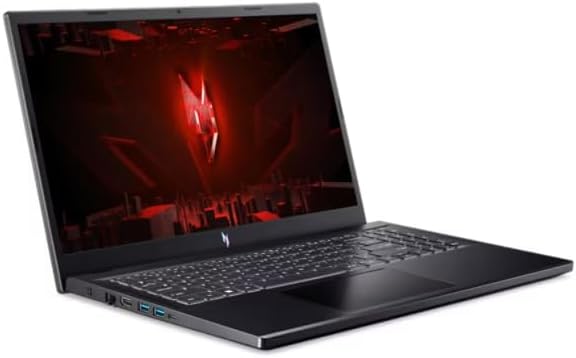
Figure 1.1: Acer Nitro V 15.6" Gaming Laptop
The Acer Nitro V 15.6" Gaming Laptop is designed for high-performance computing, featuring an Intel Core i5-13420H processor, NVIDIA GeForce RTX 4050 graphics, a 15.6" Full HD 144Hz display, 16GB DDR5 memory, and a 512GB SSD. It comes pre-installed with Windows 11 Home.
2. Sigurnosne informacije
Observe the following safety guidelines to prevent damage to your laptop and ensure personal safety:
- Use only the power adapter supplied with your laptop. Using unauthorized adapters may cause damage or fire.
- Ne izlažite laptop ekstremnim temperaturama, direktnoj sunčevoj svjetlosti ili visokoj vlažnosti.
- Avoid placing heavy objects on the laptop or power adapter.
- Keep liquids away from the laptop. In case of accidental spills, disconnect power immediately and contact support.
- Do not attempt to disassemble or repair the laptop yourself. Refer all servicing to qualified personnel.
- Ensure proper ventilation. Do not block the ventilation openings on the laptop.
3. Sadržaj paketa
Provjerite da li su sve stavke prisutne u paketu:
- Acer Nitro V 15.6" Gaming Laptop
- AC adapter i kabel za napajanje
- Vodič za brzi početak (ako je uključen)
4. Proizvod je gotovview
4.1. Komponente laptopa
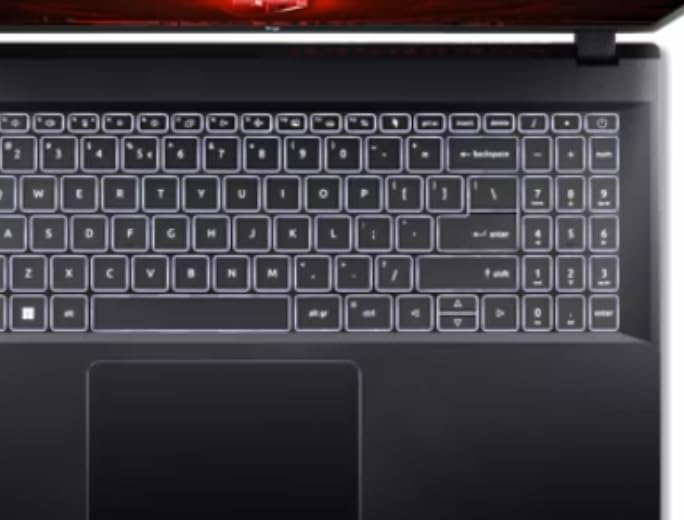
Figure 4.1: Keyboard and Touchpad
The laptop features a full-size keyboard, a precision touchpad, and a 15.6-inch Full HD display with a 144Hz refresh rate for smooth visuals.
4.2. Lijevi bočni otvori

Slika 4.2: Portovi s lijeve strane
The left side of the laptop includes the following ports:
- Ulazna snaga: Ovdje povežite AC adapter.
- Ethernet (RJ-45): Za žičanu mrežnu vezu.
- HDMI: Connect to external displays or TVs.
- USB 3.0 portovi (x2): Za povezivanje USB uređaja.
- USB-C priključak: Za povezivanje kompatibilnih USB-C uređaja.
4.3. Desni bočni priključci

Slika 4.3: Desni bočni portovi
The right side of the laptop includes the following ports:
- USB 3.0 port: Za povezivanje USB uređaja.
- Kombinovani priključak za slušalice/mikrofon: Za audio ulaz/izlaz.
- Utor za Kensington Lock: Za osiguranje vašeg laptopa kompatibilnom bravom.
4.4. Exterior Design

Figure 4.4: Laptop Exterior (Top Lid)
The laptop features a sleek black design with distinctive accents on the top lid, reflecting its gaming-oriented aesthetic.
5. Podešavanje
5.1. Spajanje adaptera za napajanje
- Plug the AC adapter into the power input port on the left side of the laptop.
- Priključite kabl za napajanje u mrežni adapter.
- Uključite drugi kraj kabla za napajanje u uzemljenu električnu utičnicu.
- Prije prve upotrebe, ostavite bateriju da se puni najmanje 30 minuta ili dok indikator baterije ne pokaže da je potpuno napunjena.
5.2. Početno uključivanje i podešavanje Windowsa
- Otvorite poklopac laptopa.
- Pritisnite dugme za napajanje, koje se obično nalazi iznad tastature ili sa strane.
- Follow the on-screen instructions to complete the Windows 11 Home setup process. This includes selecting your region, language, connecting to a network, and creating a user account.
6. Uputstvo za upotrebu
6.1. Uključivanje/isključivanje i režim spavanja
- Uključeno: Pritisnite dugme za napajanje.
- Isključi: Kliknite na dugme Start u sistemu Windows, zatim na Napajanje > Isključi.
- Režim spavanja: Zatvorite poklopac laptopa ili kliknite na dugme Start u sistemu Windows, a zatim na Napajanje > Spavanje.
6.2. Korištenje tastature i touchpada
- The keyboard features standard QWERTY layout with a numeric keypad.
- Dodirna tabla podržava višestruke dodirne geste za navigaciju. Za prilagođavanje pogledajte postavke Windowsa.
- Function keys (Fn + F1-F12) provide quick access to system functions like volume, brightness, and wireless toggles.
6.3. Povezivanje na mrežu
- Wi-Fi: Click the network icon in the taskbar, select your desired Wi-Fi network, and enter the password if required.
- Ethernet: Connect an Ethernet cable from your router or modem to the Ethernet port on the left side of the laptop.
6.4. Priključak na eksterni ekran
Use the HDMI port on the left side of the laptop to connect an external monitor or TV. You can configure display settings (duplicate, extend, second screen only) through Windows Display Settings.
7. Održavanje
7.1. Čišćenje laptopa
- ekran: Lagano koristite meku krpu koja ne ostavlja dlačice dampOperite vodom ili sredstvom za čišćenje ekrana. Ne prskajte tečnost direktno na ekran.
- Tastatura i kućište: Koristite meku krpu. Za tvrdokornu prljavštinu, laganoamp Može se koristiti krpa s blagim rastvorom sapuna, pazeći da tekućina ne uđe u otvore.
- Otvori za ventilaciju: Use compressed air to clear dust from the vents to maintain optimal cooling.
7.2. Održavanje baterije
- Izbjegavajte često potpuno pražnjenje baterije.
- Laptop čuvajte na hladnom i suhom mjestu ako ga ne koristite duži period.
- For optimal battery health, avoid continuous charging at 100% for very long durations.
7.3. Ažuriranja softvera
Regularly update your Windows operating system and device drivers to ensure optimal performance, security, and compatibility. Check for updates via Windows Update and Acer's official support website.
8. Otkrivanje problema
8.1. Uobičajeni problemi i rješenja
- Laptop se ne uključuje: Provjerite je li AC adapter sigurno priključen i je li utičnica funkcionalna. Pokušajte s drugom utičnicom.
- Nema prikaza na ekranu: Check if the laptop is powered on. If an external monitor is connected, ensure it is powered on and correctly configured in Windows Display Settings. Try pressing Fn + F5 (or similar function key) to cycle display outputs.
- Wi-Fi se ne povezuje: Ensure Wi-Fi is enabled (check Fn key or Windows settings). Restart your router and modem.
- Spore performanse: Close unnecessary applications. Check for background updates. Ensure sufficient free storage space.
8.2. Vraćanje na tvorničke postavke
If you encounter persistent software issues, you may need to restore your laptop to its factory settings. This process will erase all personal data. Back up important files pre nego što nastavite.
- Go to Windows Settings > System > Recovery.
- Under "Recovery options," select "Reset this PC."
- Choose whether to keep your personal files or remove everything, then follow the on-screen prompts.
9. Specifikacije
| Feature | Specifikacija |
|---|---|
| Naziv modela | Nitro V |
| Procesor | Intel Core i5-13420H (Octa-Core) 2.10GHz |
| Grafika | NVIDIA GeForce RTX 4050 6GB GDDR6 |
| Display | 15.6" FHD (1920 x 1080) 144Hz IPS ConfyView (mat) |
| RAM | 16GB DDR5 SDRAM |
| Skladištenje | 512GB PCIe NVMe M.2 SSD |
| Operativni sistem | Windows 11 Home |
| Bežično povezivanje | IEEE 802.11 a/b/g/n/ac/ax (Wi-Fi 6/6E), Gigabit Ethernet |
| Luke | 4x USB 3.0, 1x USB-C, HDMI, Ethernet, Headphone/Mic Combo Jack, Power Input |
| Trajanje baterije | Do 6 sati |
| Dimenzije (DxŠxV) | 14.3 x 1.06 x 9.4 inča |
| Boja | Crna |
10. Garancija i podrška
Your Acer Nitro V laptop comes with a standard manufacturer's warranty. Please refer to the warranty card included with your product or visit the official Acer support webstranicu za detaljne uslove i odredbe garancije.
For technical assistance, driver downloads, or further support, please visit the Acer support website or contact Acer customer service. Have your laptop's serial number ready when contacting support.
Acer podrška Webstranica: www.acer.com/support


