
1. Uvod
This manual provides comprehensive instructions for the setup, operation, maintenance, and troubleshooting of your Radxa E20C Mini PC. Please read this manual thoroughly before using the device to ensure proper functionality and to maximize its lifespan.
The Radxa E20C is a compact and powerful single-board computer designed for various applications, from home computing projects to industrial use. It features a robust RK3528A quad-core CPU, dual Gigabit Ethernet ports, and 4K video decoding capabilities, all housed within a durable CNC-machined aluminum alloy case.
2. Proizvod je gotovview
2.1 Ključne karakteristike
- procesor: RK3528A Quad-Core CPU for efficient performance.
- umrežavanje: Dual Gigabit Ethernet ports for flexible connectivity.
- multimedija: Supports 4K video decoding for high-resolution output.
- Izgradnja: CNC-machined aluminum alloy case with integrated heat dissipation.
- Kompatibilnost: Supports multiple operating systems.
- Memorija: 2GB LPDDR3 RAM memorije.
- Skladištenje: 16GB onboard storage.
2.2 Sadržaj paketa
- Radxa E20C Board Body
- (Additional accessories may be sold separately)
2.3 Izgled uređaja
Familiarize yourself with the various ports and indicators on your Radxa E20C Mini PC.
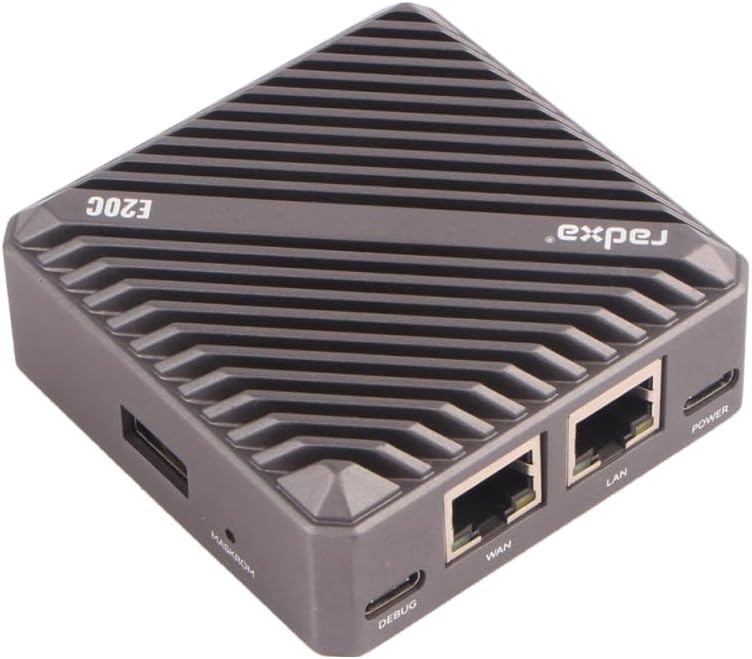
Slika 1: Odozgo view of the Radxa E20C Mini PC, showcasing its compact design and ribbed aluminum casing for heat dissipation. The "radxa" logo and "E20C" model name are visible on the top surface.
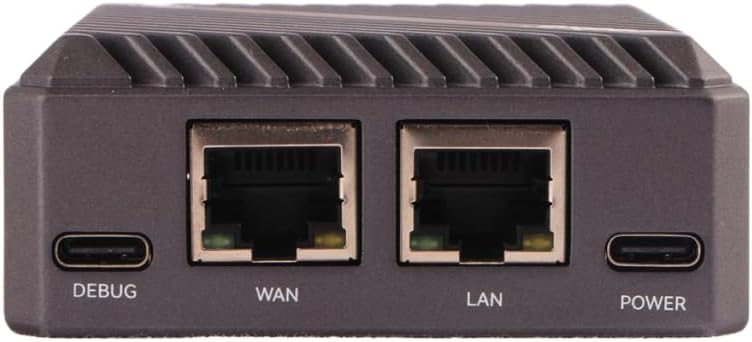
Slika 2: Rear panel of the Radxa E20C, featuring the DEBUG USB-C port, WAN Gigabit Ethernet port, LAN Gigabit Ethernet port, and POWER USB-C port. These ports provide essential connectivity for debugging, network access, and power supply.

Slika 3: Front panel of the Radxa E20C, showing three indicator LEDs labeled SYS, WAN, and LAN, along with a microSD card slot for expandable storage or operating system installation.
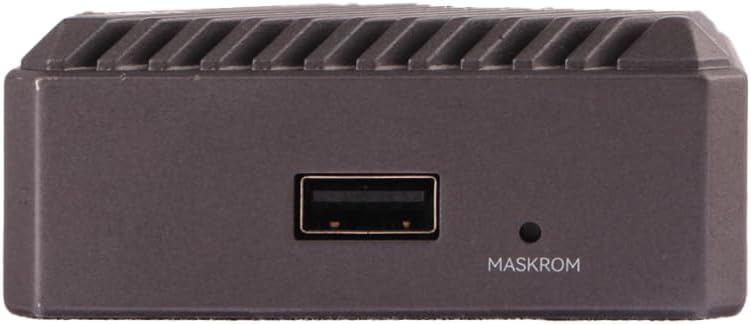
Slika 4: Side view of the Radxa E20C, featuring a standard USB-A port and a small button labeled MASKROM, used for system recovery or flashing firmware.
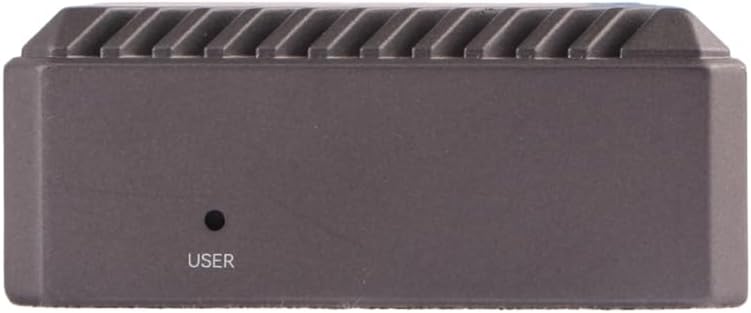
Slika 5: Suprotna strana view of the Radxa E20C, showing a single button labeled USER, which can be programmed for various functions depending on the operating system and application.
3. Vodič za postavljanje
3.1 Početno napajanje
- Priključite napajanje: Connect a compatible 5V USB-C power adapter to the "POWER" port on the rear of the device (refer to Figure 2).
- Mrežna veza: For wired network access, connect an Ethernet cable from your router or network switch to either the "WAN" or "LAN" Gigabit Ethernet port (refer to Figure 2).
- periferna veza: If using a USB keyboard, mouse, or other peripherals, connect them to the available USB-A port (refer to Figure 4).
- Operativni sistem: Ensure a compatible operating system is installed on the internal storage or a microSD card inserted into the front slot (refer to Figure 3). For first-time setup, you may need to flash an OS image. Refer to the official Radxa documentation for detailed OS installation instructions.
- Uključeno: The device should power on automatically once connected to power. Observe the SYS, WAN, and LAN indicator LEDs on the front panel (refer to Figure 3) for status.
For detailed operating system installation and configuration, please visit the official Radxa documentation webstranica: wiki.radxa.com
3.2 Operating System Installation (Advanced)
The Radxa E20C supports various operating systems, including Debian. To install or re-install an operating system:
- Download the desired OS image from the official Radxa website.
- Use a suitable imaging tool (e.g., Etcher) to write the image to a microSD card or directly to the internal eMMC storage.
- Insert the prepared microSD card into the slot on the front panel.
- Follow the specific instructions provided with the OS image for first-boot configuration.
4. Uputstvo za upotrebu
4.1 Osnovni rad
- Uključivanje/isključivanje: The device powers on when connected to a power source. To safely shut down, use the operating system's shutdown function. Disconnecting power without proper shutdown may lead to data corruption.
- Korištenje mreže: The dual Gigabit Ethernet ports allow for high-speed network connections. Configure network settings within your chosen operating system.
- USB periferijski uređaji: Connect USB devices such as storage drives, keyboards, or mice to the USB-A port.
- Indikatori statusa sistema:
- SYS LED: Označava aktivnost sistema.
- WAN LED: Indicates activity on the WAN Ethernet port.
- LAN LED: Indicates activity on the LAN Ethernet port.
4.2 Napredne funkcije
- MASKROM Button: This button (refer to Figure 4) is typically used for entering Maskrom mode, which is essential for low-level firmware flashing or recovery operations. Consult Radxa's developer documentation before using this feature.
- USER Button: The USER button (refer to Figure 5) is programmable and its function depends on the operating system and user configuration. It can be used for custom scripts or actions.
- Otklanjanje grešaka: The DEBUG USB-C port (refer to Figure 2) provides a serial console interface for debugging purposes. A USB-to-serial adapter may be required.
5. Održavanje
- čišćenje: Za čišćenje vanjštine uređaja koristite meku, suhu krpu. Izbjegavajte tekuća sredstva za čišćenje ili abrazivne materijale.
- ventilacija: Ensure the device is placed in a well-ventilated area. Do not block the heat dissipation fins on the aluminum case.
- Ažuriranja firmvera: Regularly check the official Radxa website for firmware and operating system updates to ensure optimal performance and security.
- Sigurnosna kopija podataka: Periodically back up important data stored on the device to prevent data loss.
- Uslovi okoline: Koristite uređaj unutar preporučenih raspona temperature i vlažnosti kako biste spriječili oštećenja.
6. Otkrivanje problema
| Problem | Mogući uzrok | Rješenje |
|---|---|---|
| Uređaj se ne uključuje. | No power supply, faulty power adapter, or incorrect power port. | Ensure the USB-C power adapter is connected to the "POWER" port and is functioning correctly. Try a different power adapter if available. |
| Nema mrežne veze. | Ethernet cable not connected, faulty cable, or incorrect network configuration. | Verify Ethernet cables are securely connected to the WAN/LAN ports. Check network settings within the operating system. Test with a different Ethernet cable. |
| Operativni sistem se ne uspijeva pokrenuti. | Corrupted OS image, improperly flashed microSD card, or incorrect boot order. | Re-flash the OS image to the microSD card or internal storage. Ensure the image is compatible with the Radxa E20C. Consult Radxa's documentation for boot troubleshooting. |
| Uređaj prestaje reagirati. | Software issue, overheating, or power instability. | Perform a hard reboot by disconnecting and reconnecting power (as a last resort). Ensure adequate ventilation. Check for OS updates. |
If problems persist, please refer to the official Radxa support resources or community forums for further assistance.
7. Specifikacije
| Feature | Detalj |
|---|---|
| Procesor | Rockchip RK3528A Quad-Core ARM Cortex-A53 (2 GHz) |
| RAM | 2GB LPDDR3 |
| Skladištenje | 16GB eMMC (onboard), MicroSD card slot |
| Umrežavanje | 2x Gigabit Ethernet ports (WAN, LAN) |
| Video izlaz | 4K video decoding support (specific output port not detailed in input, assuming internal processing) |
| USB portovi | 1x USB-A, 1x USB-C (DEBUG), 1x USB-C (POWER) |
| Podrška za operativni sistem | Debian, multiple other OS options |
| Dimenzije (DxŠxV) | 3.5 x 3.5 x 0.5 inča (8.9 x 8.9 x 1.3 cm) |
| Težina | 12 unce (340 grama) |
| Materijal kućišta | CNC aluminijska legura |
8. Garancija i podrška
8.1 Informacije o garanciji
Specific warranty terms for the Radxa E20C Mini PC are provided by the manufacturer, Radxa. Please refer to the warranty card included with your product or visit the official Radxa website for detailed warranty policies and registration information.
Protection plans may be available for purchase separately. Check with your retailer for options such as 2-Year or 3-Year Protection Plans.
8.2 Tehnička podrška
For technical assistance, software downloads, and community support, please visit the official Radxa resources:
- Službeno Webstranica: www.radxa.com
- Wiki/Documentation: wiki.radxa.com
- Forum zajednice: Provjerite službenu osobu website for links to community forums where you can find peer support and additional resources.
When contacting support, please have your product model (Radxa E20C) and any relevant error messages or symptoms ready.