
1. Uvod
The Wanbo T2 Ultra is a compact and versatile projector designed for home entertainment. It features Android TV 11.0, offering access to a wide range of streaming applications. With 500 ANSI lumens brightness and native 1080P Full HD resolution, it delivers clear and vibrant images. Advanced features like auto-focus, automatic keystone correction, and integrated HiFi speakers enhance the user experience. This manual provides detailed instructions for setup, operation, and maintenance of your Wanbo T2 Ultra projector.
2. Sadržaj paketa
Molimo označite kućicu za sljedeće stavke:
- Wanbo T2 Ultra Projector Unit
- Daljinski upravljač
- Power Cable
- HDMI kabl
- Korisnički priručnik (ovaj dokument)
- Cleaning Tools (if included)

Image: Projector and accessories in packaging. Actual contents may vary slightly.
3. Proizvod je gotovview
3.1 Projector Unit

Slika: Front view of the Wanbo T2 Ultra Projector.
3.2 Portovi i veze

Slika: Stražnja strana view of the Wanbo T2 Ultra Projector showing various input/output ports.
- HDMI (ARC) priključak: Connect to external devices such as laptops, gaming consoles, or TV boxes. Supports Audio Return Channel.
- USB port: Spojite USB uređaje za pohranu podataka za reprodukciju medija.
- Audio Port (3.5mm): Spojite eksterne slušalice ili zvučnike.
- Ulazna snaga: Connect the power cable to supply power to the projector.
4. Podešavanje
4.1 Priključak za napajanje
- Connect the power cable to the Power Input port on the projector.
- Uključite drugi kraj kabla za napajanje u utičnicu.
- Pritisnite dugme za napajanje na projektoru ili daljinskom upravljaču da uključite uređaj.
4.2 Početno podešavanje
Upon first use, follow the on-screen prompts to complete the initial setup, including language selection and Wi-Fi connection.
4.2.1 Wi-Fi veza
- Navigirajte do Postavke sa početnog ekrana.
- Odaberite Mreža i Internet.
- Uključite Wi-Fi i odaberite željenu mrežu s popisa.
- Unesite lozinku za Wi-Fi pomoću tastature na ekranu i potvrdite.
Video: Illustrates Wi-Fi and Bluetooth connection steps. Note: This video may feature a different projector model but demonstrates the general process.
4.3 Fokus i korekcija trapezoidnog izobličenja
The Wanbo T2 Ultra features automatic focus and keystone correction for optimal image clarity and shape.
4.3.1 Automatsko podešavanje
- The projector automatically adjusts focus and keystone when powered on or moved.
- Obstacle avoidance and automatic screen adjustment features ensure the image fits perfectly on your projection surface.

Image: The projector automatically adjusting focus and keystone correction for a clear, rectangular image.
4.3.2 Manual Adjustment (if needed)
- Idi na Postavke > Ispravka slike.
- Odaberite Ručna korekcija trapezoidnosti to adjust the four corners of the image.
- Odaberite Focus > Manual Focus to fine-tune the image sharpness using the F+ and F- buttons on the remote.
4.4 Podešavanje ekrana
The projector supports digital zoom to adjust the screen size without moving the unit.
- Idi na Postavke > Ispravka slike.
- Odaberite Screen Zoom and Position.
- Use the directional buttons to adjust the position and the volume buttons to adjust the zoom (50% to 100%).
4.5 Režimi projekcije
Projektor se može koristiti u različitim orijentacijama:
- Prednja projekcija: Projektor postavljen ispred platna.
- Zadnja projekcija: Projektor postavljen iza prozirnog platna.
- Projekcija plafona: Projector mounted upside down on the ceiling. The integrated stand allows for easy adjustment for ceiling or wall projection.
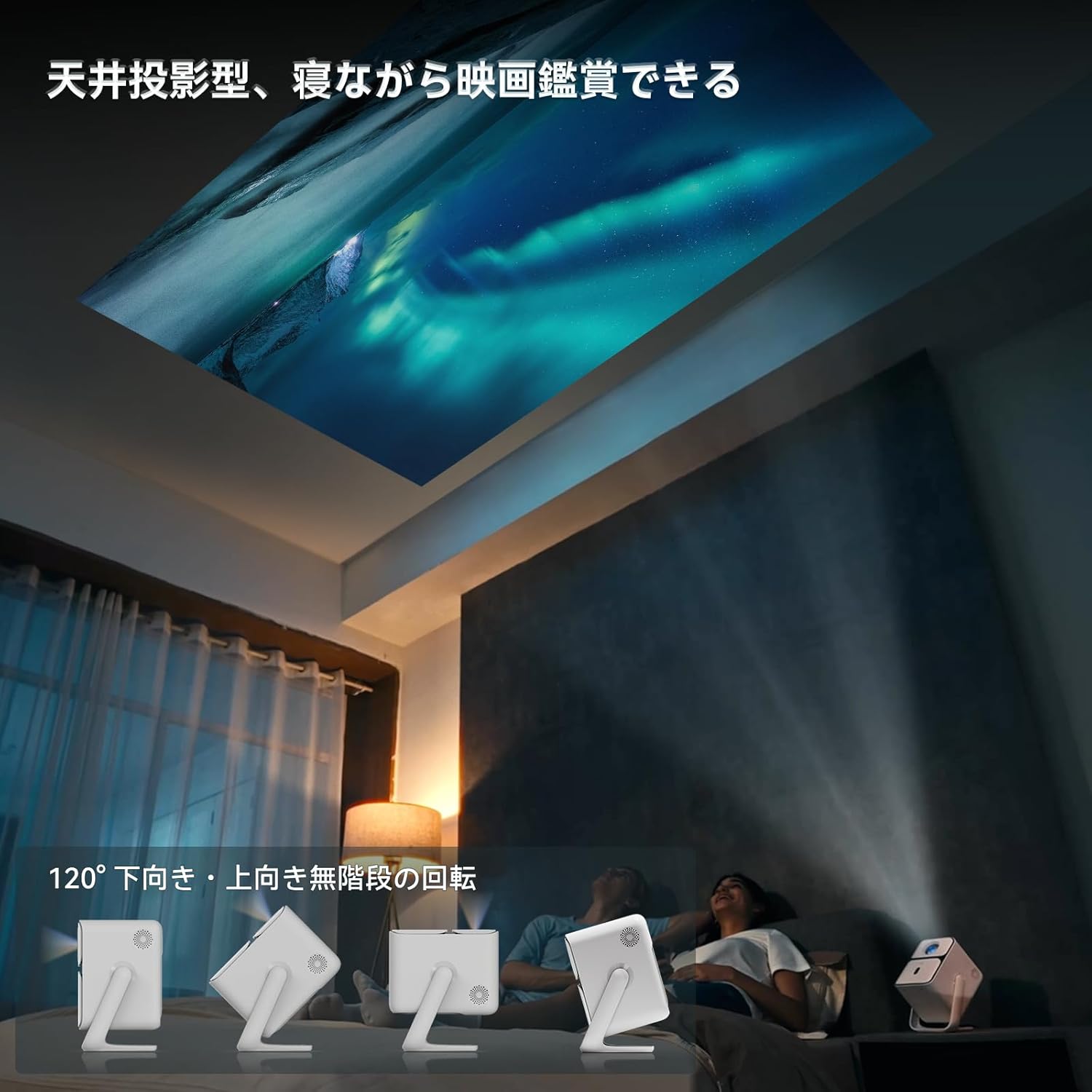
Image: Projector positioned for ceiling projection, allowing viewdok ležite.
Video: Demonstrates ceiling projection mode. Note: This video may feature a different projector model but demonstrates the general process.
5. Uputstvo za upotrebu
5.1 Funkcije daljinskog upravljača

Image: Remote control for the projector, showing buttons for power, navigation, volume, focus, and direct access to streaming apps like Netflix, YouTube, and Prime Video.
- Dugme za napajanje: Uključuje/isključuje projektor.
- Glasovna pretraga: Aktivira Google Assistant za glasovne komande.
- One-Touch Focus: Initiates automatic focus adjustment.
- Directional Keys (Up/Down/Left/Right): Navigacija kroz menije i odabire.
- Dugme OK: Potvrđuje odabire.
- Dugme za povratak: Vraća se na prethodni ekran.
- Dugme za početnu stranicu: Vraća se na početni ekran.
- Volumen +/-: Podešava nivo jačine zvuka.
- Focus +/- (F+/F-): Manually adjusts focus.
- Dugme za isključivanje zvuka: Isključuje/uključuje zvuk.
- Input Signal Switch: Changes input source.
- Postavke aplikacije: Accesses application settings.
- Postavke projekcije: Accesses projection-related settings.
- Direct App Buttons: Dedicated buttons for Netflix, YouTube, Prime Video, and Disney+.
5.2 App Management (Android TV 11.0)
The Wanbo T2 Ultra runs on Android TV 11.0, providing access to the Google Play Store.
- Pristup aplikacijama: From the home screen, you can directly launch pre-installed apps or navigate to the Google Play Store to download more.
- Usluge prijenosa: Enjoy popular services like Netflix, Prime Video, YouTube, Disney+, Hulu, U-NEXT, and more. The projector supports Google Widevine DRM L1 for high-quality content playback.
- Google asistent: Press the Voice Search button on the remote to use voice commands for searching content, controlling playback, and more.

Image: The projector displaying the Android TV 11.0 home screen, featuring various streaming applications.
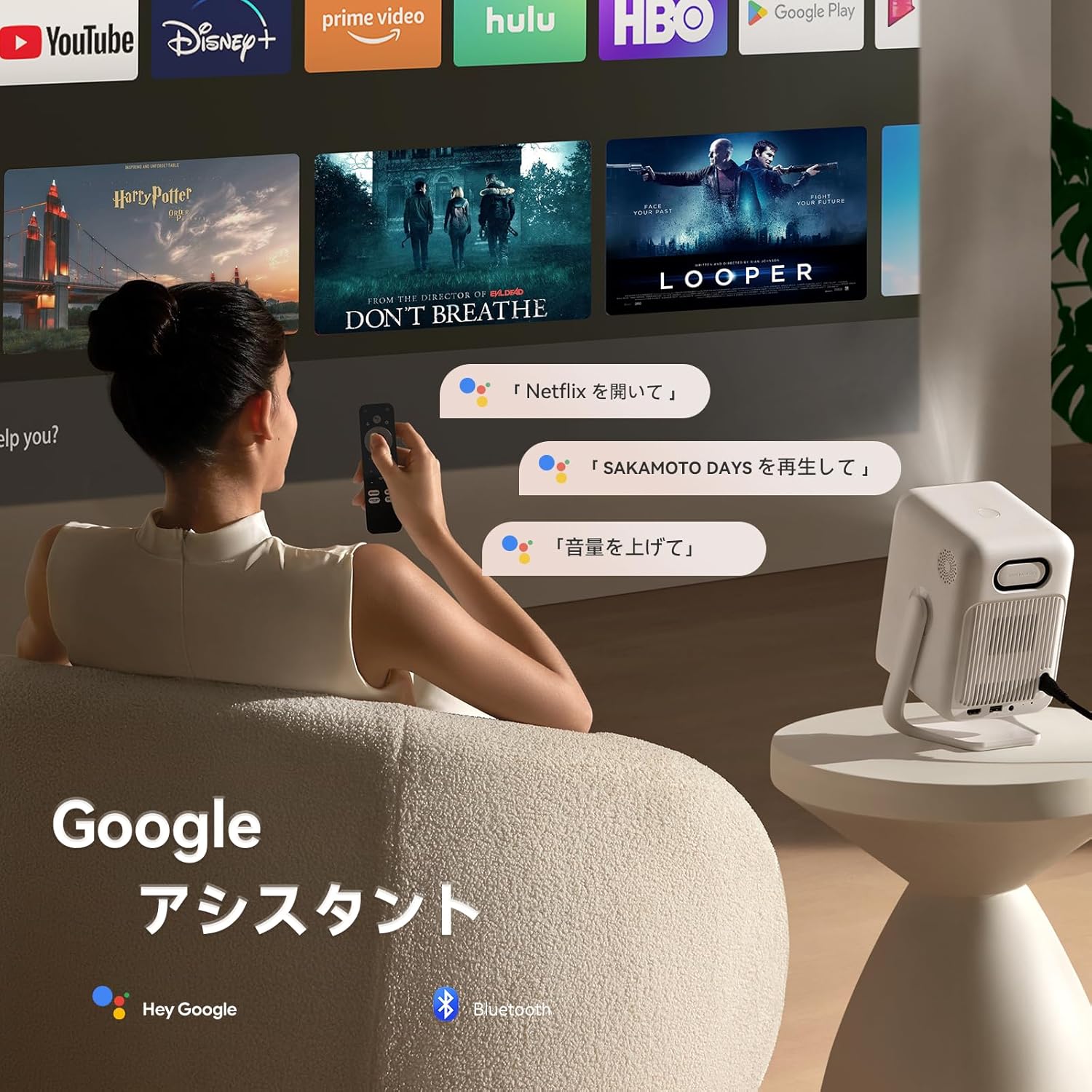
Image: A user utilizing the Google Assistant feature with the remote control to search for content.
5.3 Povezivanje
The Wanbo T2 Ultra offers multiple connectivity options for various devices.
5.3.1 HDMI veza
- Connect an HDMI cable from your external device (e.g., laptop, game console) to the HDMI port on the projector.
- The projector will automatically detect the HDMI input. If not, navigate to Izvor signala and select the corresponding HDMI input.
Video: Demonstrates HDMI connection. Note: This video may feature a different projector model but demonstrates the general process.
5.3.2 USB veza
- Umetnite USB uređaj za pohranu u USB priključak na projektoru.
- A notification will appear on the screen. Select to open the file manager and browse your media.
Video: Demonstrates USB connection. Note: This video may feature a different projector model but demonstrates the general process.
5.3.3 Bluetooth veza
- Idi na Postavke > Bluetooth & Accessories.
- Uverite se da je Bluetooth omogućen.
- Odaberite Dodaj uređaj and choose your Bluetooth device (e.g., headphones, speakers) from the list to pair.
Video: Illustrates Bluetooth connection steps. Note: This video may feature a different projector model but demonstrates the general process.
5.3.4 Wireless Screen Mirroring (Chromecast/AirPlay)
The projector has built-in Chromecast for seamless screen mirroring from iOS and Android devices.
- Ensure your mobile device and projector are connected to the same Wi-Fi network.
- On your mobile device, open a compatible app (e.g., YouTube, Netflix) and tap the Cast icon to select the projector.
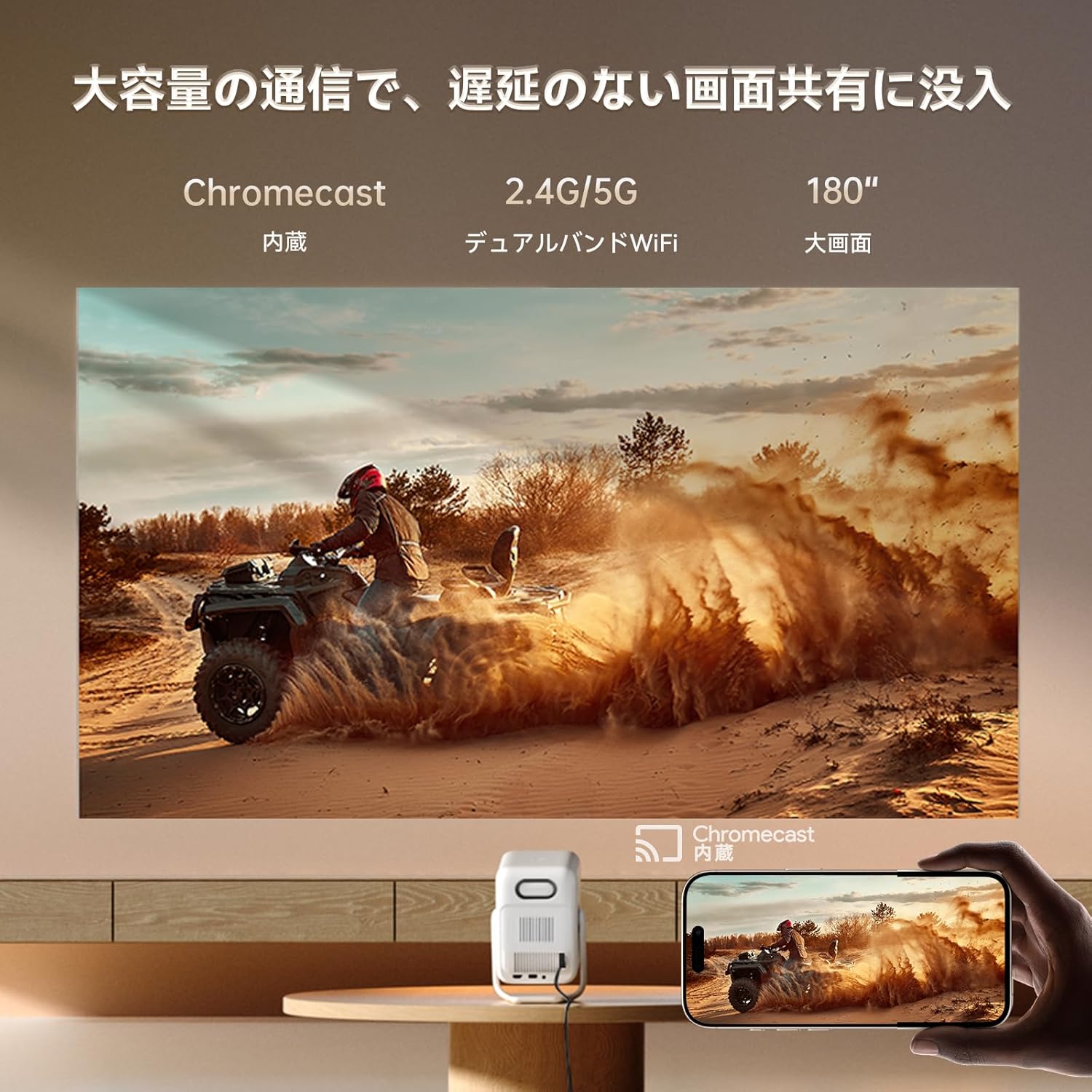
Image: A smartphone wirelessly casting content to the projector, demonstrating Chromecast functionality.
5.4 Audio postavke
The projector features dual 5W HiFi speakers (10W total) with an independent DSP amplifier for rich sound. You can also connect external audio devices.
5.4.1 Adjusting Sound Modes
- Idi na Postavke > Ekran i zvuk > Zvučni efekti.
- Choose from various sound modes like Standard, Movie, Music, News, or Sports to optimize audio for your content.
5.4.2 Bluetooth način rada zvučnika
You can use the projector as a standalone Bluetooth speaker.
- Na početnom ekranu odaberite Bluetooth muzika.
- On your mobile device, enable Bluetooth and connect to the projector (device name: ISINBOX_AC311 or similar).
Video: Demonstrates Bluetooth speaker mode. Note: This video may feature a different projector model but demonstrates the general process.
6. Održavanje
6.1 Čišćenje
- Objektiv: Use a soft, lint-free cloth or lens cleaning paper to gently wipe the lens. Avoid abrasive materials or excessive pressure.
- Eksterijer: Obrišite vanjski dio projektora mekom, suhom krpom. Ne koristite tekuća sredstva za čišćenje ili rastvarače.
- Otvori: Regularly clean the ventilation grilles to prevent dust buildup, which can affect performance and lifespan. Use a soft brush or compressed air.
6.2 Skladištenje
- Projektor čuvajte na hladnom i suhom mjestu, dalje od direktne sunčeve svjetlosti i ekstremnih temperatura.
- If storing for an extended period, place the projector in its original packaging or a protective case to prevent dust accumulation and damage.
7. Otkrivanje problema
If you encounter issues with your Wanbo T2 Ultra projector, refer to the following common solutions:
| Problem | Mogući uzrok | Rješenje |
|---|---|---|
| Nema slike/Isključeno | Power cable disconnected; Projector off | Check power connections; Press power button |
| Mutna slika | Van fokusa; Nepravilan trapezni iskrivljenje | Use auto-focus or manual focus; Adjust keystone correction |
| Nema zvuka | Volume too low; Muted; Incorrect audio output | Increase volume; Unmute; Check audio settings |
| Problemi s Wi-Fi/Bluetooth vezom | Incorrect password; Device out of range; Interference | Verify password; Move closer to router/device; Reduce interference |
| Daljinski upravljač ne radi | Low battery; Obstruction; Not paired | Replace batteries; Remove obstructions; Re-pair remote |
8. Specifikacije
| Feature | Specifikacija |
|---|---|
| Brand | WANBO |
| Model | T2 Ultra |
| Operativni sistem | Android TV 11.0 |
| Osvetljenost | 500 ANSI lumeni |
| Native Resolution | 1920 x 1080 piksela (Full HD) |
| Throw Ratio | 1.2:1 |
| Zvučnik | 10W HiFi Stereo (Dual 5W) |
| Povezivanje | HDMI (ARC), USB, 3.5mm Audio Jack, 5G Wi-Fi, Bluetooth |
| Posebne karakteristike | Auto-Focus, Auto Keystone Correction, Auto Screen Adjustment, Obstacle Avoidance, Digital Zoom (50-100%), Chromecast Built-in |
| Dimenzije (Š x D x V) | 14.48 x 14.22 x 21.84 cm |
| Težina | 2.2 kg |
9. Garancija i podrška
9.1 Jamstvo za proizvod
The Wanbo T2 Ultra projector comes with a 12-month warranty covering quality-related issues. For customers who follow the official Wanbo social media accounts (@wanboglobal), the product warranty is automatically extended to 18 months.
9.2 Korisnička podrška
For any questions or support needs, please contact us:
- Email: support@szwanbo.net
We aim to respond to all inquiries within 24 hours. Lifetime support is provided for product usage.