
Uvod
This manual provides detailed instructions for the setup, operation, maintenance, and troubleshooting of your KOORUI S2721XO 27-inch QD-OLED Gaming Monitor. Please read this manual thoroughly before using the product to ensure proper functionality and to prevent damage.

Image: KOORUI S2721XO 27-inch QD-OLED Gaming Monitor showcasing its main features like 240Hz refresh rate, 0.03ms response time, QHD resolution, QD-OLED panel, VESA compatibility, 99% DCI-P3 color gamut, Eye Care, and Adaptive Sync.
Sadržaj paketa
Provjerite da li su sve komponente prisutne u paketu:
- KOORUI S2721XO 27-inch QD-OLED Gaming Monitor
- Stalak za monitor (baza i vrat)
- Power Cable
- HDMI kabl
- DisplayPort kabel
- Korisnički priručnik (ovaj dokument)
- Garantni list (ako postoji)
Uputstva za postavljanje
1. Sastavljanje postolja
- Pažljivo izvadite komponente monitora i postolja iz ambalaže.
- Pričvrstite vrat postolja na ploču monitora. Provjerite da li je sigurno uglavljen na svoje mjesto ili da je pričvršćen vijcima kao što je naznačeno u kratkom vodiču za početak.
- Pričvrstite bazu postolja na vrat postolja, pričvršćujući je priloženim vijkom.
- Postavite sastavljeni monitor na stabilnu, ravnu površinu.
Alternatively, the monitor supports VESA 75mm x 75mm mounting for wall mounts or monitor arms. Ensure the VESA mount is rated for the monitor's weight (3 kg).

Image: Illustrations showing the monitor's ergonomic adjustments including height adjustment (110mm), tilt (-20° to 20°), 90° pivot for vertical viewing, and swivel (-5° to 20°).
2. Povezivanje kablova
Identify the ports on the back of your monitor and connect the necessary cables.

Slika: Stražnja strana view of the KOORUI S2721XO monitor showing the connectivity ports: 1. Power cable input, 2. HDMI 2.1, 3. HDMI 2.1, 4. DisplayPort 1.4, 5. Audio output interface. Also shows VESA 100x100mm mounting points.
- Kabl za napajanje: Spojite jedan kraj kabela za napajanje na ulaz za napajanje monitora, a drugi kraj na električnu utičnicu.
- Video ulaz:
- For HDMI connection, use the provided HDMI cable to connect your computer's HDMI output to one of the monitor's HDMI 2.1 ports.
- For DisplayPort connection, use the provided DisplayPort cable to connect your computer's DisplayPort output to the monitor's DisplayPort 1.4 port.
- Audio izlaz: If desired, connect external speakers or headphones to the audio output jack.
3. Početno uključivanje
- Pritisnite dugme za napajanje na monitoru.
- Turn on your computer. The monitor should automatically detect the input signal. If not, you may need to manually select the input source using the OSD menu.
Uputstvo za upotrebu
On-Screen Display (OSD) meni
The OSD menu allows you to adjust various monitor settings. Typically, a joystick or a set of buttons located on the back or bottom of the monitor is used to navigate the OSD.
- Press the OSD button/joystick to open the menu.
- Use the navigation controls to move through options.
- Press the select button to confirm a selection.
- Press the exit button to close the OSD menu.
Postavke slike
- Svjetlina/kontrast: Prilagodite ove postavke kako bi odgovarale vašim viewing okruženje.
- Temperatura boje: Select from preset modes (e.g., Warm, Cool, User) or customize RGB values.
- HDR (visoki dinamički raspon): The monitor supports HDR 400. Enable HDR in your operating system and monitor settings for enhanced contrast and color detail.
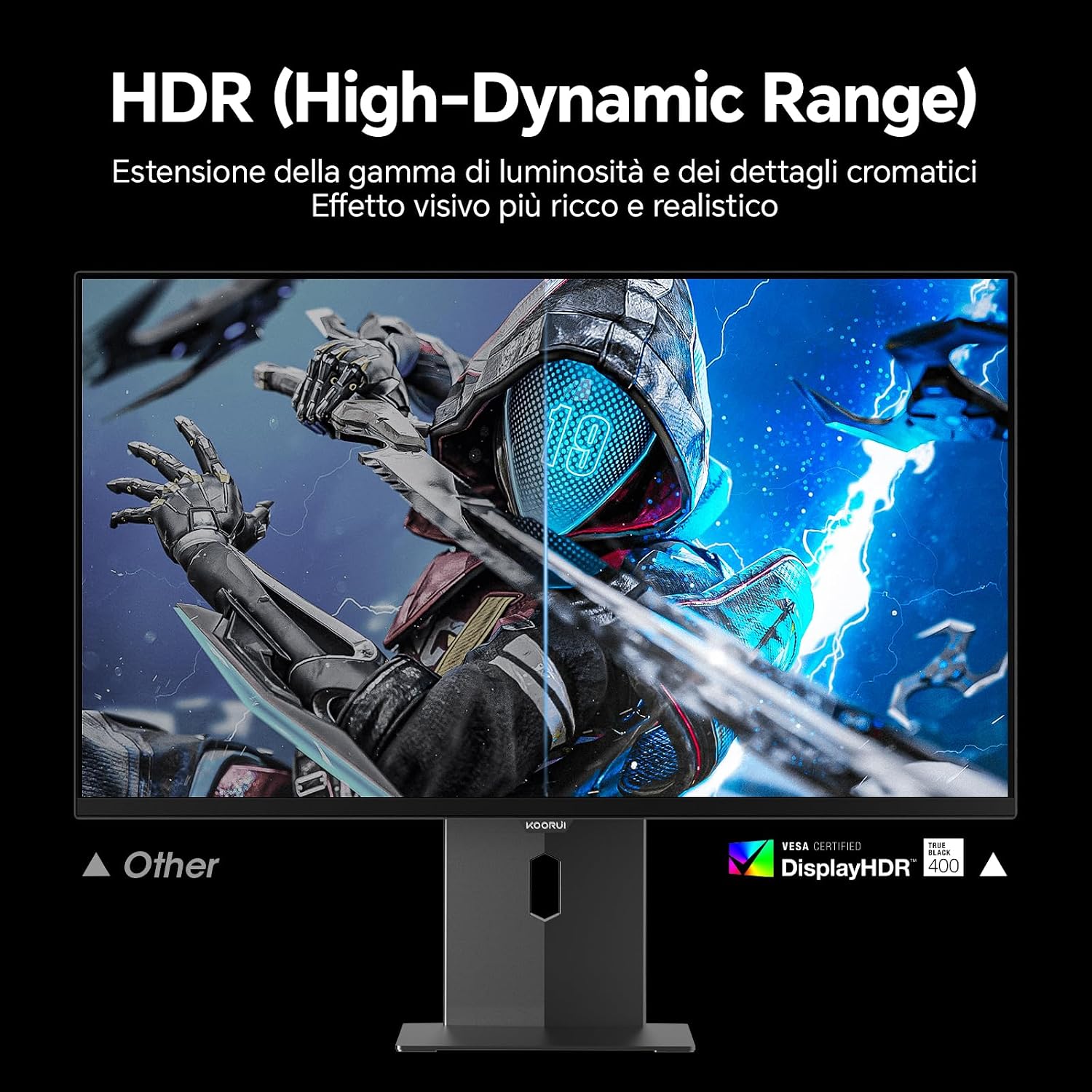
Image: Comparison of a standard display versus the KOORUI S2721XO monitor with HDR (High-Dynamic Range) enabled, showing richer visual effects and realistic details.
Karakteristike igranja
- Brzina osvježavanja: The monitor supports up to 240Hz. Ensure your graphics card and system settings are configured to utilize this refresh rate for smooth gameplay.
- Vrijeme odgovora: With a 0.03ms response time, motion blur is significantly reduced.
- Adaptivna sinhronizacija: This technology synchronizes the monitor's refresh rate with your GPU's frame rate, eliminating screen tearing and stuttering. Enable Adaptive Sync in the OSD menu and your graphics card control panel.
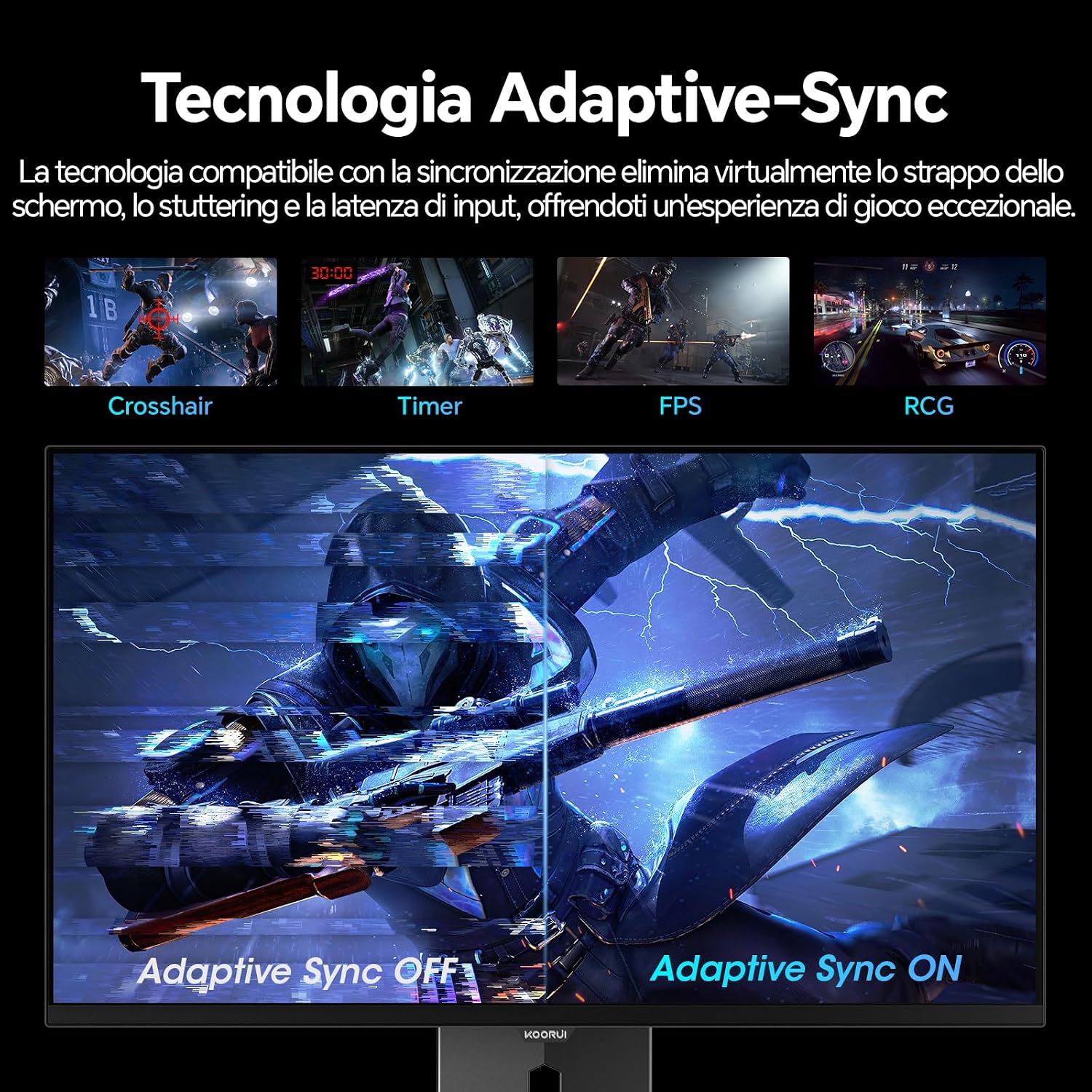
Image: A visual demonstration of Adaptive Sync technology, showing the difference between Adaptive Sync OFF (with screen tearing and stuttering) and Adaptive Sync ON (with smooth, tear-free visuals).

Image: A visual comparison illustrating the ultra-high refresh rate of 240Hz and 0.03ms response time, contrasting it with a 100Hz 5ms display to show the improved fluidity and reduced ghosting.
Režim za njegu očiju
The monitor includes features designed to reduce eye strain during extended use. Access the Eye Care settings in the OSD menu to enable modes that reduce blue light emission or adjust flicker-free settings.
Održavanje
Čišćenje monitora
- Uvijek isključite monitor i iskopčajte kabel za napajanje prije čišćenja.
- Koristite meku krpu koja ne ostavlja dlačiceampoprati vodom ili specijaliziranim sredstvom za čišćenje ekrana.
- Ne prskajte sredstvo za čišćenje direktno na ekran.
- Izbjegavajte upotrebu abrazivnih sredstava za čišćenje, voskova ili rastvarača jer mogu oštetiti površinu ekrana.
- Obrišite monitor casing mekom, suhom krpom.
Skladištenje
When storing the monitor for an extended period, ensure it is powered off, unplugged, and stored in a cool, dry place away from direct sunlight and extreme temperatures. Use original packaging if available for best protection.
Rješavanje problema
| Problem | Mogući uzrok | Rješenje |
|---|---|---|
| Nema struje | Kabl za napajanje nije priključen; Utičnica ne radi; Dugme za napajanje monitora je isključeno. | Ensure power cable is securely connected. Test power outlet with another device. Press the monitor's power button. |
| Nema signala | Video kabl nije povezan; Odabran je pogrešan ulazni izvor; Računar nije uključen. | Check video cable connections (HDMI/DisplayPort). Select the correct input source via the OSD menu. Ensure your computer is powered on and outputting a signal. |
| Treperenje ekrana | Incorrect refresh rate; Faulty cable; Graphics card driver issues. | Adjust refresh rate in display settings. Try a different video cable. Update graphics card drivers. |
| Loša kvaliteta slike | Incorrect resolution; Picture settings misconfigured; Dirty screen. | Set display resolution to 2560x1440. Adjust brightness, contrast, and color settings in the OSD. Clean the screen as per maintenance instructions. |
Specifikacije
| Brand | KOORUI |
| Broj modela | S2721XO |
| Veličina ekrana | 27 inča |
| Tip panela | QD-OLED |
| Rezolucija | QHD Wide 1440p (2560 x 1440) |
| Aspect Ratio | 16:9 |
| Refresh Rate | 240 Hz |
| Vrijeme odgovora | 0.03 ms |
| Kontrast Ratio | 1,500,000:1 |
| Osvetljenost | 280 cd/m² |
| Viewing Angle | 178 stepeni |
| Vrijednost raspona boja | 99% DCI-P3 (100% sRGB) |
| Povezivanje | 2x HDMI 2.1, 1x DisplayPort 1.4, audio izlaz |
| Adaptive Sync | FreeSync compatible |
| Posebne karakteristike | HDR 400, Eye Care, Height Adjustment, Tilt Adjustment, Swivel Adjustment, Pivot Adjustment |
| VESA kompatibilnost | 75mm x 75mm |
| Dimenzije (Š x V x D) | 610.11 mm x 521.84 mm x 215.82 mm (24.02 in x 20.54 in x 8.50 in) |
| Težina | 3 kilograma |
Informacije o garanciji
The KOORUI S2721XO monitor comes with a 2 godine garancije from the date of purchase. This warranty covers manufacturing defects and malfunctions under normal use. Please retain your proof of purchase for warranty claims. For detailed terms and conditions, refer to the warranty card included in your package or visit the official KOORUI website.
Podrška i kontakt
For further assistance, technical support, or customer service inquiries, please visit the official KOORUI website or contact their customer support team. You can also refer to the official PDF instructions for use: