
1. Uvod
This manual provides detailed instructions for the setup, operation, and maintenance of your GIEC G5300 4K Ultra HD Blu Ray Player. Designed for an enhanced home entertainment experience, this player supports true 4K ultra-high-definition picture quality, HDR10, Dolby Vision, BT.2020 color spaces, and Dolby audio decoding for immersive visuals and sound.
2. Sigurnosne informacije
- Ensure proper ventilation around the player to prevent overheating.
- Ne izlažite jedinicu kiši ili vlazi kako biste smanjili rizik od požara ili električnog udara.
- Izbjegavajte stavljanje teških predmeta na plejer.
- Ne otvarajte casing; sve servisne radove prepustite kvalifikovanom osoblju.
- Keep the player away from direct sunlight, heat sources, and strong magnetic fields.
- Koristite samo strujni adapter koji je isporučen s jedinicom.
3. Sadržaj paketa
Molimo Vas da provjerite da li se u Vašem paketu nalaze sve dolje navedene stavke:
- GIEC G5300 Blu-ray Player (x1)
- HDMI kabl (x1)
- Daljinski upravljač (x1)
- Uputstvo za upotrebu (x1)
4. Proizvod je gotovview
4.1 Prednja ploča

Slika 4.1: Prednja strana view of the GIEC G5300 Blu Ray Player, showing the disc tray, display, USB port, and control buttons (power, play/pause, eject).
- Uložak za disk: Ovdje ubacite Blu-ray ili DVD diskove.
- Displej: Shows playback status and time.
- USB 3.0 port: Spojite USB uređaje za pohranu podataka za reprodukciju medija.
- Kontrolna dugmad: Power On/Off, Play/Pause, Eject.
4.2 Zadnja ploča i priključci

Slika 4.2: Pozadi view of the GIEC G5300 Blu Ray Player, highlighting various input/output ports including LAN, HDMI 2.0, HDMI 1.4, USB 3.0, Coaxial, and Optical outputs.
- LAN port: For network connection (e.g., firmware updates).
- HDMI 2.0 Output (Video/Audio): Primary HDMI output for 4K video and audio.
- HDMI 1.4 Output (Audio Only): Dedicated HDMI output for audio to an AV receiver.
- USB 3.0 ulaz: Spojite USB uređaje za pohranu podataka za reprodukciju medija.
- Koaksijalni izlaz: Digitalni audio izlaz.
- optički izlaz: Digitalni audio izlaz.
5. Podešavanje
5.1 Ugradnja baterija u daljinski upravljač
Umetnite dvije AAA baterije (nisu uključene) u daljinski upravljač, pazeći na ispravan polaritet.
Video 5.1: This video demonstrates how to install batteries into the remote control and connect the Blu-ray player to a TV using an HDMI cable.
5.2 Connecting to a Display Device (TV/Projector)
- Spojite jedan kraj isporučenog HDMI kabela na HDMI 2.0 Output (Video/Audio) priključak na stražnjoj strani Blu-ray playera.
- Connect the other end of the HDMI cable to an available HDMI input port on your TV or projector.
- For separate audio output, connect another HDMI cable from the HDMI 1.4 Output (Audio Only) port to your AV receiver, or use the Coaxial/Optical outputs.
5.3 Priključak za napajanje
- Connect the power cable to the power input on the rear of the Blu-ray player.
- Uključite drugi kraj kabla za napajanje u zidnu utičnicu.
- Turn on your TV/projector and select the correct HDMI input source corresponding to the port you connected the Blu-ray player to.
- Press the Power button on the Blu-ray player or remote control to turn on the unit.
6. Uputstvo za upotrebu
6.1 Reprodukcija diska
- Ensure the player is powered on and connected to your display device.
- Pritisnite EJECT dugme na prednjoj ploči ili daljinskom upravljaču da biste otvorili ladicu za disk.
- Carefully place a Blu-ray or DVD disc onto the tray with the label side facing up.
- Pritisnite EJECT button again to close the tray. The player will automatically begin loading and playing the disc.
- Use the remote control for playback functions such as Play, Pause, Stop, Fast Forward, and Rewind.
6.2 Reprodukcija USB medija
The GIEC G5300 supports playback of various media files sa USB memorijskog uređaja.
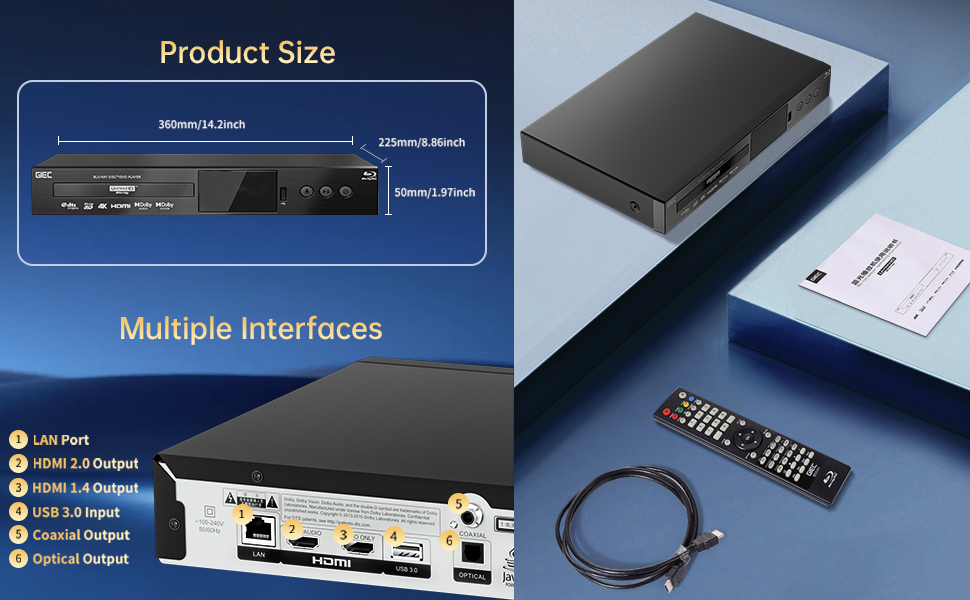
Figure 6.1: Illustration of the multiple disc, video, and audio formats supported by the player.
- Insert your USB storage device into the USB 3.0 port on the front or rear panel.
- Navigate to the "Video," "Music," or "Photo" section on the player's main menu using the remote control.
- Odaberite željenu file from the USB device to begin playback.
Podržani formati:
- Vrste diskova: BD, BD-R, BD-RE, DVD-R/RW, DVD+R/RW, DVD-Video, VCD, CD, CD-R/RW.
- Video formati: MPEG-1, MPEG-2, MPEG-4, VC1, H.264, MOV, MKV, AVI, TS.
- Audio formati: AAC, APE, CUE, FLAC, OGG, MP3, WAV.
7. Karakteristike
- 4K Ultra HD Playback: Experience movies and shows in stunning 4K resolution with clearer images and richer colors.
- HDR10 podrška: Enjoy a wider range of brightness and contrast, revealing more detail in both dark and bright scenes.
- Dolby Vision: Enhances image quality by dynamically adjusting brightness and expanding dynamic range for more detailed and vivid pictures.
- BT.2020 Color Spaces: Provides a broader color gamut than standard 1080p Blu-ray, resulting in purer, more natural, and realistic colors.
- Dolby Sound & DTS Decoding: Supports Dolby audio decoding and DTS effects for an immersive 5.1 stereo surround sound experience.
- 3D Blu-ray Playback: Compatible with 3D Blu-ray discs for an immersive three-dimensional viewing experience (requires a 3D-compatible TV and glasses).
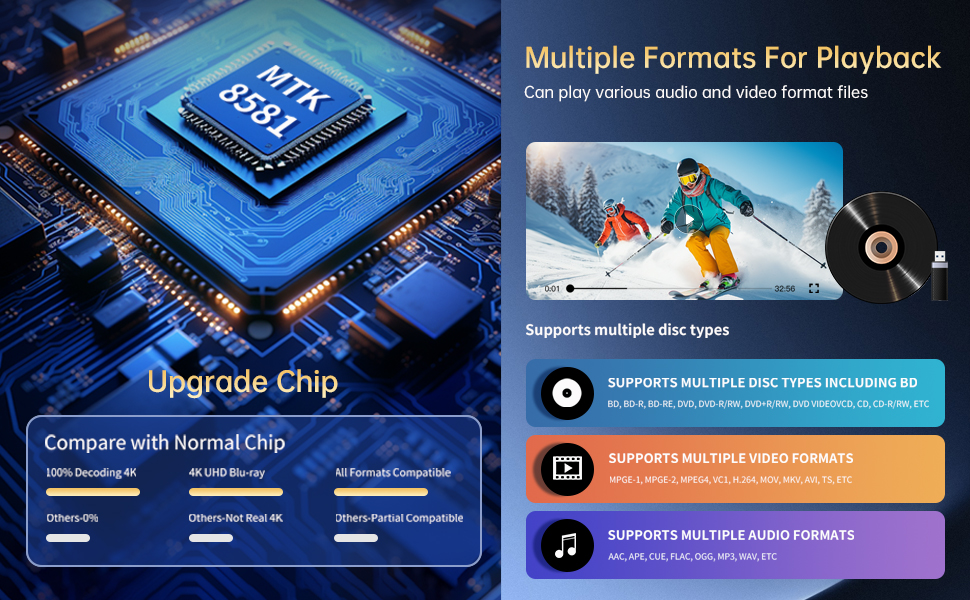
Figure 7.1: Visual comparison illustrating the difference between 8-bit (16.67 million colors) and 10-bit (1.07 billion colors) color depth, highlighting the enhanced detail and delicacy of 10-bit color.

Figure 7.2: The GIEC G5300 Blu Ray Player connected to a TV, showcasing its support for 4K UHD, 3D, HDR, HDR10+, Dolby, and Dolby Vision technologies.
8. Održavanje
- čišćenje: Za čišćenje vanjštine uređaja koristite meku, suhu krpu. Ne koristite tekuća ili aerosolna sredstva za čišćenje.
- Održavanje diskova: Diskove držite za rubove. Čistite diskove mekom krpom koja ne ostavlja dlačice, brišući od centra prema van.
- ventilacija: Pazite da ventilacijski otvori plejera nisu blokirani kako biste spriječili pregrijavanje.
9. Otkrivanje problema
If you encounter issues with your Blu-ray player, please refer to the following common solutions:
- Nema napajanja: Check if the power cable is securely connected to both the player and the power outlet. Ensure the outlet is functional.
- Nema slike/zvuka: Verify that the HDMI cable is correctly connected to both the player and the TV/receiver. Ensure the correct HDMI input is selected on your TV/receiver.
- Disk se ne reproducira: Check if the disc is clean and free of scratches. Ensure the disc is inserted correctly with the label side up. The player supports Region A Blu-ray discs and all region DVD discs.
- Daljinski upravljač ne radi: Check the batteries in the remote control and replace them if necessary. Ensure there are no obstructions between the remote and the player.
10. Specifikacije
| Feature | Detalj |
|---|---|
| Brand Name | GIEC |
| Naziv modela | G5300 |
| Težina artikla | 4.18 funti (1.9 kilograma) |
| Dimenzije proizvoda | 14.2 x 8.9 x 2 inča |
| Boja | Crna |
| Vrsta medija | Blu-ray disk, DVD |
| Rezolucija | 3840x2160 (4K Ultra HD) |
| Posebne karakteristike | Anti-Shock, Compact, Dust Proof, Multi-Format Playback, Surround Sound, HDR10, Dolby Vision, BT.2020 Color Spaces |
| Tip konektora | HDMI (Dual Outputs), USB 3.0, Coaxial, Optical, LAN |
| Tehnologija povezivanja | HDMI |
11. Garancija i podrška
For warranty information or technical support, please refer to the documentation included with your purchase or contact GIEC customer service. Keep your proof of purchase for warranty claims.