
Uvod
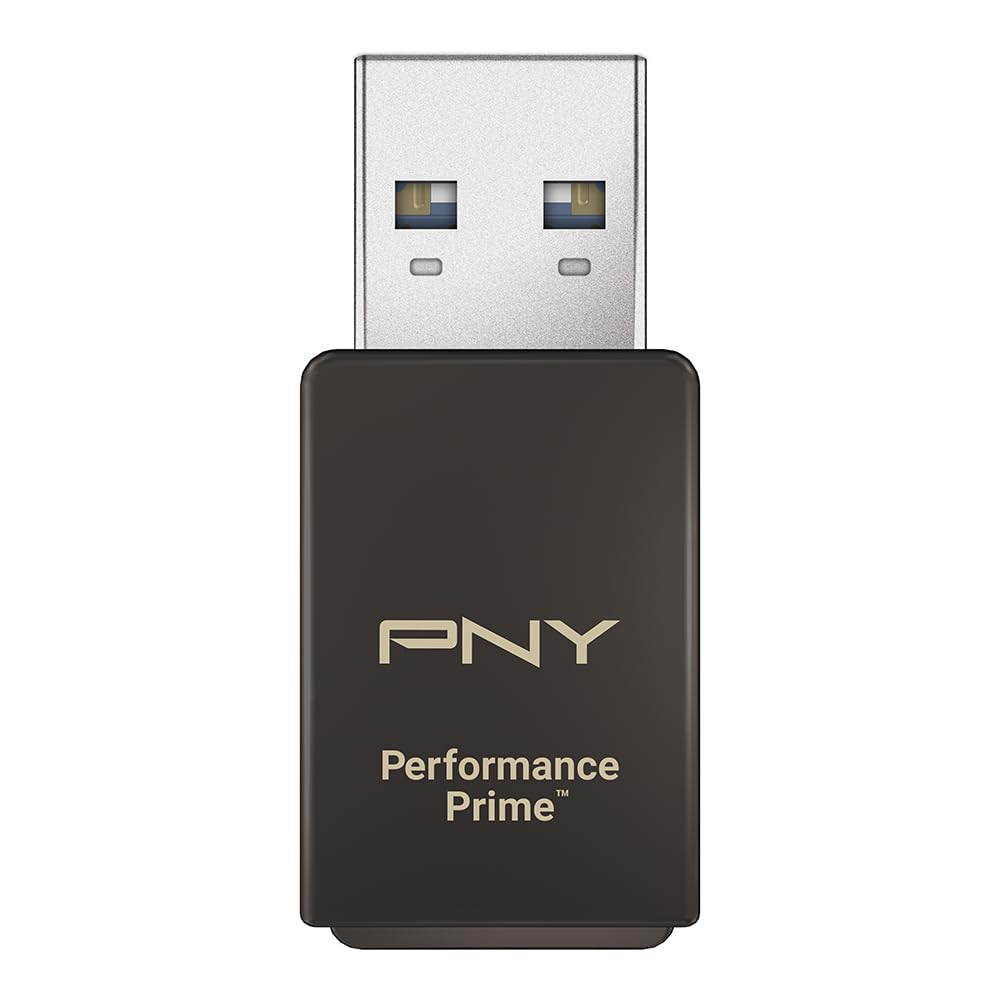
This manual provides instructions for the PNY Performance Prime USB 3.2 Gen 1 microSD Flash Memory Card Reader. It covers product features, setup, operation, maintenance, troubleshooting, and technical specifications to ensure optimal performance and longevity of your device. The PNY Performance Prime card reader is designed for convenient and high-speed data transfer from microSD media to compatible host devices.
Setup
- Raspakivanje: Verify that the package contains the PNY Performance Prime USB 3.2 Gen 1 microSD Flash Memory Card Reader.
- Provjera kompatibilnosti: Ensure your host device (computer, laptop) has an available USB 3.2 Gen 1 or USB 3.0 Type-A port. The card reader is backwards compatible with USB 2.0 ports, but data transfer speeds will be limited to USB 2.0 performance.
- Umetnite microSD karticu: Gently insert your microSD card into the card reader slot. Ensure the card is oriented correctly with the gold contacts facing down and push until it clicks securely into place.
- Poveži se s host uređajem: Plug the USB-A connector of the card reader into an available USB 3.2 Gen 1/USB 3.0 port on your computer. The device is plug-and-play and typically requires no additional driver installation.

Video 1: PNY PRO Elite Prime microSD OverviewOvaj video pruža opći pregledview of the PNY PRO Elite Prime microSD card and its capabilities, demonstrating its use with the card reader.
Uputstvo za upotrebu
- Pristup podacima: Once connected, your operating system (Windows, macOS) will typically recognize the microSD card as a removable drive. You can access its contents by navigating to 'This PC' or 'My Computer' (Windows) or 'Finder' (macOS) and selecting the corresponding drive letter or name.
- Transfering Files: Za transfer files, drag and drop them between your computer's folders and the microSD card's drive. For optimal transfer speeds, ensure both your microSD card and the host device support USB 3.2 Gen 1/USB 3.0.
- Sigurno izbacivanje: Before physically removing the card reader from your computer, always safely eject the drive through your operating system. This prevents data corruption. On Windows, right-click the drive icon in 'This PC' and select 'Eject'. On macOS, drag the drive icon to the Trash or click the Eject button next to the drive in Finder.
- Removing microSD Card: After safe ejection, gently push the microSD card further into the slot until it springs out slightly, then carefully pull it out.

Video 2: Take Content to New Heights with PRO Elite Prime microSD. This video demonstrates the practical application of the PNY PRO Elite Prime microSD card, highlighting its performance in various scenarios, which is facilitated by the card reader.
Održavanje
- čišćenje: Use a soft, dry, lint-free cloth to clean the exterior of the card reader. Do not use liquid cleaners, abrasive materials, or solvents, as these can damage the device.
- Skladištenje: Store the card reader in a cool, dry environment away from direct sunlight and extreme temperatures when not in use.
- Rukovanje: Avoid dropping the device or subjecting it to physical shock. Protect the USB connector and microSD card slot from dust and debris.
- Održavanje microSD kartice: Always handle microSD cards by their edges. Avoid touching the gold contacts to prevent damage or data loss.
Rješavanje problema
- Uređaj nije prepoznat:
- Ensure the card reader is fully and securely inserted into the USB port.
- Pokušajte spojiti čitač kartica na drugi USB priključak na računaru.
- Test the card reader on another computer to determine if the issue is with the device or the host computer.
- Verify that the microSD card is correctly inserted into the card reader.
- Provjerite Upravitelj uređaja (Windows) ili Informacije o sistemu (macOS) na računaru da biste vidjeli da li je USB uređaj naveden.
- Male brzine prijenosa:
- Confirm that your computer's USB port is a USB 3.2 Gen 1 or USB 3.0 port. Connecting to a USB 2.0 port will limit speeds to USB 2.0 performance.
- Ensure your microSD card is a high-speed card (e.g., UHS-I U3 or V30 rated) to achieve maximum transfer rates.
- Close any other applications that might be consuming significant system resources or performing background data transfers.
- MicroSD Card Not Reading:
- Inspect the microSD card for any visible damage or bent contacts.
- Try the microSD card in another compatible device to confirm its functionality.
- Ensure the card is inserted correctly and fully into the reader's slot.
Specifikacije
| Feature | Detalj |
|---|---|
| Brand | PNY |
| Naziv modela | PNY Performance Prime USB 3.2 Gen 1 |
| Vrsta Flash memorije | Micro SD |
| Kompatibilni uređaji | USB 3.2 Gen 1/USB 3.0 equipped devices, backwards compatible with USB 2.0. |
| Boja | Grey |
| Dodatne karakteristike | High Speed, Portable |
| Brzina čitanja | Do 200 megabajta u sekundi |
| Brzina pisanja | Do 150 megabajta u sekundi |
| Hardversko povezivanje | USB, USB 3.0, USB 3.2 Gen 1 |
| Klasa brzine Secure Digital Association | Klasa 10 |
| Težina artikla | 0.02 kilograma |
| Broj modela | P-CRUAUSDDG3CPPR-GE |
| UPC | 751492792811 |
Informacije o garanciji
The PNY Performance Prime USB 3.2 Gen 1 microSD Flash Memory Card Reader comes with an 18-month limited warranty. For detailed terms and conditions, please refer to the official PNY websajtu ili kontaktirajte korisničku podršku.
Podrška
For further assistance, technical support, or warranty claims, please visit the official PNY website at www.pny.com or contact PNY customer service through the contact information provided on their website.