
Uvod
Thank you for choosing the Tibuta K7 Kids Tablet. This device is designed to provide a safe and engaging digital experience for children, featuring parental controls, educational content, and entertainment options. This manual will guide you through the initial setup, operation, and maintenance to ensure optimal performance and longevity of your tablet.
Šta je u kutiji
Molimo Vas da provjerite da li se u paketu nalaze svi artikli:
- Tibuta K7 Kids Tablet
- Drop-proof Silicone Protective Case
- Type-C kabel
- Punjač
- Korisnički priručnik

Image: Contents of the Tibuta K7 Kids Tablet package. This image displays the tablet, its protective case, a USB-C charging cable, a power adapter, and the user manual, illustrating all items included with the product.
Product Overview
The Tibuta K7 Kids Tablet features a 7-inch HD display, a durable silicone protective case, and an Android 12 Go operating system. It is equipped with dual cameras and supports Wi-Fi connectivity.

Slika: Prednja i zadnja strana view of the Tibuta K7 Kids Tablet. The tablet is shown in a pink protective case with a handle and kickstand, displaying a colorful children's cartoon on its screen.
Tablet Components

Image: Diagram of the Tibuta K7 Kids Tablet's external features. This illustration points out the front camera, 3.5mm headphone port, TF card slot, USB 2.0 OTG port, rear camera, volume buttons, power ON/OFF/Reset button, and speaker.
- Prednja kamera: Za video pozive i selfije.
- 3.5 mm priključak za slušalice: Za povezivanje slušalica.
- Utor za TF karticu: Za proširenje memorije pomoću microSD kartice (do 128 GB).
- USB 2.0 OTG Port (Type-C): Za punjenje i prijenos podataka.
- stražnja kamera: Za snimanje fotografija i videa.
- Dugmad za jačinu zvuka: Podesite jačinu zvuka.
- Power ON/OFF/Reset Button: Powers the tablet on/off or performs a reset.
- govornik: Za audio izlaz.
Vodič za postavljanje
1. Početno punjenje
Before first use, fully charge the tablet. Connect the provided Type-C cable to the tablet's USB port and the charger to a power outlet. The charging indicator will show the charging status.
2. Uključivanje / isključivanje napajanja
- Za uključivanje: Pritisnite i držite tipku za uključivanje / isključivanje dok se zaslon ne uključi.
- Za isključivanje: Pritisnite i držite dugme za napajanje, a zatim odaberite "Isključivanje" iz ponuđenih opcija.
- Za ponovno pokretanje: Pritisnite i držite dugme za napajanje, a zatim odaberite "Ponovno pokretanje" iz ponuđenih opcija.
3. Wi-Fi veza
- Idi na Postavke > Mreža i internet > Wi-Fi.
- Uključi/isključi Wi-Fi On.
- Odaberite željenu Wi-Fi mrežu s popisa.
- Unesite mrežnu lozinku ako se to od vas zatraži, a zatim dodirnite Povežite se.
4. Kidoz Parental Control App Setup
The tablet comes pre-installed with the Kidoz parental control application. This app allows you to manage content, screen time, and access for your child.
- Pokrenite Kidoz aplikaciju s početnog ekrana.
- Follow the on-screen instructions to create a parent account and set up child profiles.
- Configure settings such as screen time limits, content filtering, and application access.

Image: Parents setting up the Kidoz parental control app on the Tibuta K7 Kids Tablet. The image illustrates a family interacting with the tablet, highlighting features like screen time limits and content filtering.
Uputstvo za upotrebu
Navigacija
- Ekran na dodir: Tap, swipe, and pinch to navigate the interface.
- Početni ekran: Access frequently used apps and widgets.
- Obavještenja: Prevucite nadole od vrha ekrana do view obavještenja i brza podešavanja.
Using Kidoz and Applications
The Kidoz app provides a child-friendly interface and access to pre-approved content. Parents can manage available applications and content through the parental control settings.
- Pristup aplikacijama: Within the Kidoz environment, children can access approved games, educational apps, and media.
- Downloading New Apps: Parents can download additional applications from the Google Play Store, which can then be added to the child's approved list within Kidoz.
- Filtriranje sadržaja: Kidoz allows for filtering of inappropriate content, ensuring a safe browsing and viewing iskustvo.
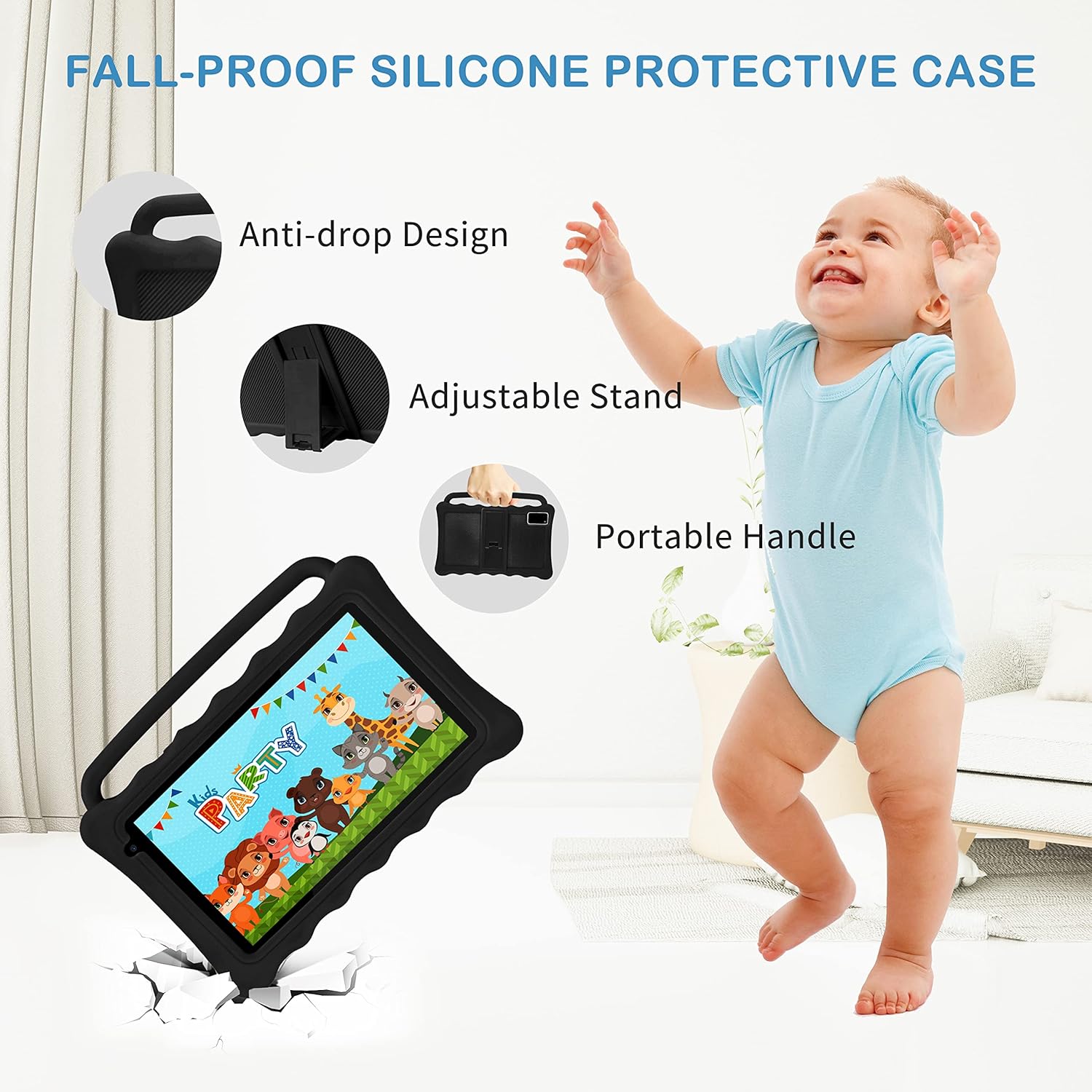
Image: The Tibuta K7 Kids Tablet showcasing its multi-functional capabilities for children. This image highlights pre-installed applications like ABCMouse, YouTube, Netflix, Google Play, and various games, books, and art tools.
Način zaštite očiju
The 7-inch LCD screen is equipped with Low Blue Light technology to protect children's eyes. Activate the reading mode in settings to reduce screen flicker and harmful blue light, providing a more comfortable viewing iskustvo.

Image: Two children using the Tibuta K7 Kids Tablet, demonstrating the eye protection feature. The image emphasizes the 1024x600 HD screen and its low blue light technology for comfortable viewing.
Upotreba kamere
The tablet features a 2MP front camera and a 5MP rear camera for capturing photos and videos.
- Otvorite Kamera aplikacija.
- Dodirnite dugme okidača da biste snimili fotografiju ili pokrenuli/zaustavili snimanje videa.
- Switch between front and rear cameras using the camera icon on the screen.

Image: Children smiling and looking into the Tibuta K7 Kids Tablet camera. This image highlights the tablet's dual cameras (2MP front, 5MP rear) for capturing fun moments.
Održavanje
Čišćenje tableta
- Za čišćenje ekrana i kućišta tableta koristite meku krpu koja ne ostavlja dlačice.
- Za tvrdokorne mrlje, lagano dampOperite krpu vodom ili sredstvom za čišćenje ekrana namijenjenim za elektroniku.
- Izbjegavajte upotrebu jakih hemikalija, abrazivnih sredstava za čišćenje ili aerosolnih sprejeva.
Battery Care
- Charge the tablet regularly, but avoid leaving it fully charged or fully depleted for extended periods.
- Use only the provided charger and cable to prevent damage to the battery.
- Izbjegavajte izlaganje tableta ekstremnim temperaturama, jer to može utjecati na vijek trajanja baterije.
Zaštitna torbica
The silicone protective case is designed to safeguard the tablet from drops and impacts. Ensure the tablet is properly seated within the case at all times. The adjustable stand and portable handle enhance usability and portability.

Image: The Tibuta K7 Kids Tablet in a red protective case. This image highlights the anti-drop design, adjustable stand, and portable handle of the silicone case, demonstrating its protective and ergonomic features.
Rješavanje problema
- Tablet se ne uključuje:
- Ensure the tablet is fully charged. Connect it to the charger and wait a few minutes before attempting to power it on again. If unresponsive, press and hold the Power button for 10-15 seconds to force a restart.
- Ekran ne reaguje:
- Restart the tablet. If the issue persists, ensure the screen is clean and free of debris. If the problem continues, a factory reset might be necessary (data will be lost).
- Problemi sa Wi-Fi vezom:
- Check if Wi-Fi is enabled in settings. Restart your Wi-Fi router. Forget the network on the tablet and reconnect. Ensure you are within range of the Wi-Fi signal.
- Kidoz app not working correctly:
- Ensure the Kidoz app is updated to the latest version. Clear the app's cache and data in Postavke > Apps > Kidoz > Skladištenje. If problems persist, reinstall the app or contact Kidoz support.
- Tablet runs slowly or freezes:
- Close unnecessary background applications. Clear cache for frequently used apps. Consider uninstalling unused apps to free up storage. If the issue is severe, a factory reset may resolve it.
Specifikacije
| Feature | Detalj |
|---|---|
| Brand | Tibuta |
| Naziv modela | K7 |
| Operativni sistem | Android 12 Go |
| Marka procesora | Allwinner |
| Veličina ekrana | 7 inča |
| Rezolucija ekrana | 1024 x 600 piksela |
| RAM | 2 GB |
| Kapacitet pohrane | 32 GB (proširivo do 128 GB putem Micro SD kartice) |
| Povezivanje | Wi-Fi (802.11g), Bluetooth |
| Kamere | Prednja: 2MP, Zadnja: 5MP |
| Trajanje baterije | Over 5 hours (usage dependent) |
| Boja | Rose (as per product listing, other colors may vary) |