
1. Uvod
The APEX VR70 Pro FPV Drone Kit is designed for both beginners and experienced pilots, offering an immersive First-Person View (FPV) flight experience. This manual provides essential information for safe operation, setup, and maintenance of your drone kit. Please read it thoroughly before first use.
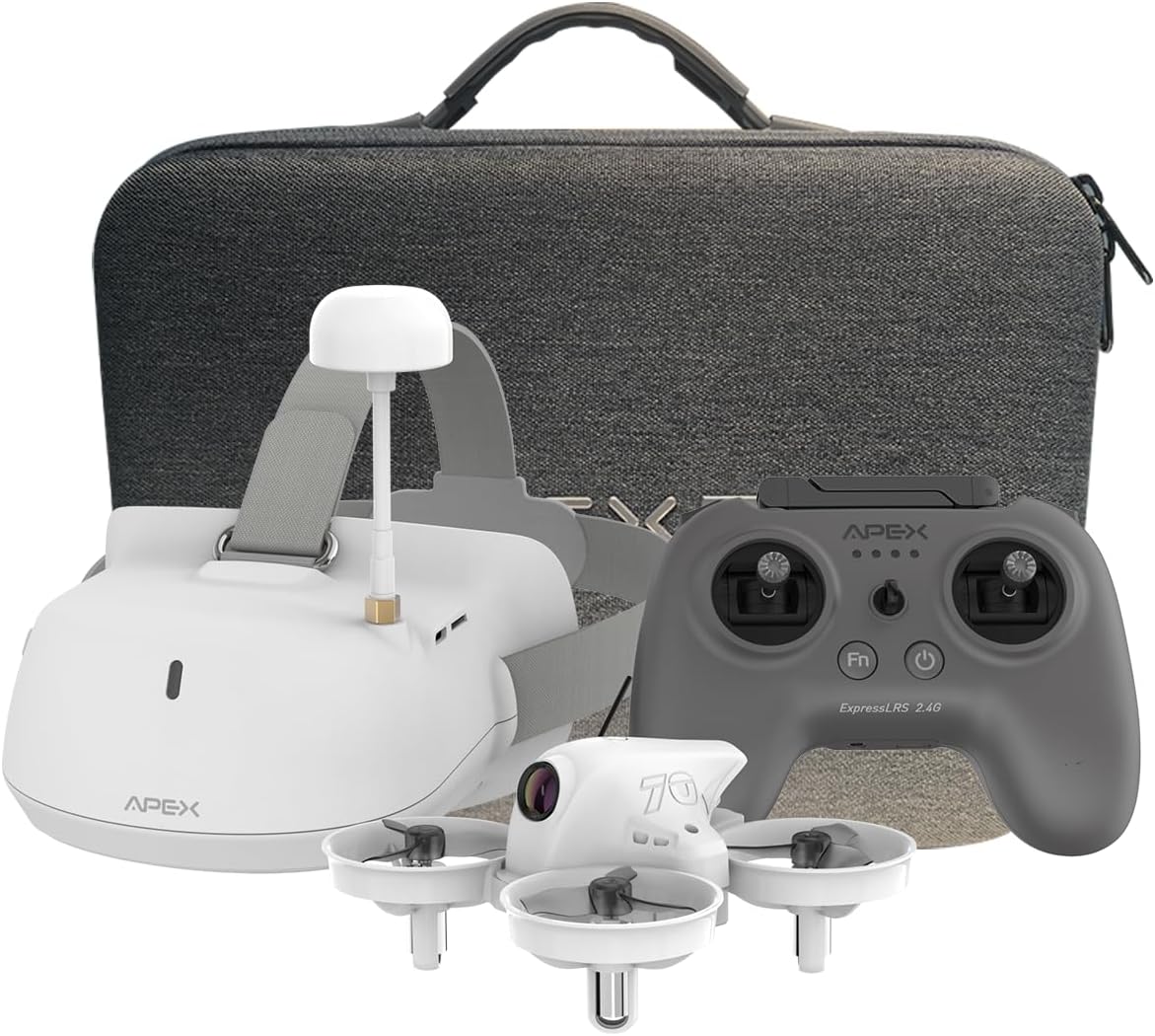
Image: The APEX VR70 Pro FPV Drone Kit, showcasing the drone, remote control, and FPV goggles.
2. Šta se nalazi u kutiji
Your APEX VR70 Pro FPV Drone Kit includes the following components:
- 1 x VR70 Pro Brushless Quadcopter
- 1 x ELRS Edition Remote Control
- 1 x FPV VR Goggles
- 2 x 3.75V 400mAh LiPo baterije
- 1 x USB kabel za punjenje (tip C)
- 1 x 3.5mm Male-to-Male AUX Audio Cable
- 1 x Alat za uklanjanje propelera
- 4 x 3-Blade Propellers (spare)
- 1 x torbica za punjenje
- 1 x Uputstvo za upotrebu
- 1 x prijenosna torba za nošenje

Image: All components of the APEX VR70 Pro FPV Drone Kit neatly arranged in the carrying case.
3. Značajke proizvoda
- FPV VR70 Pro Kit: Designed for beginners and teenagers, offering stable hovering capabilities for safe and easy flight.
- High-Precision Barometer: Integrated for altitude detection and automatic hovering, ensuring high stability.
- Head Tracking Motion Control: FPV VR goggles allow control of drone direction by tilting the head, providing an immersive experience.
- Način rada kornjače: Advanced technology to flip the drone back upright if it lands upside down.
- Enhanced Transmitter: Offers extended range, joystick calibration, and firmware updates. Supports FPV simulator practice.
- 5.8G Video Transmission: High-power, low-latency video transmission for stable real-time FPV.
- Multifunctional Drone: Features include image/video transmission, one-button takeoff/landing, headless mode, one-button return, altitude hold, 3 speeds, and 3 flight modes (Beginner, ATTI, Manual).
- Ugrađeni zujalica: Helps locate the drone if connection is lost or it lands in tall grass.

Image: The APEX VR70 Pro drone hovering indoors, demonstrating its stable flight capabilities.
4. Sigurnosne smjernice
Always prioritize safety when operating the APEX VR70 Pro FPV Drone Kit. Failure to follow these guidelines may result in injury, damage to property, or legal issues.
- Provjera prije leta: Ensure all components are in good working order, batteries are charged, and propellers are securely attached.
- ekološka svijest: Fly in open areas, away from people, animals, buildings, and power lines. Avoid flying in strong winds or adverse weather conditions.
- Linija vida: Maintain visual line of sight with the drone at all times, even when using FPV goggles.
- Sigurnost baterije: Use only approved chargers and batteries. Do not overcharge or puncture batteries.
- Poštujte privatnost: Be mindful of privacy laws and avoid flying over private property without permission.
- Preporuka za dob: This product is recommended for teenagers and above. Adult supervision is advised for younger users.
5. Podešavanje
5.1 Punjenje baterija
Ensure all batteries (drone, remote control, FPV goggles) are fully charged before use.
- Connect the USB charging cable to the charging case.
- Insert the drone batteries into the charging case. The indicator light will show charging status.
- Plug the USB charging cable into the remote control's charging port. The display light will indicate charging status.
- Plug the USB charging cable into the FPV VR goggles' charging port. The indicator light will show charging status.
Note: The display light on the remote control will be solid green when fully charged. The FPV VR goggles will show a red light during charging and turn off when fully charged.
5.2 Drone and Remote Control Pairing
- Connect the drone battery power cord into the drone interface. The LED lights on the drone will flash.
- Press and hold the power-on key on the remote control to turn it on.
- The drone and remote control will automatically pair. The drone's LED lights will stop flashing and remain solid when paired.
5.3 Kalibracija drona
The drone must be calibrated on a horizontal plane to ensure stable flight. Otherwise, it may affect flight performance.
- Postavite dron na ravnu, horizontalnu površinu.
- Simultaneously push both joysticks of the remote control to the lower right for calibration. The drone's lights will flash rapidly during calibration.
- Once calibration is complete, the drone's lights will become solid.
- If the drone's lights continue to flash, gently shake the drone several times to enter the calibrate state (LED lights flashing). Then, long press the calibrate key on the remote control to re-proofread.
5.4 FPV VR Goggles Setup
- Press and hold the power-on key on the FPV VR goggles to start them.
- Use the "+" and "-" keys to manually change the channel until you find the drone's video feed.
- Alternatively, long press the "-" key to automatically search for channels. Wait a moment for the calibration to complete.
Video: A comprehensive tutorial demonstrating unboxing, function of keys, charging procedures, flight operation, and FPV VR glasses tutorial for the APEX VR70 Pro FPV Drone Kit.
6. Uputstvo za upotrebu
6.1 Polijetanje i slijetanje
- After pairing and calibration, pull down both joysticks and press the FN key simultaneously. The drone will take off.
- To land, press the one-button landing key on the remote control.
6.2 Osnovne kontrole leta
- Fly Upward/Downward: Use the left joystick to control altitude.
- Fly Left/Right: Use the right joystick to move the drone horizontally left or right.
- Skrenite lijevo/desno: Use the left joystick to rotate the drone left or right.
6.3 Flight Modes and Speed
The drone offers 3 flight modes and 3 speed settings:
- Način rada za početnike: For new pilots, offering maximum stability and ease of control.
- ATTI način rada: Provides altitude hold but allows more manual control over horizontal movement.
- Ručni način rada: For experienced pilots, offering full manual control without stabilization assistance.
Press the speed key on the remote control to cycle through the 3 available speeds.

Image: Illustration of the drone's 360-degree rotation capability.
6.4 Posebne funkcije
- Funkcija okretanja: Long press the speed key, then push the direction joystick down to perform a flip.
- Head Tracking Control: When wearing the FPV VR goggles, tilt your head to control the drone's direction.
- Način rada kornjače: If the drone lands upside down, activate Turtle Mode via the transmitter to flip it back over.
- Ugrađeni zujalica: If the drone loses connection, it will emit a beeping sound to assist in locating it.
6.5 Recording and Photography (FPV Goggles)
- In video recording mode, press the "OK" key to start recording. Press "OK" again to stop.
- Press and hold the "OK" key to switch to photo mode. Press "OK" to take a photo.
- Press the "M" key for 3 seconds to enter the photo album to view photos and videos. Use "+" and "-" keys to select. Press "OK" to confirm.
- Press the "M" key to return to the main menu.
Video: A dynamic demonstration of the APEX VR70 Pro FPV Drone in flight, showcasing its features like head tracking, turtle mode, and OSD interface upgrade.
7. Održavanje
- čišćenje: Use a soft, dry cloth to clean the drone, remote control, and FPV goggles. Avoid using harsh chemicals.
- Pregled propelera: Regularly check propellers for damage. Replace any bent or broken propellers using the provided tool.
- Pohrana baterije: Store batteries in a cool, dry place, partially charged (around 50%) if not used for extended periods.
- Ažuriranja firmvera: Provjerite proizvođača website for any available firmware updates for optimal performance.

Image: Illustration emphasizing the drone's 360-degree protection against impacts.
8. Otkrivanje problema
- Dron se ne uključuje: Ensure the battery is fully charged and correctly connected to the drone.
- Daljinski upravljač se ne povezuje: Ensure both the drone and remote control are powered on and within range. Re-attempt the pairing process.
- Nestabilan let: Perform a drone calibration on a flat surface. Check for damaged propellers and replace if necessary.
- Nema FPV video prenosa: Ensure FPV VR goggles are powered on and correctly tuned to the drone's channel (manual or auto-search).
- Drone lands upside down: Activate Turtle Mode via the remote control to flip the drone.
- Lost drone: Listen for the built-in buzzer if the drone loses connection.
9. Specifikacije
| Feature | Specifikacija |
|---|---|
| Brand | Apex |
| Naziv modela | VR70 Pro |
| Dobni raspon (opis) | Tinejdžeri |
| Boja | BIANCO (bijeli) |
| Rezolucija video snimanja | 720p |
| Tehnologija povezivanja | Wi-Fi, Radio Frequency (Remote Control), 5.8G (Wireless Communication) |
| Nivo vještina | Pocetnik |
| Max Battery Power | 400 Milliamper-hour (mAh) |
| Format video snimanja | MP4 |
| Tip kontrole | Kontrola gestom |
| Sastav baterije baterije | Lithium Polymer |
| Podržan format slike | JPEG |
| Rezolucija video izlaza | 720p |
| Tehnologija optičkog senzora | CMOS |
| Vrsta medija | Micro SD |
| Materijal | ABS |
| Težina artikla | 1400 grama |
| Dimenzije artikla (D x Š x V) | 8D x 8D x 5V cm |
10. Garancija i podrška
The APEX VR70 Pro FPV Drone Kit is designed for durability and performance. For any product issues, please contact our customer support team immediately. We are committed to resolving any problems you may encounter.
Molimo pogledajte dokumentaciju o kupovini za specifične uslove i odredbe garancije. Sačuvajte dokaz o kupovini za potrebe reklamacije.