
1. Uvod
This manual provides essential information for setting up, operating, and maintaining your Tibuta A70W 10.1-inch Kids Tablet. Designed specifically for children, this tablet features a durable design, parental controls, and a user-friendly Android 13 operating system. Please read this manual thoroughly to ensure proper use and to maximize your child's learning and entertainment experience.

Image: The Tibuta 10.1-inch Kids Tablet, highlighting its 1280x800 display, Android 13 OS, Quad-core 1.8GHz processor, 4GB+32GB memory, 2MP+5MP cameras, and 5000mAh battery.
2. Proizvod je gotovview
2.1 Ključne karakteristike
- Prikaz: 10.1-inch 1280x800 IPS Full HD touchscreen.
- Operativni sistem: Android 13 with GMS certification.
- procesor: 1.8 GHz Quad-core.
- Memorija: 4GB RAM (2+2GB), 32GB ROM, expandable up to 128GB via Micro SD.
- kamere: Dual cameras (Front 2MP, Rear 5MP).
- baterija: 5000 mAh for extended use.
- Povezivanje: Wi-Fi (802.11b/g/n) and Bluetooth.
- Trajnost: Food-grade silicone shockproof case with an integrated stand.
- roditeljski nadzor: Built-in features for screen time limits and content filtering.
- Unaprijed instalirane aplikacije: Includes YouTube, Kids Space, and more.
2.2 Komponente tableta
Familiarize yourself with the physical components of your tablet:

Image: A diagram illustrating the tablet's functional details, including the front camera, speakers, power ON/OFF button, volume buttons, reset button, rear camera, 3.5mm headphone port, TF Card slot, and USB 2.0 OTG port.
- Prednja kamera: Za video pozive i selfije.
- Zvučnici: Za audio izlaz.
- Dugme za uključivanje/isključivanje: To turn the tablet on or off, or to put it to sleep.
- Dugmad za jačinu zvuka: Za podešavanje nivoa zvuka.
- Dugme za resetiranje: For system reset in case of unresponsiveness (use a pin).
- stražnja kamera: Za snimanje fotografija i videa.
- 3.5 mm priključak za slušalice: Za povezivanje slušalica.
- Utor za TF karticu: For inserting a Micro SD card to expand storage.
- USB 2.0 OTG Port: Za punjenje i prijenos podataka.
3. Podešavanje
3.1 Početno punjenje
Before first use, fully charge the tablet. Connect the provided USB-C cable to the tablet's USB port and the other end to a power adapter. The battery indicator on the screen will show charging status.
3.2 Uključivanje/isključivanje
- Za uključivanje: Press and hold the Power ON/OFF button until the screen lights up.
- Za isključivanje: Press and hold the Power ON/OFF button, then select "Power off" from the options.
- Za spavanje/buđenje: Briefly press the Power ON/OFF button.
3.3 Početna konfiguracija
Upon first startup, follow the on-screen prompts to configure basic settings:
- Odaberite željeni jezik.
- Povežite se na Wi-Fi mrežu.
- Prijavite se sa svojim Google računom ili kreirajte novi. Ovo je neophodno za preuzimanje aplikacija iz Google Play trgovine.
- Set up parental controls as desired (refer to Section 5 for details).
3.4 Umetanje Micro SD kartice
To expand storage, insert a Micro SD card (up to 128GB) into the TF Card slot. Ensure the tablet is powered off before inserting or removing the card.
4. Uputstvo za upotrebu
4.1 Osnovna navigacija
- Dodirnite: Za odabir stavke ili otvaranje aplikacije.
- Prevucite: Za listanje ekrana ili lista.
- štipanje: Za uvećavanje ili umanjivanje slika i web stranice.
- Dugi pritisak: Za pristup kontekstualnim menijima ili premještanje ikona.
4.2 Wi-Fi veza
- Idi na Postavke > Mreža i internet > Wi-Fi.
- Uključite Wi-Fi.
- Odaberite željenu mrežu s popisa i unesite lozinku ako se to od vas zatraži.
4.3 Preuzimanje aplikacija
The tablet runs on Android 13 and supports the Google Play Store. You can download a wide range of educational and entertainment apps.

Image: The tablet screen displaying the Google Android 13 interface with various app icons, indicating access to a wide range of applications from the Google Play Store.
- Otvorite Google Play prodavnica app.
- Traži the desired app.
- Tap "Install" to download and install the app.
4.4 Korištenje kamera
The tablet features a front (2MP) and rear (5MP) camera.
- Otvorite Kamera app.
- Dodirnite ikonu prekidača kamere da biste prelazili između prednje i zadnje kamere.
- Dodirnite dugme okidača da biste snimili fotografiju ili pokrenuli/zaustavili snimanje videa.
4.5 Upravljanje baterijom
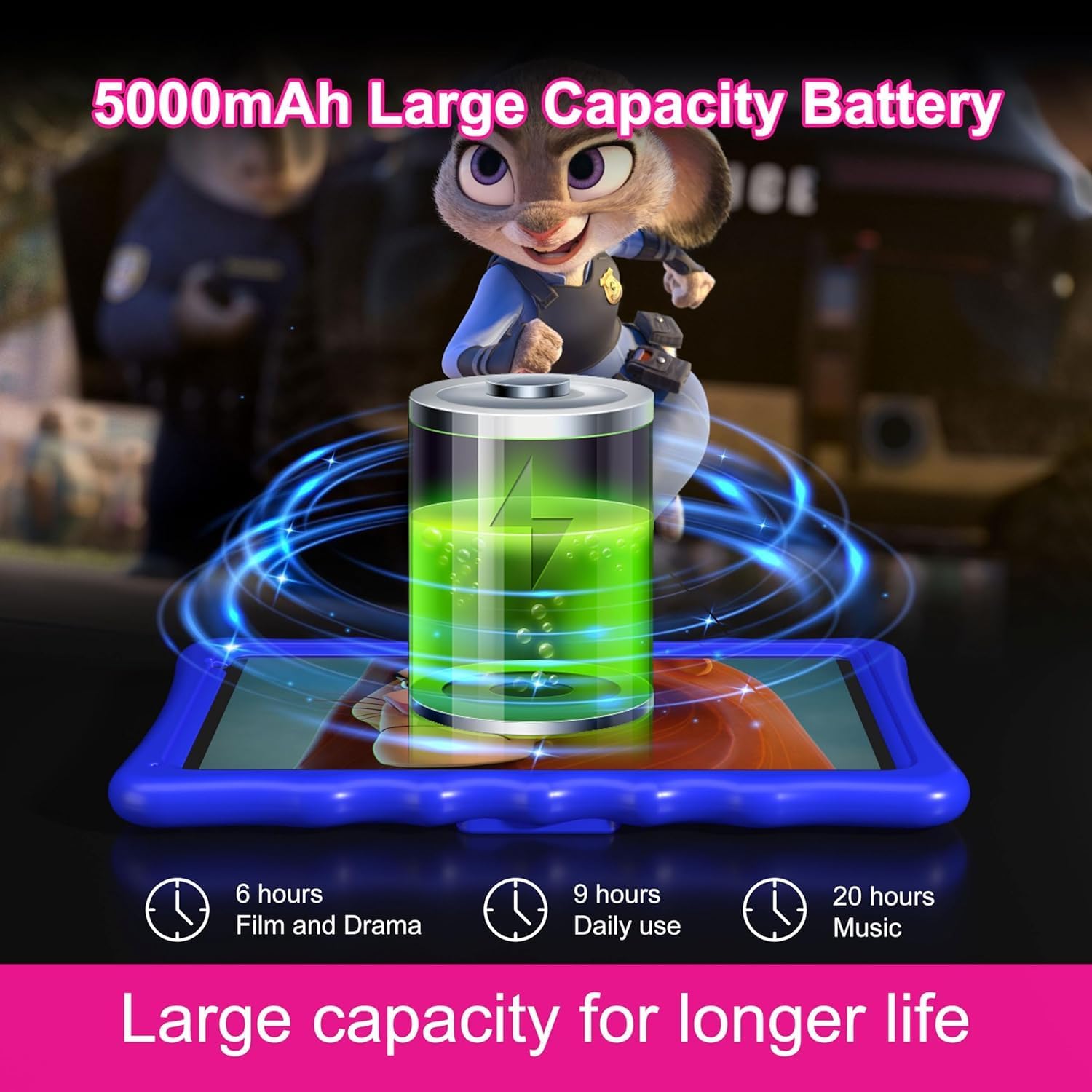
Image: An illustration of the tablet's 5000mAh battery capacity, showing estimated usage times: 6 hours for film/drama, 9 hours for daily use, and 20 hours for music.
Baterija od 5000 mAh omogućava produženo korištenje. Za optimizaciju vijeka trajanja baterije:
- Smanjite svjetlinu ekrana.
- Isključite Wi-Fi i Bluetooth kada ih ne koristite.
- Zatvorite nekorištene aplikacije koje rade u pozadini.
- Redovno punite tablet, izbjegavajući potpuno pražnjenje.
5. Roditeljski nadzor
The Tibuta A70W tablet includes robust parental control features to ensure a safe and educational environment for children. You can switch between normal and child modes.
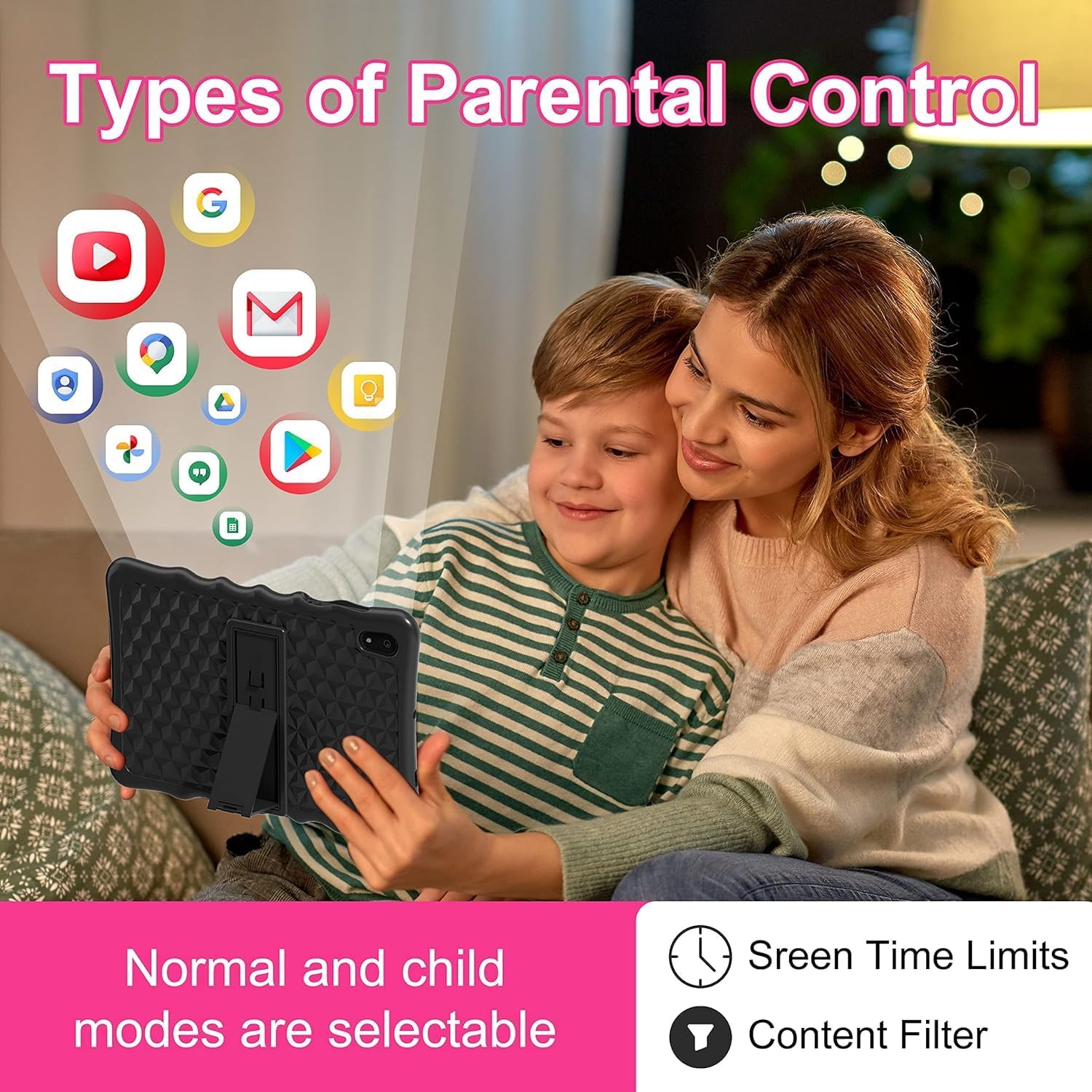
Image: A visual representation of parental control features, including options for setting screen time limits and applying content filters, with various app icons floating above the tablet.
5.1 Postavljanje roditeljskog nadzora
Access parental control settings through the dedicated "Kids Space" app or via the tablet's main settings menu. Here you can:
- Set Screen Time Limits: Define daily usage limits for the tablet.
- Manage Content: Filter inappropriate content and approve specific apps, webstranice i videozapisi.
- Control App Access: Select which applications your child can use.
- Monitor Activity: Review your child's tablet usage.

Image: The tablet displaying the interface for pre-installed Kids Apps like YouTube and Kids Space, showing various educational and entertainment content categories within Google Kids Space.
The tablet comes with pre-installed educational apps and access to Google Kids Space, offering a curated selection of age-appropriate content.
6. Održavanje
6.1 Čišćenje tableta
- Za čišćenje ekrana i kućišta koristite meku krpu koja ne ostavlja dlačice.
- Izbjegavajte korištenje jakih kemikalija ili abrazivnih materijala.
- Ensure the tablet is powered off before cleaning.
6.2 Ažuriranja softvera
Povremeno provjeravajte ažuriranja softvera kako biste osigurali optimalne performanse i sigurnost. Idite na Postavke > Sistem > Ažuriranje sistema.
6.3 Shockproof Case Care
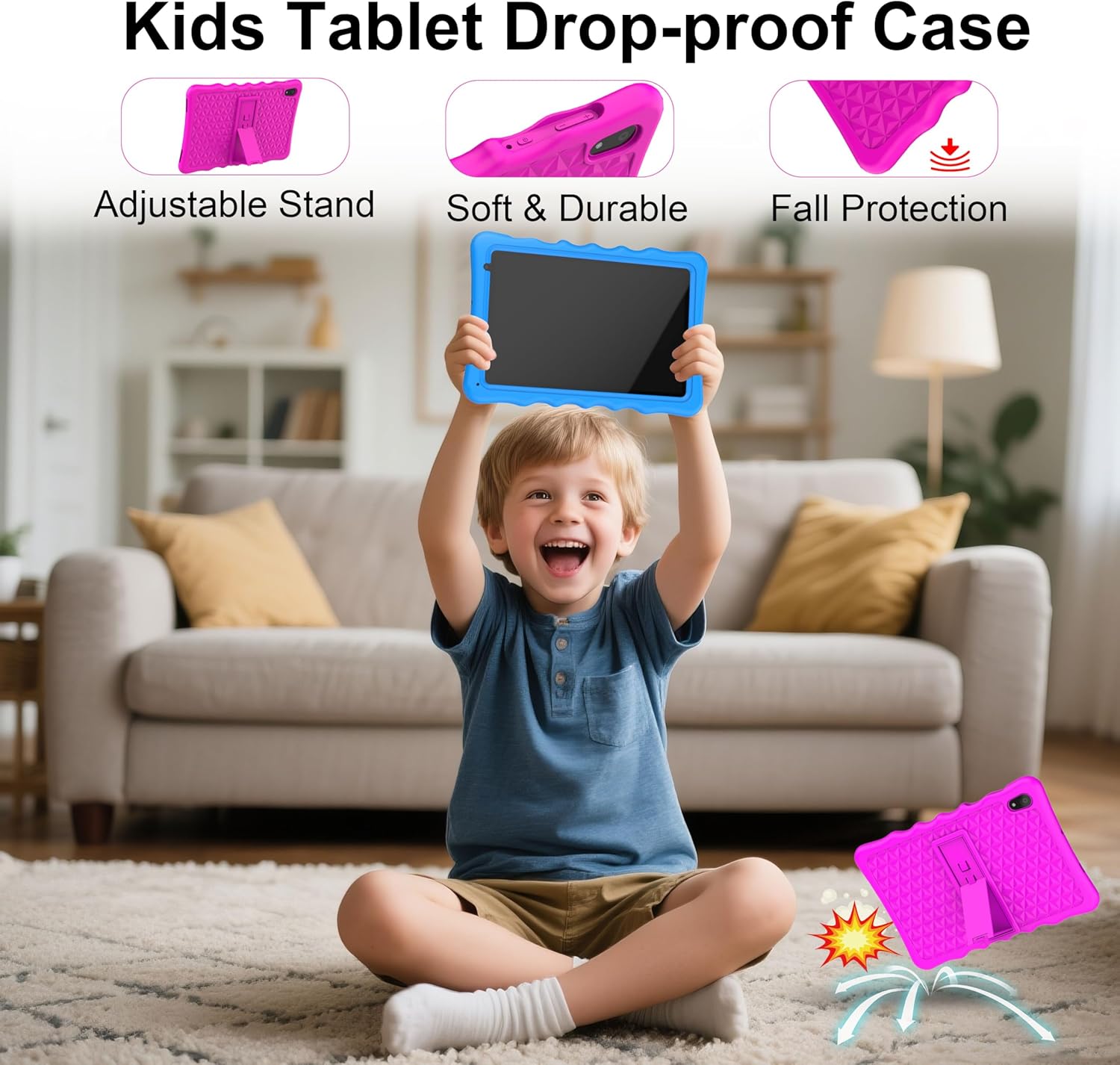
Image: A child happily holding the tablet in its blue shockproof case, with insets illustrating the case's adjustable stand, soft and durable material, and fall protection features.
The food-grade silicone case provides protection. Clean it with mild soap and water if necessary. Ensure it is completely dry before reattaching it to the tablet.
7. Otkrivanje problema
| Problem | Mogući uzrok | Rješenje |
|---|---|---|
| Tablet se ne uključuje. | Slaba baterija; pad sistema. | Charge the tablet for at least 30 minutes. If unresponsive, press the reset button with a pin. |
| Problemi s Wi-Fi vezom. | Netačna lozinka; van dometa; problem sa ruterom. | Verify password. Move closer to the router. Restart the router and tablet. |
| Aplikacije su spore ili se ruše. | Previše pokrenutih aplikacija; malo prostora za pohranu; zastarjela aplikacija. | Close background apps. Clear app cache. Update apps. Free up storage. |
| Ekran ne reagira. | Privremeni softverski kvar. | Perform a soft reset by holding the power button for 10-15 seconds, or use the reset pinhole. |
| Roditeljski nadzor ne funkcioniše kako se očekuje. | Incorrect settings; app not configured. | Review parental control settings in the Kids Space app or tablet settings. Ensure all apps are managed. |
8. Specifikacije
| Feature | Detalj |
|---|---|
| Brand | Tibuta |
| Broj modela | A70W |
| Operativni sistem | Android 13 |
| Marka procesora | Allwinner |
| Brzina procesora | 1.5 GHz (Note: Feature bullets state 1.8 GHz, using 1.5 GHz from specifications for consistency) |
| Veličina ekrana | 10.1 inča |
| Rezolucija ekrana | 1280 x 800 piksela |
| Veličina instalirane RAM memorije | 4 GB |
| Kapacitet memorije | 32 GB (proširivo do 128 GB putem Micro SD kartice) |
| Marka grafičkog čipseta | PowerVR GE8300 |
| Vrsta povezanosti | Bluetooth, Wi-Fi (802.11b/g/n) |
| Baterija | 1 Lithium-polymer (included) - 5000 mAh |
| Dimenzije artikla (D x Š x V) | 24.2 x 16.1 x 0.84 cm |
| Težina artikla | 1.04 kilograma |
| Posebne karakteristike | Shockproof case, pre-installed educational apps, parental control |
9. Garancija
The Tibuta A70W Kids Tablet comes with a 1-godišnja garancija proizvođačaOva garancija pokriva nedostatke u materijalu i izradi pri normalnoj upotrebi. Molimo sačuvajte dokaz o kupovini za potrebe reklamacije.
For detailed warranty terms and conditions, please refer to the documentation included with your product or contact customer support.
10. Korisnička podrška
If you encounter any problems with your Tibuta A70W Kids Tablet or require technical assistance, please do not hesitate to contact us. Our support team is ready to help.
- Način kontakta: You can reach us via our official store email or through Amazon's messaging system.
- Vrijeme odgovora: We aim to respond quickly and provide comprehensive technical support.
Please provide your product model (A70W) and a detailed description of the issue when contacting support to facilitate a faster resolution.