1. Uvod
Thank you for choosing the AVIDEONE PTZ Camera. This manual provides detailed instructions for the setup, operation, and maintenance of your PTZ-20XPB camera. This camera is designed for professional video applications, offering 20X optical zoom, 1080p 60fps video output, and multiple connectivity options including HDMI, 3G-SDI, and PoE IP live streaming. It supports various control protocols, making it suitable for diverse environments such as church services, educational institutions, and corporate events.
2. Sigurnosne informacije
Please read all safety instructions carefully before operating the camera. Retain this manual for future reference.
- Napajanje: Use only the specified power adapter. Ensure the power source matches the camera's voltage zahtjeve.
- Instalacija: Install the camera on a stable surface or mount it securely to prevent accidental falls. Avoid placing the camera in direct sunlight, near heat sources, or in environments with high humidity or dust.
- čišćenje: Isključite napajanje prije čišćenja. Koristite meku, suhu krpu. Ne koristite tekuća ili aerosolna sredstva za čišćenje.
- servisiranje: Do not attempt to open or service the camera yourself. Refer all servicing to qualified personnel.
- ventilacija: Ensure proper ventilation around the camera to prevent overheating. Do not block ventilation openings.
- munja: Unplug the camera during lightning storms or when unused for long periods.
3. Proizvod je gotovview
3.1 Sadržaj paketa
Provjerite da li su sve stavke prisutne u paketu:
- AVIDEONE PTZ Camera (PTZ-20XPB)
- Adapter za napajanje
- IR daljinski upravljač
- Korisnički priručnik (ovaj dokument)
- RS232 kabel
3.2 Komponente kamere
The AVIDEONE PTZ Camera features a robust design with key components for high-quality video capture and control.

Slika 3.2.1: Prednji i zadnji View of AVIDEONE PTZ Camera with Remote Control. This image displays the main camera unit from the front and rear, highlighting its compact design and the various ports on the back panel. The included remote control is also shown.
- Objektiv: High-quality optical lens with 20X optical zoom capability.
- Mehanizam za panoramiranje/naginjanje: Allows for smooth and precise horizontal (pan) and vertical (tilt) movement.
- Indikatori statusa: LED lights indicating power, network activity, and operational status.
- Portovi na zadnjoj ploči: Includes various input/output ports for connectivity.
3.3 Priključci stražnje ploče
Familiarize yourself with the connection ports on the rear panel of the camera.

Figure 3.3.1: Connectivity Diagram of AVIDEONE PTZ Camera. This diagram illustrates the various input and output ports on the camera's rear panel, including HDMI, 3G-SDI, LAN (PoE), RS232/RS485, and audio input, along with examples of connected devices and streaming platforms.
- DC 12V Ulaz napajanja: Za spajanje eksternog adaptera za napajanje.
- LAN (RJ45) port: For IP streaming, control, and Power over Ethernet (PoE).
- HDMI izlaz: For connecting to an HDMI display or video switcher.
- 3G-SDI izlaz: For connecting to SDI-compatible devices, supporting 1080p60.
- RS232/RS485 Ports: For serial control using VISCA, PELCO-D, or PELCO-P protocols.
- Audio ulaz: Za povezivanje eksternog mikrofona.
4. Podešavanje
4.1 Fizička instalacija
Proper placement is crucial for optimal performance.
- plasman: Place the camera on a flat, stable surface, or mount it using a compatible bracket (not included) to a wall or ceiling. Ensure the camera has a clear line of sight to the desired capture area.
- Okruženje: Avoid locations with excessive vibration, direct sunlight, or extreme temperatures.
4.2 Povezivanje kamere
Follow these steps to connect your AVIDEONE PTZ Camera:
- Priključak za napajanje:
- If using the included power adapter, connect it to the DC 12V input port on the camera and then to a power outlet.
- If using Power over Ethernet (PoE), connect an Ethernet cable from a PoE-enabled switch or injector to the LAN port on the camera. The camera will receive power and data through this single cable.
- Video Output Connection:
- For HDMI output, connect an HDMI cable from the camera's HDMI port to an HDMI input on your display, video switcher, or capture card.
- For 3G-SDI output, connect an SDI cable from the camera's 3G-SDI port to an SDI input on your video switcher or recorder.
- Network Connection (for IP Streaming/Control): Connect an Ethernet cable from the camera's LAN port to your network switch or router.
- Serial Control Connection (Optional): If using external serial control, connect the RS232 or RS485 cable from the camera to your control device (e.g., joystick controller, PC with serial interface).
- Priključak za audio ulaz (opciono): Connect an external microphone to the audio input port if external audio is required.
5. Uputstvo za upotrebu
5.1 Uključivanje/isključivanje
Once connected to power, the camera will automatically power on. To power off, disconnect the power supply.
5.2 Basic Camera Control (Pan, Tilt, Zoom)
The camera offers precise control over its pan, tilt, and zoom functions.

Figure 5.2.1: AVIDEONE PTZ Camera Pan and Tilt Movement. This image visually represents the camera's ability to pan horizontally and tilt vertically, indicating its flexible movement capabilities.

Figure 5.2.2: AVIDEONE PTZ Camera 20X Optical Zoom Demonstration. This image shows the camera's lens and provides a visual comparison of 1x zoom versus 20x optical zoom, demonstrating the camera's powerful magnification capability.
- Kruh: Okrenite kameru horizontalno (lijevo/desno).
- Nagib: Podesite kameru vertikalno (gore/dolje).
- zumiranje: Adjust the focal length to zoom in (telephoto) or zoom out (wide-angle). The camera features 20X optical zoom.
5.3 Korištenje IR daljinskog upravljača
The included IR remote control allows for convenient operation of the camera's functions.
- Tasteri za usmjeravanje: Use to pan and tilt the camera.
- Dugmad za zumiranje: Control the optical zoom (Tele/Wide).
- Unaprijed postavljena dugmad: Save and recall camera positions (pan, tilt, zoom settings). Refer to the remote control's specific instructions for setting and recalling presets.
- Dugme menija: Access the camera's on-screen display (OSD) menu for advanced settings.
5.4 Web Kontrola interfejsa
The camera can be controlled via a web browser, offering comprehensive settings and real-time video preview.
- Povežite kameru na vašu mrežu.
- Find the camera's IP address (refer to your network's DHCP server or use a network scanning tool).
- Otvori a web browser and enter the camera's IP address in the URL bar.
- Log in using the default username and password (refer to the camera's documentation for default credentials).
- Od web interface, you can control pan, tilt, zoom, focus, exposure, color settings, and manage network configurations.
5.5 Control Protocols
The AVIDEONE PTZ Camera supports industry-standard control protocols for integration with various systems:
- VISCA: A widely used protocol for PTZ camera control, often used with joystick controllers and software.
- PELCO-D / PELCO-P: Common protocols for controlling surveillance and PTZ cameras.
- IP kontrola: Control via network using ONVIF or proprietary IP commands.
5.6 Live Streaming Setup
The camera supports IP live streaming, making it ideal for broadcasting events.
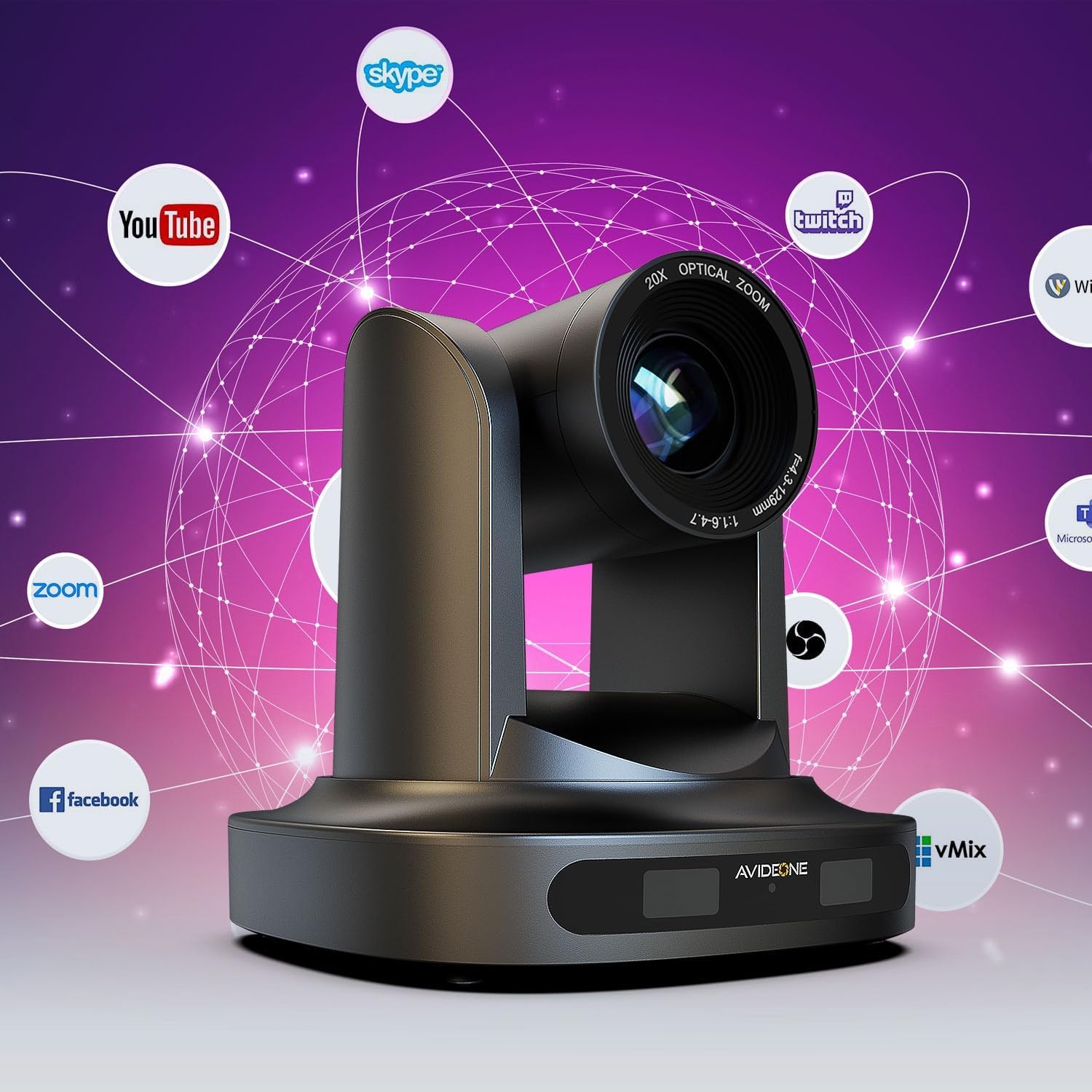
Figure 5.6.1: AVIDEONE PTZ Camera Compatibility with Live Streaming Platforms. This image displays various logos of popular streaming and video conferencing platforms such as YouTube, Facebook, Zoom, Twitch, Skype, Microsoft Teams, vMix, and Wirecast, indicating the camera's broad compatibility for live broadcasts.
The camera can output video streams compatible with various platforms and software. Configuration typically involves:
- Accessing the camera's web interfejs.
- Navigating to the "Network" or "Streaming" settings.
- Configuring streaming protocols (e.g., RTMP, RTSP) and entering server URLs/stream keys provided by your streaming platform (e.g., YouTube, Facebook Live, Twitch).
- Adjusting video resolution, frame rate, and bitrate as needed for your network and platform requirements.
The camera is suitable for applications in:

Figure 5.6.2: AVIDEONE PTZ Camera Applications. This image highlights common use cases for the camera, including church services, educational settings, and broadcast environments, demonstrating its versatility.
6. Održavanje
6.1 Čišćenje
- Uvijek isključite napajanje prije čišćenja.
- Koristite meku, suhu krpu za brisanje kućišta fotoaparata.
- For the lens, use a lens cleaning cloth and specialized lens cleaning solution. Avoid touching the lens surface directly.
- Do not use strong detergents, abrasive cleaners, or organic solvents.
6.2 Ažuriranja firmvera
Periodically check the AVIDEONE official website for firmware updates. Firmware updates can improve performance, add new features, or fix bugs. Follow the instructions provided with the firmware update package carefully.
6.3 Skladištenje
When not in use for extended periods, store the camera in a cool, dry place, away from direct sunlight and dust. It is recommended to use the original packaging for storage.
7. Otkrivanje problema
Ovaj odjeljak se bavi uobičajenim problemima na koje možete naići. Ako problem i dalje postoji, obratite se korisničkoj podršci.
| Problem | Mogući uzrok | Rješenje |
|---|---|---|
| Nema snage | Power adapter not connected or faulty; PoE not active. | Check power cable connection. Ensure power outlet is working. Verify PoE switch/injector is active. |
| Nema video izlaza | Incorrect cable connection; wrong input selected on display; resolution mismatch. | Check HDMI/SDI cable connections. Ensure display is on the correct input. Verify camera output resolution is supported by the display. |
| Camera Not Responding to Remote Control | Batteries low/dead; IR sensor blocked; remote not paired (if applicable). | Replace remote batteries. Ensure no obstructions between remote and camera's IR sensor. |
| Ne mogu pristupiti Web Interface | Incorrect IP address; network cable disconnected; IP address conflict. | Verify camera's IP address. Check network cable connection. Ensure no other device on the network has the same IP. |
| Loš kvalitet slike | Prljav objektiv; uslovi osvjetljenja; neispravna podešavanja kamere. | Clean the lens. Adjust lighting. Check camera settings (exposure, white balance, focus) via OSD or web interfejs. |
8. Specifikacije
Technical specifications for the AVIDEONE PTZ-20XPB Camera:
| Feature | Detalj |
|---|---|
| Broj modela | PTZ-20XPB |
| Optički zum | 20X |
| Senzor | 1/2.8" HD CMOS Sensor |
| Video Rezolucija | 1080p (do 60 sličica u sekundi) |
| Video izlazi | HDMI, 3G-SDI, LAN (IP Streaming) |
| Kontrolni protokoli | VISCA, PELCO-D, PELCO-P, IP Control |
| Tehnologija povezivanja | Ethernet |
| Napajanje | DC 12V or PoE (Power over Ethernet) |
| Dimenzije proizvoda | 17.02 x 18.03 x 17.02 cm |
| Težina | 2.2 kg |
| Proizvođač | AVIDEONE |
9. Jamstvo i podrška
9.1 Informacije o garanciji
AVIDEONE products are covered by a limited warranty against defects in materials and workmanship. Please refer to the warranty card included with your product or visit the official AVIDEONE webZa detaljne uslove garancije posjetite stranicu. Sačuvajte račun kao dokaz o kupovini u slučaju reklamacije.
9.2 Korisnička podrška
If you encounter any issues or have questions regarding your AVIDEONE PTZ Camera that are not covered in this manual, please contact AVIDEONE customer support. You can typically find contact information (email, phone, or support portal) on the AVIDEONE official webweb stranici ili na ambalaži vašeg proizvoda.
For the latest information, drivers, and firmware updates, please visit the official AVIDEONE website.