
1. Uvod
Thank you for choosing the Sharp 50FQ5EG 50-inch QLED 4K Google TV. This manual provides essential information for setting up, operating, maintaining, and troubleshooting your new television. Please read it thoroughly before use and keep it for future reference.
Ključne karakteristike:
- 50-inch QLED 4K Ultra HD Display with 144 Hz Refresh Rate
- Google TV Operating System with Google Assistant and Chromecast built-in
- Harman/Kardon Hybrid Speaker System with Dolby Atmos
- Dolby Vision IQ, HDR10, HLG Support
- Multiple Connectivity Options: 4 x HDMI 2.1, 2 x USB, Bluetooth 5.3, Wi-Fi, Ethernet
- Frameless Aluminum Design
Uključene komponente:
- Sharp 50FQ5EG Television
- Postolje
- Daljinski upravljač (potrebne su 2 AAA baterije, uključene)
- Uputstvo za upotrebu
- Power Cable
2. Sigurnosne informacije
Da biste osigurali siguran rad i spriječili oštećenja, molimo vas da se pridržavate sljedećih sigurnosnih mjera opreza:
- Napajanje: Connect the TV only to an AC 220V, 50Hz power outlet. Do not overload power outlets.
- ventilacija: Osigurajte odgovarajuću ventilaciju oko televizora. Ne blokirajte ventilacijske otvore.
- Tečnost i vlaga: Do not expose the TV to rain, moisture, or dripping/splashing liquids. Do not place objects filled with liquids on the TV.
- Izvori toplote: Držite televizor dalje od izvora toplote kao što su radijatori, grijalice, peći ili drugi uređaji koji proizvode toplotu.
- čišćenje: Isključite televizor iz zidne utičnice prije čišćenja. Koristite meku, suhu krpu. Ne koristite tekuća sredstva za čišćenje ili aerosolna sredstva za čišćenje.
- servisiranje: Ne pokušavajte sami servisirati ovaj proizvod. Sve servise prepustite kvalificiranom servisnom osoblju.
- djeca: Supervise children to ensure they do not play with the TV or remote control.
3. Podešavanje
3.1 Raspakivanje
Pažljivo izvadite TV i svu dodatnu opremu iz ambalaže. Sačuvajte ambalažni materijal za budući transport ili servisiranje.
3.2 Attaching the Pedestal Stand
If you are not wall-mounting the TV, attach the included pedestal stand:
- Postavite televizor licem prema dolje na meku, ravnu površinu kako biste spriječili oštećenje ekrana.
- Poravnajte komponente postolja s montažnim otvorima na donjoj strani televizora.
- Pričvrstite postolje pomoću priloženih vijaka. Prije postavljanja televizora uspravno provjerite je li postolje čvrsto pričvršćeno.

Slika: Krupni plan view of the TV's pedestal stand and integrated Harman/Kardon speakers.
3.3 Montiranje na zid (opciono)
The Sharp 50FQ5EG supports VESA wall mounts with a standard of 200 x 200 mm. Use M6 screws (not included) with a length appropriate for your wall mount bracket. Consult a professional for wall mounting to ensure safety and proper installation.
3.4 Povezivanje perifernih uređaja
Connect your external devices to the TV's ports. The TV features 4 HDMI 2.1 ports, 2 USB ports, Ethernet, and an optical audio output.
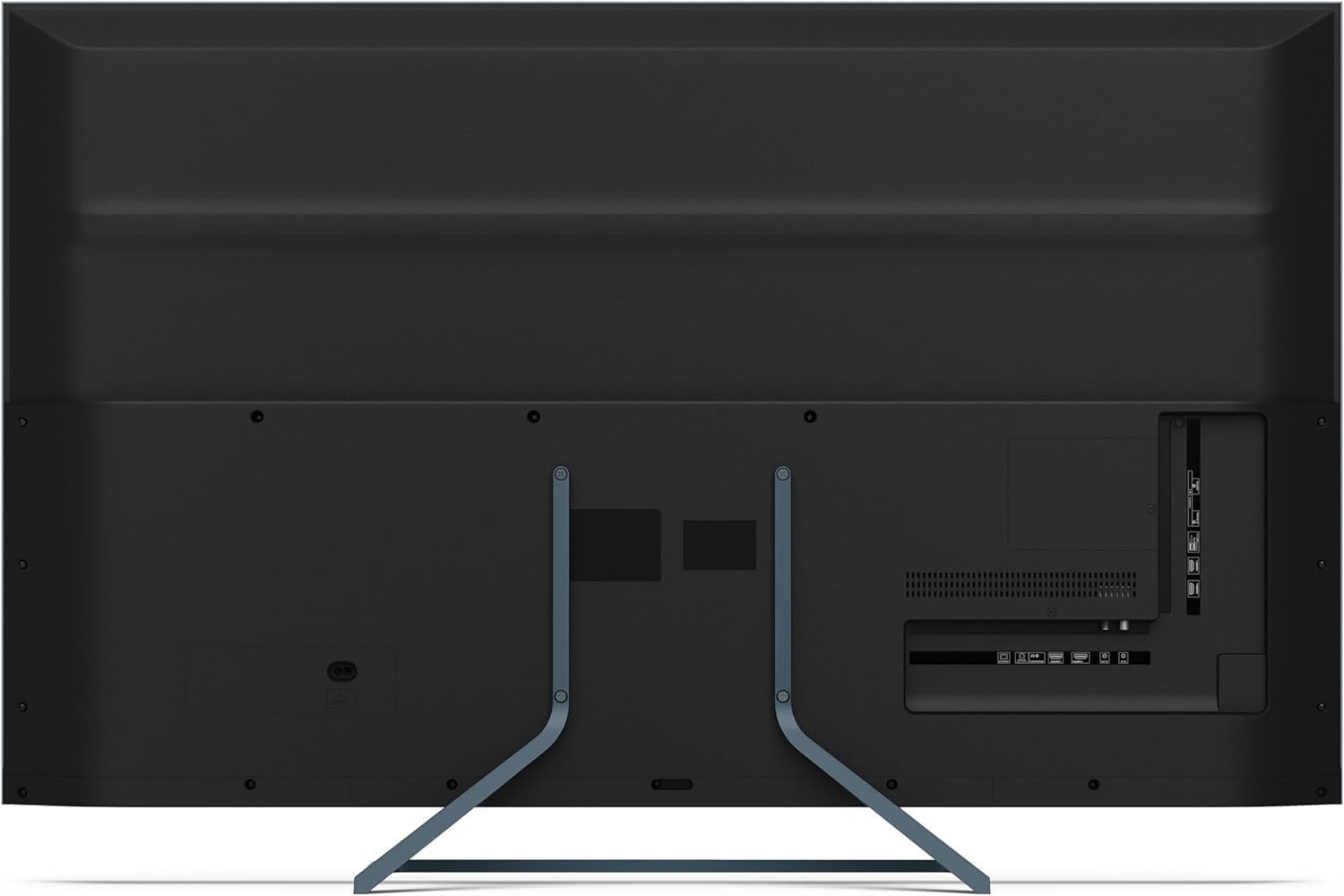
Slika: Stražnja strana view of the television displaying the arrangement of HDMI, USB, and other connectivity ports.
- HDMI: Connect Blu-ray players, game consoles, or set-top boxes. HDMI 2.1 supports eARC and ALLM for enhanced audio and gaming.
- USB: Spojite USB uređaje za pohranu podataka za reprodukciju medija.
- Ethernet: Za žičanu internet vezu.
- Snaga: Spojite kabel za napajanje na TV, a zatim na zidnu utičnicu.
3.5 Početno uključivanje i podešavanje Google TV-a
- Uključite TV u električnu utičnicu.
- Pritisnite dugme za napajanje na daljinskom upravljaču ili na televizoru.
- The TV will guide you through the initial setup process, including language selection, network connection (Wi-Fi or Ethernet), and Google account sign-in.
- Uparivanje daljinskog upravljača: During initial setup, you may need to pair the Bluetooth remote control. Follow the on-screen instructions, typically involving pressing specific buttons on the remote simultaneously.
4. Upravljanje televizorom
4.1 Daljinski upravljač
The included remote control uses Bluetooth for enhanced functionality. It allows navigation, voice control via Google Assistant, and quick access to various features.
4.2 Interfejs Google TV-a
The Google TV interface organizes your content from various streaming services and apps. Use the remote's directional pad to navigate through menus, select apps, and browse content.

Image: The television screen showing the Google TV home interface with recommended content and installed applications.
4.3 Postavke slike
Your Sharp 50FQ5EG TV features advanced picture technologies:
- QLED Q-Colour: Provides vibrant and accurate color reproduction.
- 4K Ultra HD: Pruža oštre i detaljne slike.
- Brzina osvježavanja od 144 Hz: Ensures smooth motion, especially beneficial for gaming and fast-paced content.
- Dolby Vision IQ, HDR10, HLG: Supports various High Dynamic Range formats for enhanced contrast and brightness.
- AQUOS Motion: Improves motion clarity by reducing blur.
- Eco Sensor: Automatski podešava osvetljenost na osnovu uslova ambijentalnog osvetljenja.
Access picture settings through the TV's menu to customize brightness, contrast, color, and other display options.
4.4 Postavke zvuka
The TV is equipped with a Harman/Kardon Hybrid Speaker System and supports Dolby Atmos for immersive audio.
- Harman/Kardon Speakers: Delivers clear sound with powerful bass.
- Dolby Atmos: Provides a three-dimensional audio experience.
Adjust sound modes, equalizer settings, and volume levels via the TV's audio menu.
4.5 Povezivanje
- Wi-Fi/Ethernet: Povežite se na kućnu mrežu za pristup internetu i streaming.
- Bluetooth 5.3: Povežite bežične slušalice, soundbarove ili druge uređaje s omogućenom Bluetooth vezom.
- Google Cast: Cast content from your mobile devices or computer directly to the TV.
4.6 Korištenje aplikacija
The Google TV platform provides access to a wide range of applications from the Google Play Store, including:
- Netflix, Amazon Prime Video, HBO, Disney+, Movistar+, DAZN, Atresmedia
- KODI, IPTV, Steamlink, Twitch, VLC, YouTube
- Puffin TV Browser, Spotify, Deezer, TuneIn Radio
Navigate to the 'Apps' section on the Google TV home screen to browse, download, and manage your applications.
5. Održavanje
5.1 Čišćenje televizora
- ekran: Nježno obrišite ekran mekom krpom koja ne ostavlja dlačice. Za tvrdokorne mrlje, lagano obrišiteampOperite krpu vodom ili specijaliziranim sredstvom za čišćenje ekrana (nanesite na krpu, a ne direktno na ekran).
- tijelo: Obrišite okvir i postolje televizora mekom, suhom krpom.
- Ne koristite: Abrasive cleaners, alcohol, benzene, or thinners, as these can damage the TV's surface.
5.2 Ažuriranja softvera
Vaš TV može primati ažuriranja softvera za poboljšanje performansi i dodavanje novih funkcija. Provjerite je li vaš TV povezan na internet kako biste automatski primali ova ažuriranja ili ih ručno provjerite u meniju postavki.
6. Otkrivanje problema
Ako imate problema s televizorom, pogledajte sljedeće uobičajene probleme i rješenja:
| Problem | Moguće rješenje |
|---|---|
| Nema snage | Provjerite je li kabel za napajanje sigurno spojen na TV i zidnu utičnicu. Provjerite ima li utičnice napajanja. Pokušajte s drugom utičnicom. |
| Nema slike, ali je zvuk prisutan | Provjerite ulazni izvor. Uvjerite se da su vanjski uređaji uključeni i ispravno povezani. Pokušajte s drugim HDMI kabelom. |
| Nema zvuka, ali je slika prisutna | Check the volume level. Ensure mute is not activated. Check audio output settings (e.g., internal speakers, external soundbar). |
| Daljinski upravljač ne reaguje | Replace the batteries. Ensure there are no obstructions between the remote and the TV. Re-pair the Bluetooth remote if necessary (refer to initial setup). |
| Nije moguće povezivanje na Wi-Fi | Provjerite ruter i modem. Uvjerite se da je lozinka za Wi-Fi ispravna. Pokušajte ponovo pokrenuti TV i ruter. |
| Apps Not Working/Freezing | Ensure the TV has a stable internet connection. Try clearing the app's cache or reinstalling the app. Restart the TV. |
Ako problem i dalje postoji nakon isprobavanja ovih rješenja, obratite se korisničkoj podršci.
7. Specifikacije

Image: Technical drawing illustrating the width, height, and depth of the television with and without its stand.
| Feature | Specifikacija |
|---|---|
| Broj modela | 50FQ5EG |
| Veličina ekrana | 50 inča |
| Display Technology | QLED, LED |
| Rezolucija | 4K Ultra HD (3840 x 2160) |
| Refresh Rate | 144 Hz |
| HDR podrška | Dolby Vision IQ, HDR10, HLG |
| Operativni sistem | Google TV |
| Audio izlaz | 2.1 Channel Harman/Kardon Speakers, 15W Max Power, Dolby Atmos |
| Povezivanje | 4 x HDMI 2.1, 2 x USB 2.0, Bluetooth 5.3, Wi-Fi, Ethernet |
| VESA standard za montažu | 200 x 200 mm |
| Dimenzije sa postoljem (Š x V x D) | 113.22 x 73.89 x 23.2 cm |
| Dimenzije bez postolja (Š x V x D) | 113.22 x 66.87 x 6.0 cm |
| Težina (bez postolja) | 11.5 kg |
| Potrošnja energije (radna) | 84 Watts |
| Godišnja potrošnja energije | 64 kWh/god |
| Kontrolni metod | Voice (Google Assistant), Remote Control |
| Boja | Anthracite Grey Aluminum |
8. Garancija i podrška
8.1 Informacije o garanciji
This Sharp 50FQ5EG television comes with a Ograničena garancija. Please refer to the warranty card included with your product or visit the official Sharp webstranicu za detaljne uslove i odredbe u vezi sa pokrićem, trajanjem i procedurama servisiranja.
8.2 Korisnička podrška
For technical assistance, troubleshooting beyond this manual, or warranty claims, please contact Sharp customer support. Contact details can typically be found on the Sharp official webweb-mjestu ili u dokumentaciji koja je dostavljena uz vaš TV.