
1. Proizvod je gotovview
The upHere D6SEC is a high-performance dual-tower CPU air cooler designed for efficient heat dissipation. It features six 6mm copper heat pipes and dual 120mm 5V ARGB PWM fans, providing effective cooling for a wide range of Intel and AMD processors.
Ključne karakteristike uključuju:
- Optimal Heat Dissipation: Six 6mm copper heat pipes with a 30mm contact surface ensure efficient heat transfer from the CPU.
- Dvostruki PWM ventilatori: Two 120mm fans operate between 600-1600 RPM, delivering up to 68.2 CFM airflow with a low noise level of ≤25 dB(A).
- ARGB rasvjeta: Integrated 5V 3-Pin ARGB lighting supports motherboard synchronization for customizable aesthetics.
- Visoka kompatibilnost: Designed for 100% RAM compatibility and fits most ATX/M-ATX cases with dimensions of 125mm (width) x 154mm (height).
- Jednostavna instalacija: The design allows for installation without removing the fans, simplifying the process.
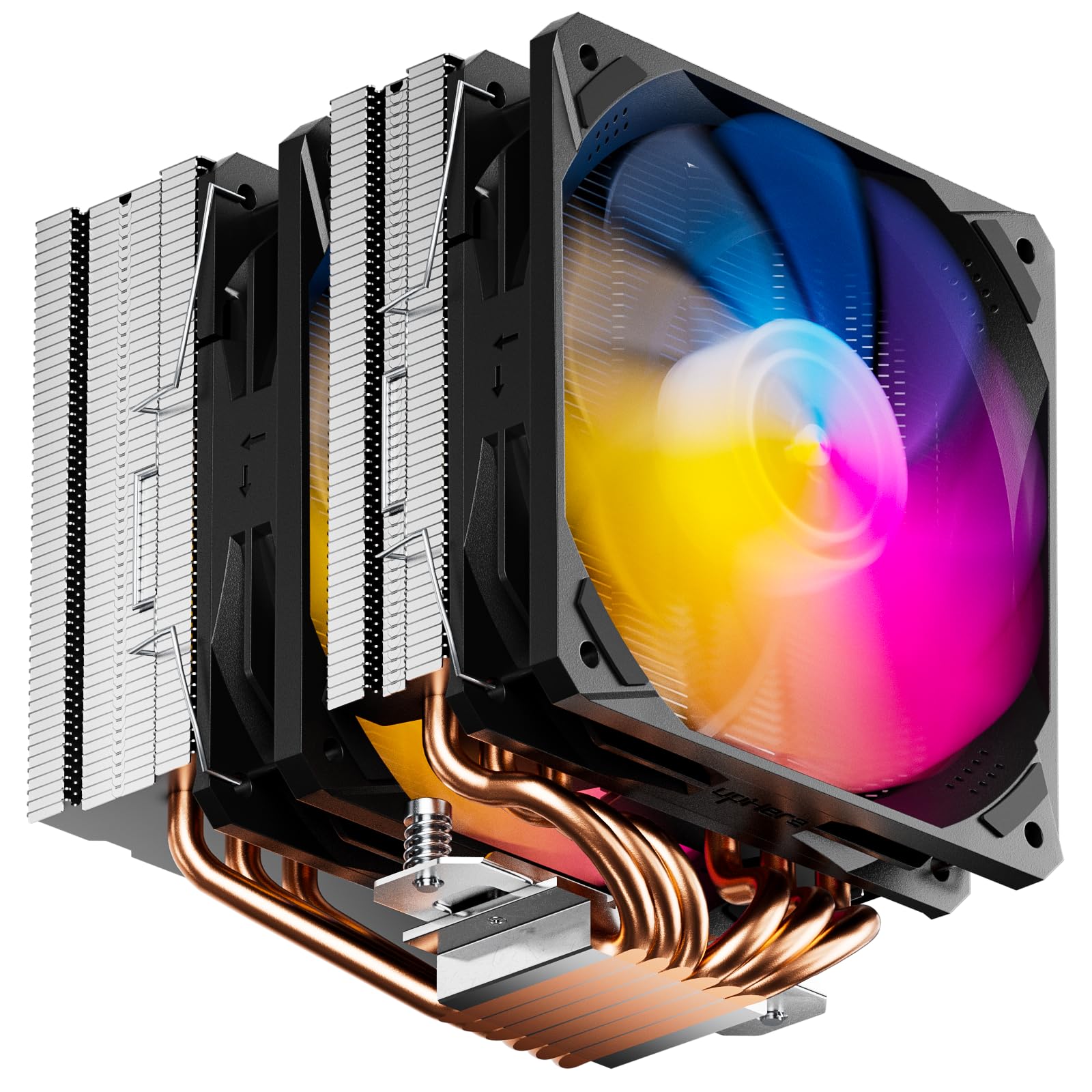
Image 1.1: upHere D6SEC Dual Tower CPU Air Cooler with ARGB fans.
2. Šta se nalazi u kutiji
Prije početka instalacije provjerite da li su sve komponente prisutne:
- upHere D6SEC CPU Cooler (with pre-installed fans)
- Intel Mounting Bracket Kit
- AMD Mounting Bracket Kit
- Termalna pasta
- Spatula
- Uputstvo za upotrebu

Image 2.1: Included mounting hardware, thermal paste, and cooler.
3. Vodič za instalaciju
This section provides detailed instructions for installing the upHere D6SEC CPU Air Cooler on both Intel and AMD platforms. Refer to the video below for a visual guide.
Video 3.1: Official upHere D6SEC Dual Tower CPU Air Cooler Installation Guide. This video demonstrates the step-by-step process for mounting the cooler on both Intel and AMD motherboards, including bracket assembly, thermal paste application, and fan connections.
3.1. Intel Installation (LGA 1851/2011/2066/1700/1200/1150/1121/1155/1156/1366)
- Pripremite zadnju ploču: Adjust the Intel backplate according to your CPU socket type (e.g., 115X/1200, 1700, 1366). Ensure the pins are in the correct position.
- Pričvrstite zadnju ploču: Place the adjusted backplate on the rear of the motherboard, aligning the holes with the CPU socket mounting points.
- Instalirajte Standoffs: From the front of the motherboard, screw in the appropriate standoffs for your Intel socket type.
- Mount Mounting Brackets: Place the Intel mounting brackets over the standoffs and secure them with the provided screws.
- Nanesite termalnu pastu: Apply a small amount of thermal paste to the center of your CPU's integrated heat spreader (IHS). Use the spatula to spread it evenly into a thin layer.
- Hladnjak pozicije: Remove the protective film from the cooler's base. Carefully align the cooler with the mounting brackets and place it onto the CPU.
- Sigurni hladnjak: Use the included screwdriver to tighten the spring-loaded screws on the cooler's mounting plate in an alternating X-pattern until snug. Do not overtighten.
- Povežite navijače: Connect the 4-pin PWM fan cables to the CPU_FAN header(s) on your motherboard. If your motherboard has multiple CPU fan headers, use the primary one (usually labeled CPU_FAN1).
- Povežite ARGB: Connect the 3-pin 5V ARGB cable to a compatible 5V ARGB header on your motherboard. Ensure it is a 5V header, not a 12V RGB header, to prevent damage.

Image 3.1: The cooler is designed for easy installation without removing the fans.

Image 3.2: The cooler supports a wide range of Intel LGA and AMD AM sockets.
3.2. AMD Installation (AM5/AM4/AM3/AM2/AM3+/AM2+/FM2/FM1)
- Pripremite matičnu ploču: Remove the existing plastic retention clips from the motherboard's stock AMD backplate. Keep the stock backplate in place.
- Instalirajte Standoffs: Screw the appropriate AMD standoffs into the stock backplate's mounting holes.
- Mount Mounting Brackets: Place the AMD mounting brackets over the standoffs and secure them with the provided screws.
- Nanesite termalnu pastu: Apply a small amount of thermal paste to the center of your CPU's integrated heat spreader (IHS). Use the spatula to spread it evenly into a thin layer.
- Hladnjak pozicije: Remove the protective film from the cooler's base. Carefully align the cooler with the mounting brackets and place it onto the CPU.
- Sigurni hladnjak: Use the included screwdriver to tighten the spring-loaded screws on the cooler's mounting plate in an alternating X-pattern until snug. Do not overtighten.
- Povežite navijače: Connect the 4-pin PWM fan cables to the CPU_FAN header(s) on your motherboard. If your motherboard has multiple CPU fan headers, use the primary one (usually labeled CPU_FAN1).
- Povežite ARGB: Connect the 3-pin 5V ARGB cable to a compatible 5V ARGB header on your motherboard. Ensure it is a 5V header, not a 12V RGB header, to prevent damage.

Image 3.3: The cooler's design ensures 100% RAM compatibility and fits within most ATX/M-ATX cases.
4. Uputstvo za upotrebu
Once installed, the upHere D6SEC CPU Air Cooler operates automatically based on your motherboard's fan control settings. The PWM (Pulse Width Modulation) fans adjust their speed according to CPU temperature, providing optimal cooling performance while minimizing noise.
- Kontrola ventilatora: Ensure your motherboard's BIOS/UEFI settings are configured for PWM fan control for the CPU_FAN header. This allows the fans to dynamically adjust speed.
- ARGB sinhronizacija: The 5V 3-Pin ARGB lighting can be controlled via your motherboard's ARGB software (e.g., ASUS Aura Sync, MSI Mystic Light Sync, Gigabyte RGB Fusion, ASRock Polychrome Sync). Connect the ARGB cable to the appropriate header and use the software to customize lighting effects.

Image 4.1: The 5V ARGB lighting can be synchronized with compatible motherboard software.
5. Održavanje
Redovno održavanje pomaže u osiguravanju optimalnih performansi i dugotrajnosti vašeg CPU hladnjaka.
- Čišćenje prašine: Periodically clean dust from the heatsink fins and fan blades using compressed air or a soft brush. Ensure the fans are not spinning during cleaning to prevent damage.
- Termalna pasta: Reapply thermal paste if you remove the cooler for any reason. Old thermal paste can lose effectiveness over time.
6. Otkrivanje problema
If you encounter issues with your upHere D6SEC CPU Air Cooler, refer to the following common troubleshooting steps:
- Ventilatori se ne okreću:
- Check if the 4-pin PWM fan cables are securely connected to the CPU_FAN header(s) on the motherboard.
- Verify fan control settings in your motherboard's BIOS/UEFI. Ensure PWM mode is enabled.
- ARGB Not Lighting Up/Synchronizing:
- Ensure the 3-pin 5V ARGB cable is correctly connected to a 5V ARGB header on your motherboard. Do not connect to a 12V RGB header.
- Check your motherboard's ARGB software for proper configuration and enabled lighting effects.
- Confirm the ARGB header on your motherboard is enabled in the BIOS/UEFI.
- Visoke temperature CPU-a:
- Provjerite da li je hladnjak sigurno montiran i da li ima odgovarajući kontakt sa procesorom.
- Ensure sufficient thermal paste was applied evenly. Reapply if necessary.
- Check for proper airflow within your PC case. Ensure case fans are configured to provide adequate intake and exhaust.
- Confirm that the protective film on the cooler's base was removed before installation.
7. Specifikacije
| Feature | Specifikacija |
|---|---|
| Model | D6SEC CPU Cooler |
| Dimenzije proizvoda | 125 mm x 125 mm x 154 mm |
| Brzina ventilatora | 600-1600 o/min ±10% |
| Max. Protok zraka | 68.2 CFM |
| Nivo buke | ≤25 dB(A) |
| Toplotne cijevi | Ø6mm x 6 pcs |
| Vrsta konektora za napajanje | 4-Pin PWM + 5V ARGB 3-Pin |
| Voltage | 5 Volts (ARGB) |
| Wattage | 1.68 vati |
| Metoda hlađenja | Vazduh |
| Kompatibilni uređaji | Desktop CPUs (Intel LGA: 1851/2011/2066/1700/1200/1150/1121/1155/1156/1366 & AMD: AM5/AM4/AM3/AM2/AM3+/AM2+/FM2/FM1) |
| Materijal | Aluminum, Copper (heat pipes), Plastic (fans) |

Image 7.1: Detailed technical specifications and dimensions of the cooler.
8. Garancija i podrška
For warranty information and technical support, please refer to the documentation included with your purchase or visit the official upHere webstranica. Kontakt podaci za korisničku podršku obično su dostupni na pakovanju proizvoda ili na stranici za podršku proizvođača.