
Uvod
This manual provides detailed instructions for the setup, operation, and maintenance of your Prechen 10.1 inch Portable Touchscreen Monitor, Model HD-101. Please read this manual thoroughly before using the device to ensure proper functionality and to prevent damage.
Karakteristike proizvoda
- Portable Touchscreen: This 10.1-inch monitor is compact and lightweight, designed for portability. The touchscreen functionality allows for intuitive navigation and interaction, enhancing productivity on the go.
- IPS ekran visoke rezolucije: Features a 1920x1200 resolution with a 16:10 aspect ratio, delivering clear and vibrant visuals. IPS technology provides wide viewing angles and accurate color reproduction, suitable for various applications.
- Svestrano povezivanje: Equipped with HDMI and USB-C ports, offering flexible connection options. It can be easily connected to Windows PCs, laptops, and gaming consoles like Xbox. Note: USB-C is for touch functionality and power.
- Integrisani zvučnici: Built-in speakers provide clear and dynamic audio, eliminating the need for external speakers during media consumption, gaming, or virtual meetings.
- Kompatibilan sa VESA nosačem: The monitor supports VESA mounting standards, allowing for attachment to compatible stands or arms for customized workspace setups and comfortable viewing angles.
Setup
Sadržaj paketa
Provjerite da li su sve stavke prisutne u paketu:
- Prechen 10.1 inch Portable Touchscreen Monitor
- HDMI kabl
- USB-C na USB-C kabl
- USB-A to USB-C Cable (for power/touch)
- Adapter za napajanje
- Korisnički priručnik (ovaj dokument)
Povezivanje monitora
- Priključak za napajanje: Connect the provided power adapter to the DC Power Port on the monitor and plug it into a power outlet. Alternatively, if your device supports power delivery, connect a USB-C to USB-C cable to the USB-C (Power & Touch) port for both power and signal.
- Video veza:
- HDMI: Connect one end of the HDMI cable to the HDMI port on the monitor and the other end to the HDMI output of your computer or device.
- USB-C (DisplayPort Alternate Mode): If your device supports DisplayPort Alternate Mode over USB-C, connect a USB-C to USB-C cable to the USB-C (Power & Touch) port on the monitor and your device. This single cable can provide video, power, and touch functionality.
- Funkcionalnost dodira: For touch functionality, ensure the USB-C (Power & Touch) port is connected to your device. If using HDMI for video, you will also need to connect a USB-A to USB-C cable from your device's USB-A port to the monitor's USB-C (Power & Touch) port.
- Audio izlaz: If you wish to use external headphones or speakers, connect them to the 3.5mm Audio Port on the monitor.
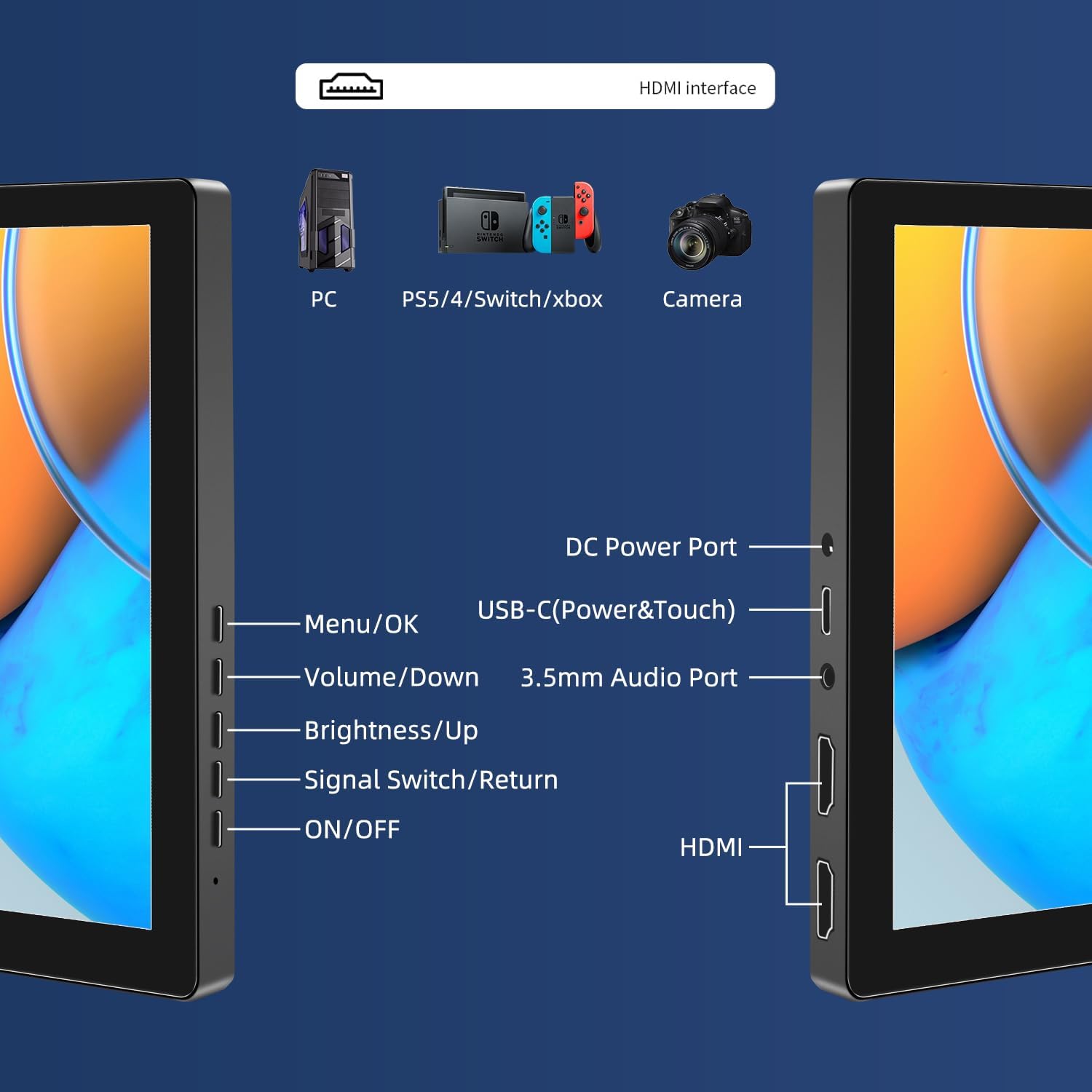
Slika: Prekoview of the monitor's ports including DC Power, USB-C (Power & Touch), 3.5mm Audio, HDMI, and control buttons.
Uputstvo za upotrebu
Uključivanje/isključivanje
- Da biste uključili monitor, pritisnite ON/OFF dugme.
- Za isključivanje pritisnite i držite ON/OFF dugme nekoliko sekundi dok se ekran ne isključi.
Korišćenje menija na ekranu (OSD).
OSD meni vam omogućava podešavanje različitih postavki ekrana.
- Pritisnite Izbornik / OK dugme da biste otvorili OSD meni.
- Koristite Glasnoća/Smanjivanje i Svjetlina/gore dugmad za navigaciju kroz opcije menija.
- Pritisnite Izbornik / OK da biste odabrali opciju ili potvrdili postavku.
- Pritisnite Signal Switch/Return button to go back to the previous menu or exit the OSD.
Adjusting Display Modes
The monitor supports multiple display modes when connected to a computer:
- Duplirani način rada: Prikazuje isti sadržaj i na primarnom ekranu i na prenosivom monitoru.
- Prošireni način rada: Proširuje vašu radnu površinu preko oba ekrana, pružajući više radnog prostora.
- Režim drugog ekrana: Koristi samo prenosivi monitor kao prikaz.
These modes are typically configured through your operating system's display settings (e.g., Windows Display Settings, macOS System Preferences).
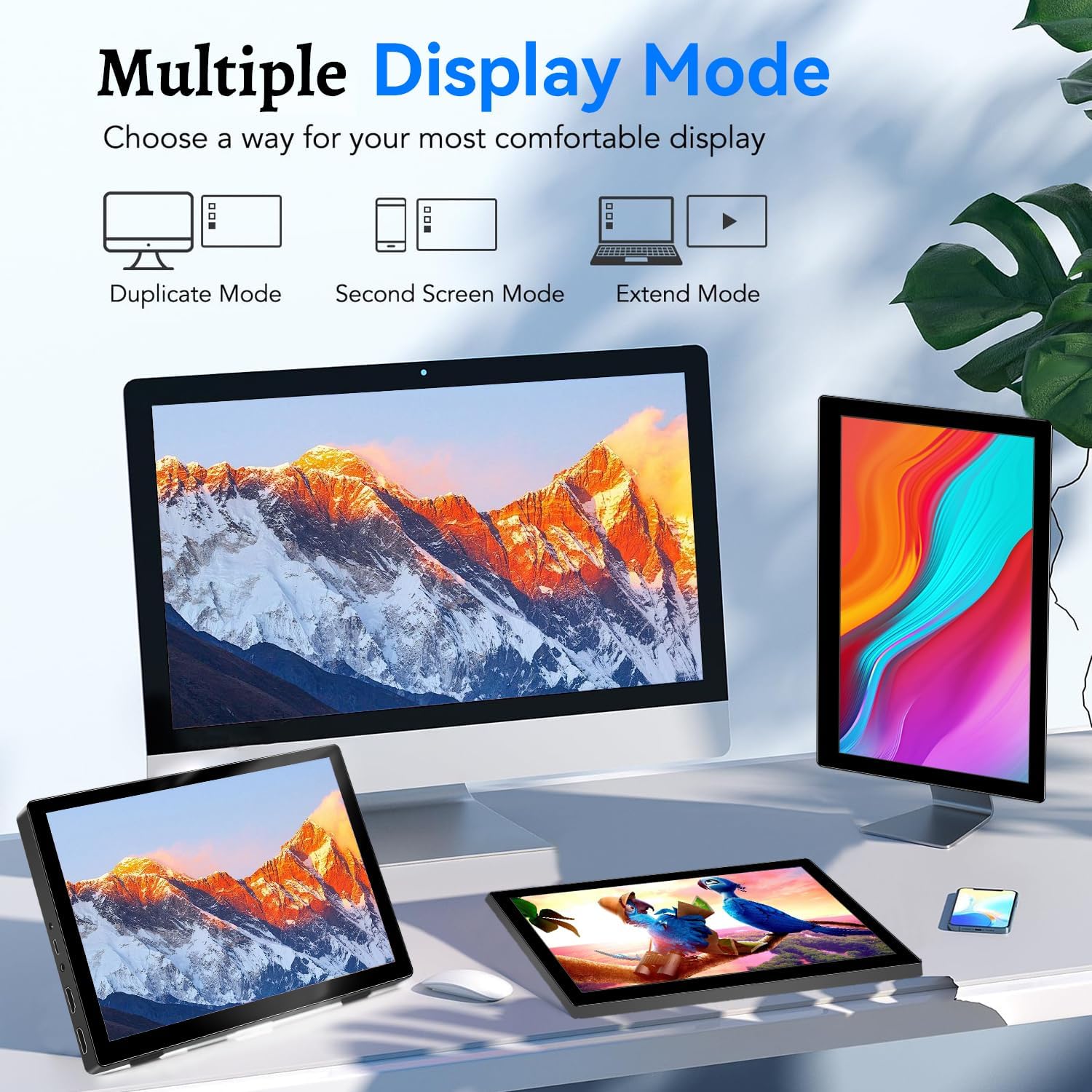
Image: Visual representation of Duplicate, Second Screen, and Extend display modes.
Using Touchscreen Functionality
The monitor supports 10-point touchscreen technology. Ensure the USB-C (Power & Touch) port is correctly connected to your device for touch input to function.

Slika: pramples of 10-point touchscreen gestures for interaction.
Održavanje
- Čišćenje ekrana: Koristite meku krpu koja ne ostavlja dlačiceampened with water or a non-abrasive screen cleaner. Do not spray cleaner directly onto the screen.
- Čišćenje C-aasing: Obrišite monitor casinObrišite mekom, suhom krpom. Izbjegavajte upotrebu jakih deterdženata ili rastvarača.
- Skladištenje: Kada se ne koristi, monitor čuvajte na hladnom i suhom mjestu, dalje od direktne sunčeve svjetlosti i ekstremnih temperatura.
- Rukovanje: Izbjegavajte ispuštanje ili izlaganje monitora jakim udarcima. Ne stavljajte teške predmete na monitor.
Rješavanje problema
| Problem | Mogući uzrok | Rješenje |
|---|---|---|
| Nema prikaza/Crni ekran |
|
|
| Dodirni ekran ne reaguje |
|
|
| Nema zvuka iz zvučnika |
|
|
| Image quality issues (blurry, distorted) |
|
|
Specifikacije
| Feature | Detalj |
|---|---|
| Brand | Prechen |
| Broj modela | HD-101 |
| Veličina ekrana | 10.1 inča |
| Rezolucija | 1920 x 1200 (UXGA Wide) |
| Aspect Ratio | 16:10 |
| Tip panela | IPS |
| Refresh Rate | 60 Hz |
| Vrijeme odgovora | 1 ms |
| Povezivanje | 1x HDMI, 1x USB-C (Power & Touch), 1x 3.5mm Audio Jack, 1x DC Power Port |
| Dimenzije (D x Š x V) | 21.8 x 15.8 x 1.4 cm |
| Težina | 990 grama |
| Proizvođač | Shenzhen Kenowa Electronics Co., LTD |
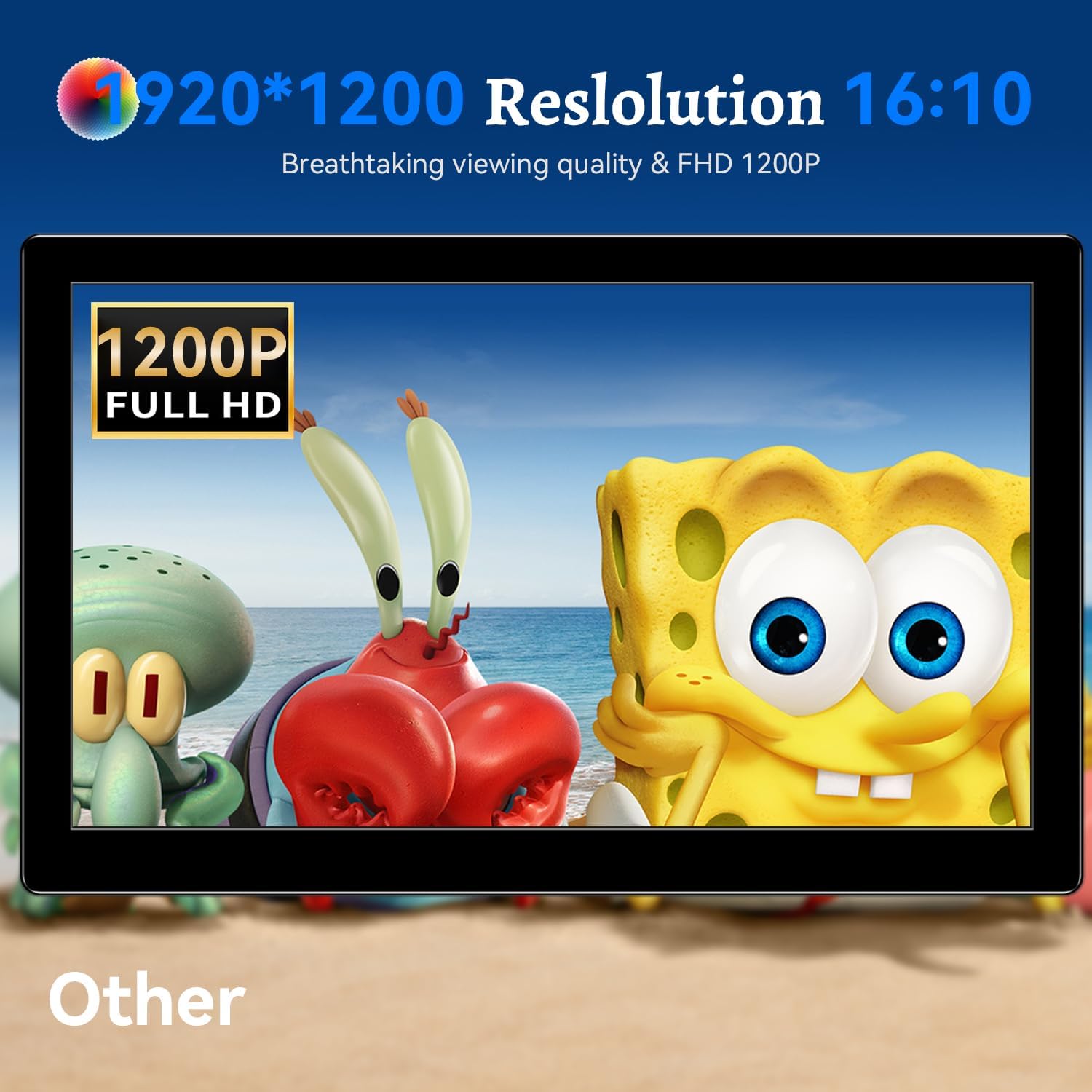
Slika: Izložba monitoraasing its 1920x1200 Full HD resolution.

Image: The monitor's IPS panel offering wide viewing angles and rich colors.
Garancija i podrška
For warranty information and technical support, please refer to the warranty card included with your product or contact Prechen customer service through their official website. Please have your model number (HD-101) and purchase details ready when contacting support.