
1. Uvod
This manual provides comprehensive instructions for the setup, operation, and maintenance of your Tibuta 15.6 Inch WiFi Digital Photo Frame. Please read this manual thoroughly before using the device to ensure proper functionality and to maximize your user experience.

Image 1.1: Tibuta 15.6 Inch WiFi Digital Photo Frame in use, showing its touchscreen capabilities and companion app integration.
2. Sigurnosne informacije
Pridržavajte se sljedećih sigurnosnih mjera opreza kako biste spriječili oštećenje uređaja ili osobne ozljede:
- Ne izlažite uređaj vodi ili prekomjernoj vlazi.
- Avoid placing the device near heat sources or in direct sunlight for extended periods.
- Koristite samo isporučeni adapter za napajanje.
- Ne pokušavajte sami rastaviti ili popraviti uređaj. Obratite se korisničkoj podršci za pomoć.
- Držite uređaj podalje od djece i kućnih ljubimaca.
3. Sadržaj paketa
Provjerite da li su sve stavke prisutne u paketu:
- Tibuta 15.6 Inch WiFi Digital Photo Frame
- Adapter za napajanje
- Korisnički priručnik (ovaj dokument)
- Stani
4. Proizvod je gotovview
Familiarize yourself with the components of your digital photo frame.
4.1 Prednji View

Slika 4.1: Prednja strana view and key features of the Tibuta 15.6 Inch Digital Photo Frame.
- 15.6 Inch HD Touch Screen: High-definition display with 1280x800 resolution and IPS technology for wide viewing angles.
- Interfejs ekrana na dodir: Allows for direct interaction with the frame's menus and settings.
4.2 Pozadi View i luke

Slika 4.2: Pozadi view of the Tibuta Digital Photo Frame with labeled ports and features.
- Prekidač: Uključuje ili isključuje uređaj.
- Zidno montirano: Mounting points for wall installation.
- Amplifieri: Integrated speakers for audio playback.
- Utor za mikro SD karticu: Supports Micro SD cards up to 128GB for expanded storage.
- Ulaz za slušalice: Za povezivanje eksternih audio uređaja.
- Type-A USB Port: Za povezivanje USB diskova ili drugih perifernih uređaja.
- Mini USB port: For data transfer (if applicable).
- DC port za napajanje: Povezuje se na strujni adapter.
- stalak: Attachable stand for desktop placement.
5. Podešavanje
5.1 Početno uključivanje
- Attach the stand to the back of the photo frame for stable placement on a flat surface.
- Spojite adapter za napajanje na DC priključak za napajanje na stražnjoj strani okvira.
- Uključite adapter za napajanje u zidnu utičnicu.
- Press the Power Switch to turn on the device.
- Slijedite upute na ekranu da biste odabrali jezik, vremensku zonu i povezali se na Wi-Fi mrežu.
5.2 Povezivanje na Wi-Fi
- From the main menu, navigate to "Settings" and then "Wi-Fi".
- Odaberite željenu Wi-Fi mrežu s popisa.
- Unesite lozinku za Wi-Fi pomoću tastature na ekranu.
- Tap "Connect". Once connected, a Wi-Fi icon will appear on the screen.
5.3 Instaliranje prateće aplikacije
To share photos and videos remotely, download the dedicated companion app.

Image 5.1: Download the Uhale App from Google Play or the App Store.
- On your smartphone or tablet, open the Google Play prodavnica (za Android uređaje) ili Apple App Store (za iOS uređaje).
- Traži "Uhale App" (or the specified app name in your frame's instructions).
- Preuzmite i instalirajte aplikaciju.
- Follow the in-app instructions to pair your device with the digital photo frame. This typically involves entering a unique code displayed on your photo frame.
6. Uputstvo za upotrebu
6.1 Sharing Photos and Videos via App
Once the frame is connected to Wi-Fi and paired with the app:
- Otvorite prateću aplikaciju na svom pametnom telefonu.
- Select the photos or videos you wish to share.
- Tap the "Send" or "Share" button within the app.
- The selected media will be transferred to your digital photo frame and displayed.
The frame supports various display modes, including timing, zooming, and cropping, which can often be adjusted via the app or directly on the frame's settings.
6.2 Using External Storage (Micro SD Card)
The frame has 16GB of built-in storage and supports Micro SD cards up to 128GB.
- Insert a Micro SD card into the designated slot on the back of the frame.
- The frame will automatically detect the card.
- Navigate to the "Gallery" or "Files" section on the frame to access content from the Micro SD card.
- Možete kopirati files from the Micro SD card to the internal storage or play them directly.
6.3 Automatic Rotation (Gravity Sensing)
The frame features gravity sensing for automatic rotation, adjusting the display orientation based on how the frame is positioned (landscape or portrait).
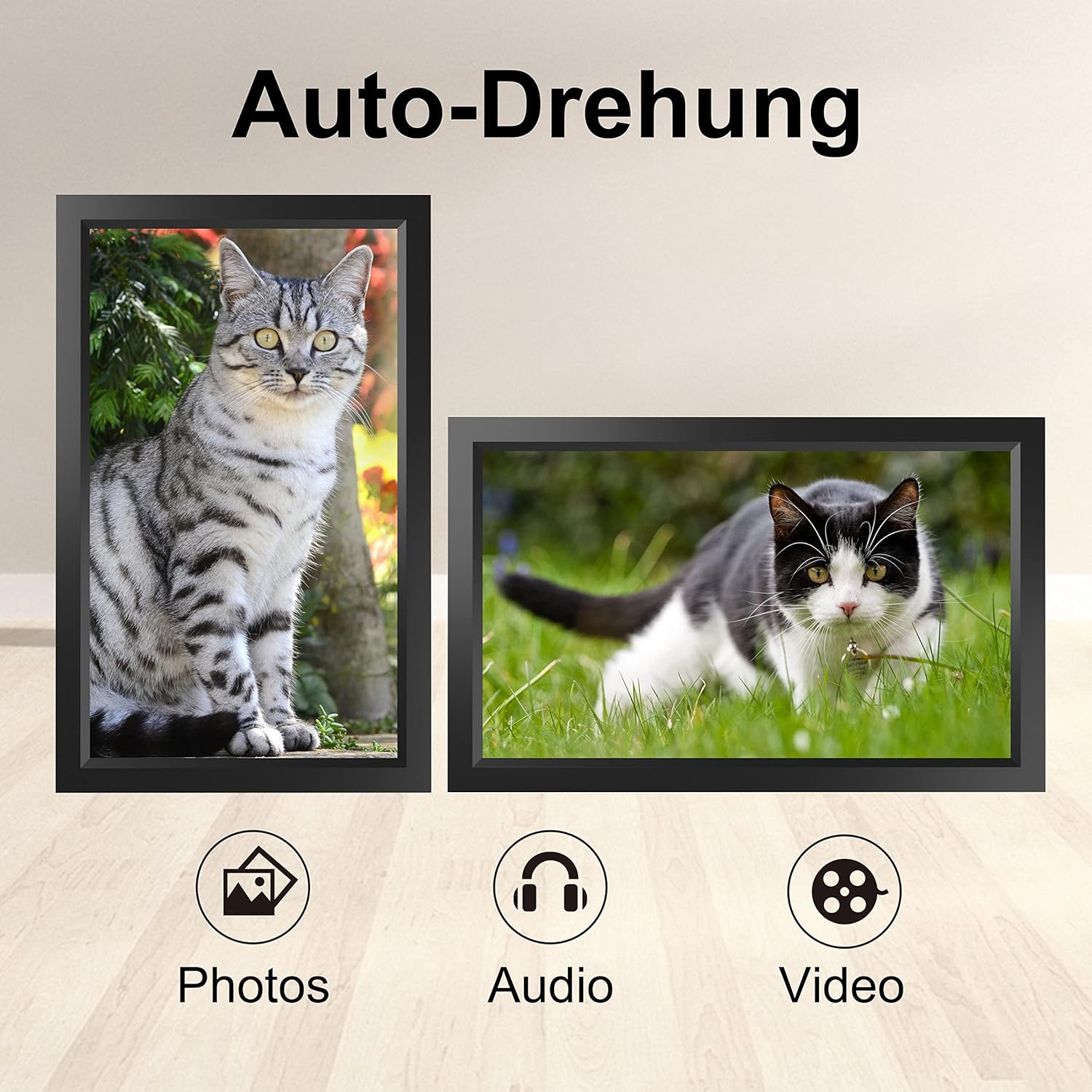
Image 6.1: Automatic display rotation based on frame orientation.
Ensure the gravity sensing feature is enabled in the frame's settings if you wish to utilize this functionality.
6.4 Postavke ekrana
Prilagodite svoj viewing experience through the frame's settings menu:
- Interval prezentacije: Adjust how long each photo is displayed.
- Efekti prelaza: Choose different effects between photos.
- Svjetlina: Podesite svjetlinu ekrana.
- Sleep Mode/Timer: Set schedules for the frame to turn on/off automatically.
- Zoom/Crop: Options to adjust how photos fit the screen.
7. Održavanje
7.1 Čišćenje ekrana
Da biste očistili ekran osjetljiv na dodir, nježno ga obrišite mekom krpom koja ne ostavlja dlačice. Za tvrdokorne mrlje, laganoampOperite krpu vodom ili sredstvom za čišćenje ekrana. Izbjegavajte upotrebu jakih hemikalija ili abrazivnih materijala.
7.2 Opšta njega
- Keep the frame in a dry environment.
- Protect it from dust by occasionally wiping the frame's body with a soft cloth.
- Izbjegavajte ispuštanje uređaja ili izlaganje jakim udarcima.
8. Otkrivanje problema
| Problem | Mogući uzrok | Rješenje |
|---|---|---|
| Okvir se ne uključuje. | Adapter za napajanje nije priključen ili je neispravan. | Provjerite je li adapter za napajanje sigurno priključen i na okvir i na ispravnu utičnicu. Pokušajte s drugom utičnicom. |
| Nije moguće povezati se na Wi-Fi. | Netačna lozinka, izvan dometa ili problem s mrežom. | Provjerite lozinku za Wi-Fi. Približite okvir ruteru. Ponovo pokrenite ruter. |
| Photos/videos not appearing. | App not paired, incorrect file format, or storage issue. | Ensure the app is correctly paired. Check if the media files are in a supported format. Verify sufficient storage space on the frame or SD card. |
| Ekran osjetljiv na dodir ne reagira. | Privremeni softverski kvar. | Restart the frame by holding the power button or unplugging and replugging the power adapter. |
| Automatic rotation not working. | Feature disabled or sensor issue. | Check the frame's settings to ensure gravity sensing/auto-rotation is enabled. |
9. Specifikacije
| Feature | Detalj |
|---|---|
| Broj modela | TID15.6 |
| Veličina ekrana | 15.6 inča |
| Display Type | IPS ekran osetljiv na dodir |
| Rezolucija | 1280x800 |
| Interna pohrana | 16 GB (otprilike 20,000 fotografija) |
| Eksterna pohrana | Micro SD kartica do 128GB |
| Povezivanje | Wi-Fi |
| Posebne karakteristike | Gravity Sensing Automatic Rotation, Touchscreen |
| Dimenzije (D x Š x V) | 39.12 x 24.64 x 2.51 cm |
| Težina | 1.48 kg |
| Izvor napajanja | Battery Powered (includes 1 Lithium Ion battery) |
Napomena: Specifikacije su podložne promjenama bez prethodne najave.
10. Garancija i podrška
10.1 Jamstvo za proizvod
The Tibuta Digital Photo Frame comes with a one-year product warranty. This warranty covers manufacturing defects and operational issues arising from normal use. If any issues arise during this period, please contact our after-sales support team for assistance.
10.2 Korisnička podrška
For technical support, warranty claims, or any other inquiries, please refer to the contact information provided on the Tibuta official website or your purchase documentation. When contacting support, please have your model number (TID15.6) and purchase date available.