
1. Proizvod je gotovview
The GIGABYTE G24F 2 is a 23.8-inch gaming monitor designed for an immersive visual experience. It features a Super Speed IPS panel, Full HD (1920 x 1080) resolution, and a high refresh rate for smooth gameplay.

Slika 1.1: Prednja strana view of the GIGABYTE G24F 2 gaming monitor.
Ključne karakteristike:
- Veličina panela: 23.8-inch SS IPS display
- rezolucija: 1920 x 1080 (FHD)
- Vrijeme odgovora: 1ms MPRT
- Brzina osvježavanja: 165Hz (mogućnost overklokiranja na 180Hz)
- Boja zasićenja: 95% DCI-P3, 125% sRGB
- Svjetlina: 300 cd / m2 (TYP)
- Omjer kontrasta: 1100:1
- Povezivanje: 2 x HDMI 2.0, 1 x DisplayPort 1.2 (HDR capable), 2 x USB 3.2 Gen 1 Downstream, 1 x USB 3.2 Gen 1 Upstream, 1 x Earphone Jack
- Posebne karakteristike: OSD Sidekick, Aim Stabilizer, Black Equalizer, Dashboard, Crosshair, Timer, Counter, Auto-Update, Smart OD, HDR Ready, Flicker-free, Kensington lock
2. Sigurnosne informacije
Molimo vas da pažljivo pročitate sva uputstva prije upotrebe monitora. Sačuvajte ovaj priručnik za buduću upotrebu.
- Ne izlažite monitor kiši ili vlazi kako biste izbjegli opasnost od požara ili strujnog udara.
- Ne otvarajte monitor casing. Unutra nema dijelova koje korisnik može sam servisirati. Za sve servisne radove obratite se kvalifikovanom osoblju.
- Postavite monitor na stabilnu, ravnu površinu kako biste spriječili njegov pad.
- Osigurajte odgovarajuću ventilaciju oko monitora. Ne blokirajte ventilacijske otvore.
- Koristite samo adapter za napajanje i kablove koje je isporučio proizvođač.
- Isključite monitor iz strujne utičnice tokom oluja sa grmljavinom ili kada ga ne koristite duži period.
- Clean the screen with a soft, lint-free cloth. Avoid using liquid cleaners directly on the screen.
3. Sadržaj paketa
Provjerite da li se sve stavke nalaze u vašem paketu:
- GIGABYTE G24F 2 Monitor
- Stalak za monitor (baza i vrat)
- Power Cable
- HDMI kabl
- USB Cable (Upstream)
- Vodič za brzi početak (QSG)
- Garantni list

Slika 3.1: Pozadi view of the monitor, illustrating the stand attachment area.
4. Podešavanje
4.1 Sastavljanje postolja
- Pažljivo izvadite komponente monitora i postolja iz ambalaže.
- Pričvrstite vrat postolja na ploču monitora. Provjerite da li je sigurno uglavljen na svoje mjesto ili je pričvršćen vijcima ako su isporučeni.
- Pričvrstite bazu postolja na vrat postolja. Zategnite palčasti vijak ili vijke na dnu baze.
- Postavite sastavljeni monitor na stabilnu, ravnu površinu.
4.2 Povezivanje monitora
Connect the monitor to your computer and other devices using the appropriate cables.

Slika 4.1: Portovi za povezivanje monitora.
- Priključak za napajanje: Spojite kabel za napajanje na ulaz za napajanje monitora, a zatim na utičnicu.
- Video veza:
- For optimal performance, use the DisplayPort 1.2 cable to connect to your computer's graphics card.
- Alternatively, use one of the two HDMI 2.0 ports.
- USB uzvodna veza: Connect the provided USB 3.2 Gen 1 Upstream cable from your computer to the monitor's upstream USB port to enable the monitor's downstream USB ports.
- USB Downstream Connections: Connect USB devices (e.g., keyboard, mouse) to the monitor's two USB 3.2 Gen 1 Downstream ports.
- Audio izlaz: Connect headphones or external speakers to the Earphone Jack.
5. Rukovanje monitorom
5.1 Uključivanje/isključivanje napajanja
Press the power button, usually located on the bottom or rear of the monitor, to turn the monitor on or off. The power indicator light will show the monitor's status.
5.2 On-Screen Display (OSD) meni
The OSD menu allows you to adjust various monitor settings. Navigate the OSD using the joystick or buttons typically found on the rear of the monitor.

Figure 5.1: OSD Sidekick software for convenient monitor control.
For advanced control, install the OSD Sidekick software on your PC. This utility allows you to adjust monitor settings directly from your desktop.
5.3 Funkcije za igranje
The GIGABYTE G24F 2 includes several features to enhance your gaming experience:
- Aim Stabilizer: Reduces motion blur and improves visual clarity in fast-paced games.
- Crni ekvilajzer: Poboljšava vidljivost u tamnim dijelovima igre bez pretjeranog osvjetljavanja svijetlih područja.

Figure 5.2: Black Equalizer in action.
- Kontrolna tabla: Displays real-time hardware information (e.g., CPU/GPU temperature, usage) directly on the screen.

Figure 5.3: Dashboard displaying system metrics.
- križić: Provides a customizable on-screen crosshair to assist with aiming.

Figure 5.4: On-screen Crosshair.
- Timer/Counter: On-screen timers and counters for in-game tracking.
- Smart OD: Optimizes overdrive settings for the best response time.
- Automatsko ažuriranje: Ensures the monitor's firmware and OSD Sidekick software are up-to-date.
5.4 Postavke ekrana
- Brzina osvježavanja: The monitor supports up to 165Hz, with an overclock option to 180Hz, for fluid motion.
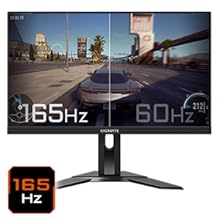
Figure 5.5: Visual comparison of 165Hz vs. 60Hz refresh rate.
- Vrijeme odgovora: Enjoy a 1ms MPRT (Moving Picture Response Time) for minimal ghosting.
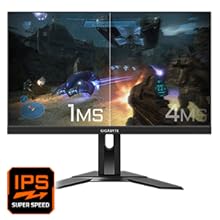
Figure 5.6: Visual comparison of 1ms vs. 4ms response time.
- Raspon boja: The monitor covers 95% DCI-P3 and 125% sRGB for vibrant and accurate colors.
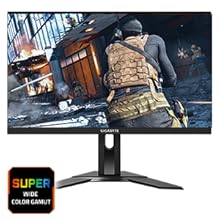
Figure 5.7: Wide color gamut for rich visuals.
- Slabo plavo svjetlo: Reduces blue light emissions to protect your eyes during extended use.
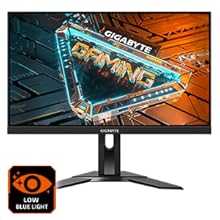
Figure 5.8: Low Blue Light feature for reduced eye strain.
- Bez treperenja: Eliminiše treperenje ekrana za ugodniji rad viewing iskustvo.

Figure 5.9: Flicker-Free technology for comfortable viewing.
5.5 Video s karakteristikama proizvoda
Video 5.1: Overview of the GIGABYTE G24F 2 monitor's features and specifications.
6. Održavanje
Proper maintenance ensures the longevity of your monitor.
- Čišćenje ekrana: Nježno obrišite ekran mekom, suhom krpom koja ne ostavlja dlačice. Za tvrdokorne mrlje, laganoampOperite krpu vodom ili specijaliziranim sredstvom za čišćenje ekrana (nanesite na krpu, a ne direktno na ekran).
- Čišćenje C-aasing: Koristite meku, suhu krpu za brisanje monitora casing. Izbjegavajte abrazivna sredstva za čišćenje.
- ventilacija: Ensure the ventilation openings on the monitor are clear of dust and obstructions.
- Iskljuciti: Turn off and unplug the monitor when not in use for extended periods.
7. Otkrivanje problema
Ako naiđete na probleme s monitorom, pogledajte sljedeću tabelu za uobičajene probleme i rješenja.
| Problem | Mogući uzrok | Rješenje |
|---|---|---|
| Nema slike na ekranu | Power cable not connected; Video cable not connected; Incorrect input source selected | Provjerite priključke kabela za napajanje i video; Odaberite ispravan ulazni izvor putem OSD-a. |
| Slika je mutna ili iskrivljena | Netačna rezolucija; labav video kabl | Podesite rezoluciju ekrana na 1920x1080; Provjerite da li je video kabl sigurno povezan. |
| Nema zvuka iz slušalica/zvučnika | Audio cable not connected; Volume too low; Incorrect audio output selected on PC | Check audio cable connection; Adjust volume; Select monitor as audio output on PC. |
| USB portovi ne rade | USB uzvodni kabel nije povezan | Connect the USB 3.2 Gen 1 Upstream cable from the monitor to your PC. |
| Treperenje ekrana | Refresh rate issue; Faulty cable | Ensure refresh rate is set correctly; Try a different video cable. |
8. Specifikacije
Detailed technical specifications for the GIGABYTE G24F 2 monitor.

Slika 8.1: Dimenzije monitora.
| Feature | Detalj |
|---|---|
| Brand | GIGABYTE |
| Naziv modela | G24F 2 |
| Broj modela | 9DG24F2-00-1ABIN |
| Veličina ekrana | 23.8 inča |
| Rezolucija | 1920 x 1080 piksela (FHD 1080p) |
| Aspect Ratio | 16:9 |
| Display Type | LCD (SS IPS Panel) |
| Refresh Rate | 165 Hz (180Hz OC) |
| Vrijeme odgovora | 1 Milliseconds (MPRT) |
| Osvetljenost | 300 candela_per_square_meter (TYP) |
| Kontrast Ratio | 1100:1 |
| Zasićenost boja | 95% DCI-P3, 125% sRGB |
| Viewing Angle | 178 stepeni |
| Povezivanje | 2 x HDMI 2.0, 1 x DisplayPort 1.2, 2 x USB 3.2 Gen 1 Downstream, 1 x USB 3.2 Gen 1 Upstream, 1 x Earphone Jack |
| Adaptive Sync | FreeSync Premium |
| Potrošnja energije | 17.5 Watts |
| Težina artikla | 3.2 kilograma |
| Dimenzije artikla (D x Š x V) | 5.3 D x 54.1 Š x 32.6 V centimetara |
| Vrsta montaže | Zidni nosač |
| Karakteristike proizvoda | Flicker-Free, Height Adjustment, High Dynamic Range, Tilt Adjustment |
9. Garancija i podrška
The GIGABYTE G24F 2 monitor comes with a 3 godine garancije od proizvođača.
For technical support, warranty claims, or further inquiries, please contact GIGABYTE customer service:
- Proizvođač: GIGABYTE Technology (India) Pvt Ltd
- Adresa: B-808, Naman Midtown, Elphinstone Road, Mumbai – 400013 – INDIA
- Telefon: +91-22-40633222
Molimo sačuvajte dokaz o kupovini za potrebe garantnog servisa.