
1. Uvod
This manual provides essential information for the safe and efficient operation of your suevery SV240ZA 24-inch 165Hz IPS Gaming Monitor. Please read this manual thoroughly before using the product and retain it for future reference. This monitor is designed for gaming, home office, and general computing tasks, offering a Full HD 1080p resolution, a high refresh rate, and fast response time for a smooth visual experience.
2. Sigurnosne informacije
- Ne izlažite monitor kiši ili vlazi kako biste spriječili požar ili strujni udar.
- Ne otvarajte monitor casing. Unutra nema dijelova koje korisnik može sam servisirati. Za sve servisne radove obratite se kvalifikovanom osoblju.
- Postavite monitor na stabilnu, ravnu površinu kako biste spriječili njegov pad.
- Osigurajte odgovarajuću ventilaciju oko monitora. Ne blokirajte ventilacijske otvore.
- Koristite samo adapter za napajanje koji dolazi s monitorom.
- Isključite utikač iz utičnice ako monitor nećete koristiti duži period.
3. Sadržaj paketa
Provjerite da li su sve stavke prisutne u paketu:
- 1 x suevery SV240ZA Monitor
- 1 x Podnožje stalka
- 1 x HDMI kabl
- 1 x DisplayPort kabl
- 1 x Uputstvo za upotrebu
- 1 x adapter za napajanje
4. Upute za postavljanje
4.1 Sastavljanje postolja
Attach the stand base to the monitor neck, then secure the neck to the back of the monitor. Ensure all screws are tightened securely.
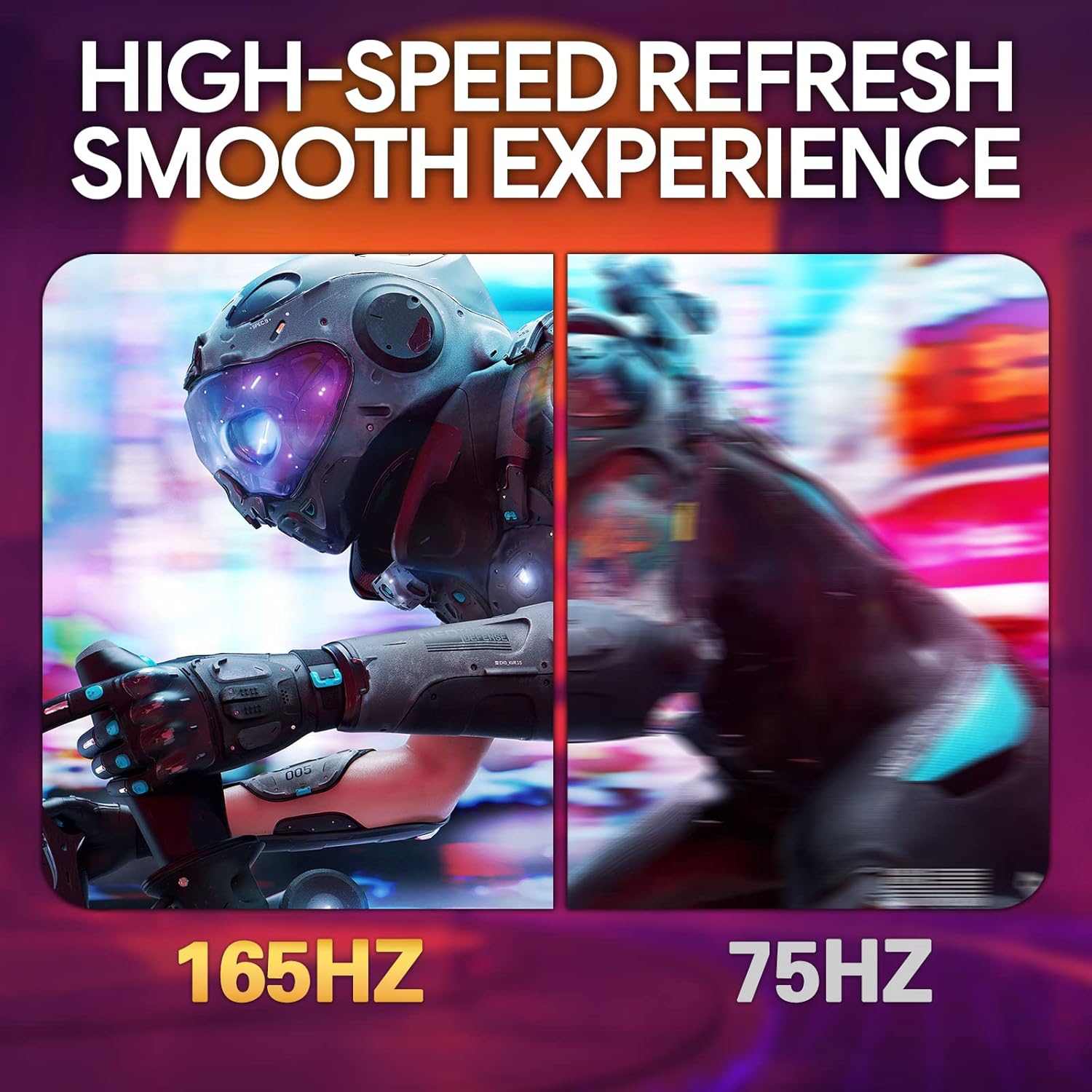
Image: The suevery SV240ZA monitor fully assembled with its desktop stand.
4.2 VESA montaža
The monitor supports VESA mounting with a 75mm x 75mm pattern. Remove the stand if attached, and use appropriate VESA screws to mount the monitor to a compatible wall mount or desk arm.

Image: Rear of the monitor illustrating the 75mm x 75mm VESA mount compatibility.
4.3 Kablovi za povezivanje
Connect the power adapter to the monitor and a power outlet. Use either the HDMI or DisplayPort cable to connect the monitor to your computer or gaming device. For audio output, connect headphones or external speakers to the 3.5mm audio out port.

Slika: Prekoview of the monitor's rear ports including USB, HDMI, DisplayPort, and Audio out.
4.4 Početno uključivanje
Press the power button located on the monitor to turn it on. The monitor will automatically detect the input signal. If no signal is detected, ensure your source device is powered on and connected correctly.
5. Uputstvo za upotrebu
5.1 On-Screen Display (OSD) meni
The OSD menu allows you to adjust various monitor settings. Typically, buttons on the back or bottom of the monitor are used to navigate and select options within the OSD.
5.2 Podešavanje postavki ekrana
- Brzina osvježavanja: The monitor supports up to 165Hz. Ensure your graphics card settings are configured to utilize the maximum refresh rate for a smoother experience.
- Vrijeme odgovora: With a 1ms GTG response time, motion blur is significantly reduced. This setting is often managed automatically or through specific OSD options.
- FreeSync: Enable AMD FreeSync in the OSD menu and your graphics card control panel to synchronize the monitor's refresh rate with your GPU's frame rate, eliminating screen tearing and stuttering.
- Postavke boja: Adjust brightness, contrast, color temperature, and gamma for optimal visual quality. The IPS panel provides 99% sRGB color gamut and 8-bit color depth for rich and vibrant colors.
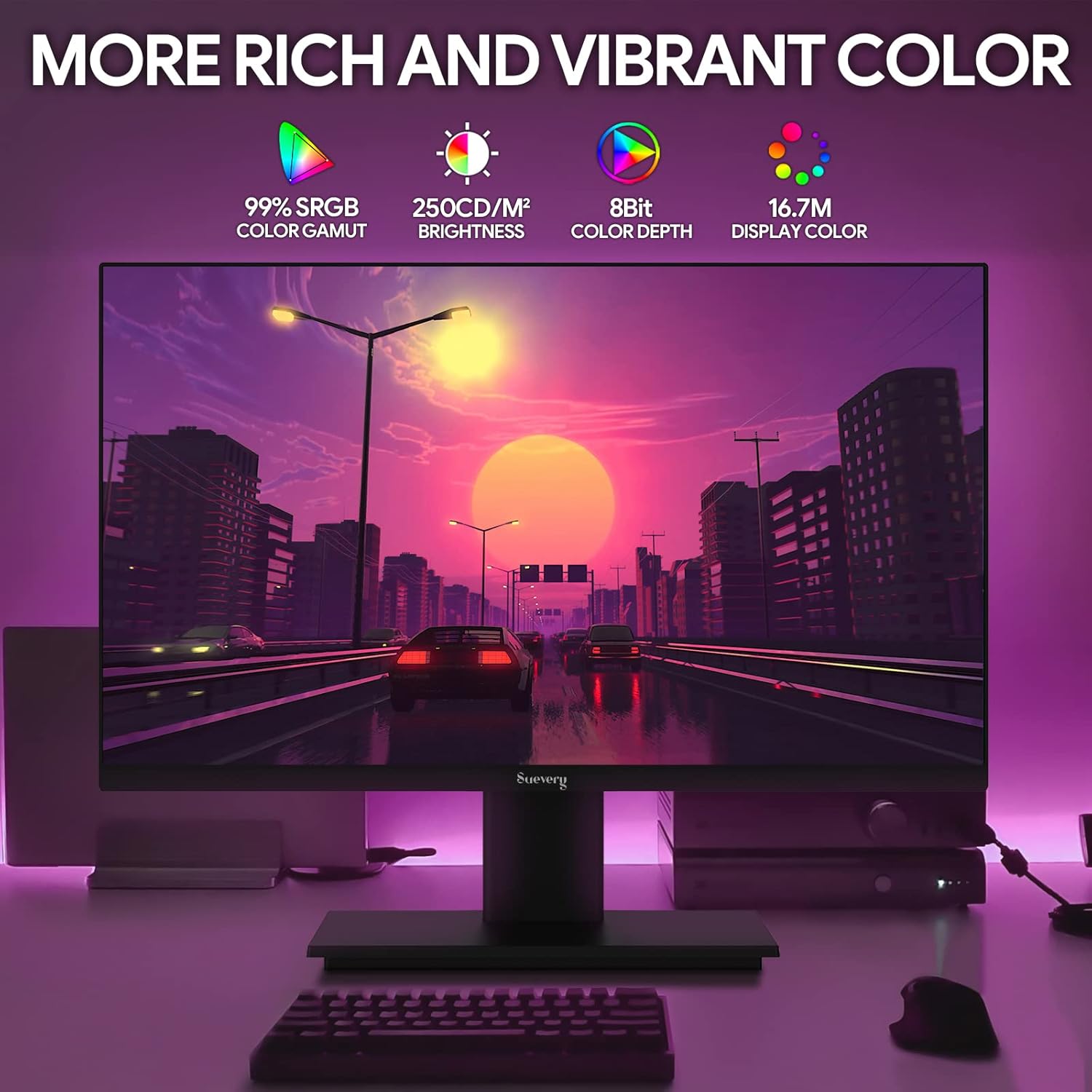
Image: The monitor's display capabilities, highlighting rich and vibrant color reproduction.
5.3 Podešavanje nagiba
The monitor allows for tilt adjustment from -3 to 18 degrees. Gently adjust the screen to your preferred viewing kut.

Image: Illustration of the monitor's adjustable tilt feature.
5.4 Audio izlaz
Connect your headphones or external speakers to the 3.5mm audio out port for private listening or enhanced sound.

Image: User connecting headphones to the 3.5mm audio out port on the monitor.
6. Features Overview
6.1 High Refresh Rate and Fast Response Time
Experience smooth visuals with a 165Hz refresh rate and a 1ms GTG response time, reducing motion blur and ghosting in fast-paced content.

Image: Visual comparison demonstrating the smoothness of a 165Hz refresh rate versus 75Hz.

Image: Visual comparison highlighting the reduction of afterimage and ghosting with 1ms GTG response time.
6.2 Tehnologija adaptivne sinhronizacije
AMD FreeSync support synchronizes the monitor's refresh rate with compatible graphics cards, eliminating screen tearing and stuttering for fluid gameplay.
Image: Demonstrates the smooth display experience provided by 165Hz and FreeSync technology.
6.3 IPS Panel and Full HD Resolution
The IPS panel offers wide 178-degree viewing angles and accurate color reproduction. The 1920 x 1080p Full HD resolution provides clear and detailed images.

Image: Illustrates the enhanced detail and realism of 1080p Full HD resolution compared to standard HD.
6.4 HDR Technology
HDR (High Dynamic Range) technology enhances contrast and color accuracy, bringing more lifelike images to your screen.

Image: Visual representation of how HDR technology improves image quality compared to SDR.
6.5 Široka kompatibilnost
Equipped with HDMI and DisplayPort, the monitor connects to various devices such as PCs, laptops, gaming consoles, and TV boxes.

Image: The monitor connected to multiple devices, demonstrating its broad compatibility.
7. Održavanje
7.1 Čišćenje monitora
- Uvijek isključite monitor prije čišćenja.
- Lagano koristite meku krpu koja ne ostavlja dlačice dampvodom ili blagim, neabrazivnim sredstvom za čišćenje ekrana.
- Ne prskajte sredstvo za čišćenje direktno na ekran.
- Avoid using harsh chemicals like alcohol, benzene, or thinners, as they can damage the screen surface.
7.2 Opšta njega
- Držite monitor dalje od direktne sunčeve svjetlosti i izvora toplote.
- Izbjegavajte stavljanje teških predmeta na monitor ili njegove kablove.
- Ne izlažite monitor ekstremnim temperaturama ili vlazi.
8. Otkrivanje problema
Ako naiđete na probleme s monitorom, pogledajte sljedeće uobičajene korake za rješavanje problema:
| Problem | Mogući uzrok | Rješenje |
|---|---|---|
| Nema slike na ekranu | Kabl za napajanje isključen; Video kabl isključen; Odabran pogrešan ulazni izvor. | Check power and video cable connections. Ensure the correct input source (HDMI/DP) is selected via the OSD menu. |
| Treperenje ili nestabilnost slike | Video cable loose or damaged; Graphics card driver issue; Refresh rate mismatch. | Secure video cable. Update graphics card drivers. Adjust refresh rate in your computer's display settings. Enable FreeSync if applicable. |
| Nema zvuka iz audio izlaza | Headphones/speakers not connected; Volume too low; Incorrect audio output device selected on computer. | Ensure audio device is properly connected. Increase volume on monitor and computer. Select the monitor as the default audio output device in your computer's sound settings. |
| Monitor se ne uključuje | Power cable disconnected; Power adapter faulty. | Verify power cable is securely connected to both the monitor and a working power outlet. Test the outlet with another device. |
9. Specifikacije
| Feature | Specifikacija |
|---|---|
| Brand | suevery |
| Model | SV240ZA |
| Veličina ekrana | 24 inča |
| Rezolucija | FHD 1080p (1920 x 1080 piksela) |
| Aspect Ratio | 16:9 |
| Tip panela | IPS (LCD) |
| Refresh Rate | 165 Hz |
| Vrijeme odgovora | 1 Millisecond (GTG) |
| Kontrast Ratio | 1000:1 |
| Osvetljenost | 220 cd/m² |
| Viewing Angle | 178 stepeni |
| Povezivanje | 1 x HDMI, 1 x DisplayPort, 1 x USB (charging only), 1 x 3.5mm Audio Out |
| Adaptive Sync | AMD FreeSync |
| VESA Mount | 75mm x 75mm |
| Podešavanje nagiba | -3 do 18 stepeni |
| Dimenzije (Š x V x D) | 54.6 cm x 32.3 cm x 9.7 cm (approximate, without stand) |

Image: Detailed dimensions of the suevery SV240ZA monitor.
10. Garancija i podrška
10.1 Politika garancije
The suevery SV240ZA monitor comes with a one-year free warranty. Returns and replacements are free within 30 days of purchase for quality issues.
10.2 Korisnička podrška
For any quality issues or support inquiries regarding your monitor, please contact suevery customer support. Refer to the contact information provided with your purchase documentation or visit the official suevery websajt za pomoć.