
1. Proizvod je gotovview
The havit GK59 Gaming Microphone is designed for clear audio capture during gaming, streaming, and voice communication. It features a condenser microphone for high-quality sound and a versatile design for ease of use.

Slika 1.1: Prednja strana view of the havit GK59 Gaming Microphone, showcasing its main body, stand, and control buttons.
Ključne karakteristike:
- Jednostavan za korištenje: Simple plug-and-play functionality.
- Good Performance: Delivers clear and consistent audio.
- Good Quality: Durable construction for reliable use.
- Prijenosni dizajn: Kompaktan i lak za transport.
- Podesivo postolje: Allows for flexible positioning.
2. Upute za postavljanje
2.1 Sadržaj paketa
Molimo Vas da provjerite paket za sljedeće stavke:
- havit GK59 Gaming Microphone
- USB priključni kabel
- Korisnički priručnik (ovaj dokument)
2.2 Povezivanje mikrofona
The GK59 microphone offers versatile connectivity options for various devices.
- USB veza: Connect the provided USB cable to the USB-C port on the back of the microphone and the other end to an available USB port on your computer or gaming console. The microphone is plug-and-play and should be automatically recognized by most operating systems.
- 3.5mm Jack Connection: For devices supporting a 3.5mm auxiliary input, connect a 3.5mm audio cable (not included) to the 3.5mm jack on the back of the microphone and to your device's audio input.
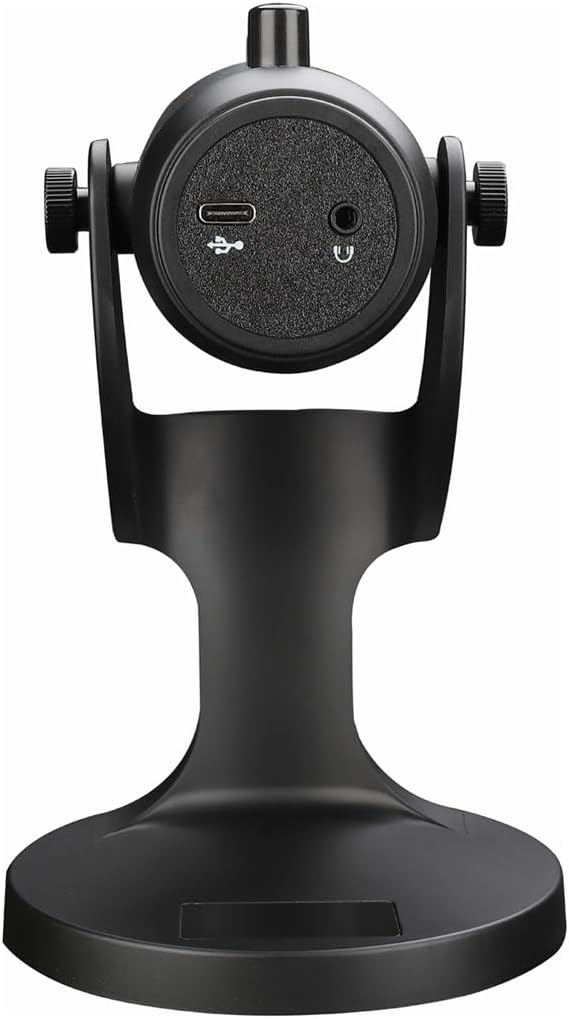
Slika 2.1: Pozadi view of the havit GK59 Gaming Microphone, highlighting the USB-C port for data and power, and the 3.5mm headphone jack for monitoring.
After connecting, ensure the microphone is selected as the default input device in your system's sound settings or your gaming/streaming software.
3. Uputstvo za upotrebu
3.1 Osnovne kontrole
The havit GK59 features intuitive controls located on the front of the microphone body:
- Dugme za isključivanje zvuka: Press to mute or unmute the microphone. An indicator light will typically show the mute status.
- MIC +/- Buttons: Adjust the microphone input sensitivity (gain). Press '+' to increase, '-' to decrease.
- VOL +/- Tasteri: Adjust the headphone output volume for monitoring. Press '+' to increase, '-' to decrease.
- ECHO +/- Buttons: Adjust the echo effect level. Press '+' to increase, '-' to decrease.
Slika 3.1: Detaljno view of the microphone's control panel, including the mute button, microphone gain, volume, and echo adjustment buttons.
3.2 Podešavanje položaja mikrofona
The microphone is equipped with an adjustable stand, allowing you to optimize its position for best sound capture and comfort.
- Gently hold the microphone body and the base of the stand.
- Tilt the microphone forward or backward to achieve the desired angle. The stand's design helps reduce vibration and abnormal sounds during use.
- Position the microphone approximately 6-12 inches (15-30 cm) from your mouth for optimal voice clarity.

Figure 3.2: The havit GK59 microphone demonstrating its adjustable tilt feature on the stand, designed for anti-vibration.
4. Održavanje
4.1 Čišćenje
To maintain the microphone's performance and appearance:
- Disconnect the microphone from its power source before cleaning.
- Za brisanje vanjskih površina koristite meku, suhu krpu.
- Ne koristite tekuća sredstva za čišćenje, aerosole ili rastvarače, jer mogu oštetiti završnu obradu ili unutrašnje komponente.
4.2 Skladištenje
When not in use, store the microphone in a cool, dry place away from direct sunlight and extreme temperatures. Protect it from dust and moisture.
5. Otkrivanje problema
If you encounter issues with your havit GK59 Gaming Microphone, please refer to the following table for common problems and solutions:
| Problem | Mogući uzrok | Rješenje |
|---|---|---|
| No sound input from microphone | Mikrofon nije pravilno povezan Incorrect input device selected Mikrofon je isključen | Provjerite je li USB kabel sigurno spojen. Check system sound settings and select GK59 as input. Press the Mute button on the microphone to unmute. |
| Mala jačina mikrofona | Microphone gain too low System input volume too low | Press the 'MIC +' button on the microphone. Adjust input volume in your system's sound settings. |
| Izobličen ili nejasan zvuk | Microphone gain too high Mikrofon preblizu ustima Ekološka buka | Press the 'MIC -' button on the microphone. Adjust microphone position (6-12 inches from mouth). Smanjite pozadinsku buku u svom okruženju. |
| No headphone monitoring sound | Slušalice nisu povezane Headphone volume too low | Ensure headphones are plugged into the 3.5mm jack. Press the 'VOL +' button on the microphone. |
6. Tehničke specifikacije
Below are the technical specifications for the havit GK59 Gaming Microphone:
| Feature | Specifikacija |
|---|---|
| Brand | havit |
| Broj modela | GK59 |
| Tehnologija povezivanja | USB, 3.5 mm Jack (Auxiliary) |
| Preporučena upotreba | Gaming |
| Polar Pattern | Jednosmjerno |
| Mikrofon Form Faktor | Handheld (with desktop stand) |
| Težina artikla | 429 grama |
| Impedansa | 250 Ohma |
| Odnos signala i šuma | 18 dB |
| Zvuk buke | 18 decibela |
| Izvor napajanja | Električni uređaj s kablom (putem USB-a) |
| Kompatibilni uređaji | Gaming Consoles, PCs |
| Dimenzije artikla (DxŠxV) | 5.59 x 4.92 x 9.06 inča |
| Boja | Crna |
7. Garancija i podrška
7.1 Informacije o garanciji
The havit GK59 Gaming Microphone comes with a standard manufacturer's warranty. Please refer to the warranty card included in your product packaging or visit the official havit webstranicu za detaljne uslove i odredbe garancije.
7.2 Korisnička podrška
For technical assistance, troubleshooting not covered in this manual, or warranty claims, please contact havit customer support through their official channels. You can find more information and contact details on the havit Store on Amazon ili njihov službenik website.