
1. Uvod
This manual provides essential information for the proper installation, operation, and maintenance of your SUNMI T2s Lite 15.6-inch Android Point of Sale (POS) system. Please read this manual thoroughly before using the device to ensure optimal performance and safety. Keep this manual for future reference.
2. Sigurnosne informacije
- Ne izlažite uređaj ekstremnim temperaturama, vlazi ili direktnoj sunčevoj svjetlosti.
- Izbjegavajte ispuštanje ili izlaganje uređaja jakim udarima.
- Koristite samo adapter za napajanje koji dolazi s uređajem. Korištenje pogrešnog adaptera može uzrokovati oštećenje ili požar.
- Ne pokušavajte sami rastavljati ili popravljati uređaj. Obratite se kvalifikovanom servisnom osoblju.
- Držite uređaj dalje od vode ili drugih tečnosti.
- Osigurajte odgovarajuću ventilaciju oko uređaja tokom rada.
3. Sadržaj paketa
Provjerite da li su sve stavke prisutne u paketu:
- SUNMI T2s Lite POS Terminal
- Adapter za napajanje
- Power Cable
- Vodič za brzi početak (ako je primjenjivo)
- Garantni list (ako postoji)
Ako bilo koji artikl nedostaje ili je oštećen, odmah se obratite svom prodavaču.
4. Proizvod je gotovview
The SUNMI T2s Lite is an integrated Android-based POS system designed for retail environments. It features a 15.6-inch capacitive touchscreen display and various connectivity options.
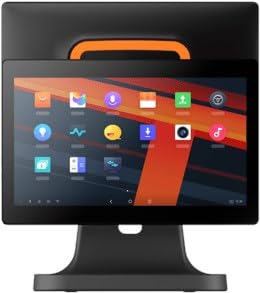
Slika 4.1: Front view of the SUNMI T2s Lite POS system. This image displays the main 15.6-inch touchscreen, which is the primary interface for operating the device. The design is compact and suitable for various retail settings.
4.1 Ključne komponente
- 15.6-inčni ekran osjetljiv na dodir: High-resolution (1920x1080) capacitive touch interface.
- Dugme za napajanje: Located typically on the side or rear for turning the device on/off.
- USB portovi: For connecting peripherals such as barcode scanners, external printers, or cash drawers.
- Ethernet priključak: Za žičanu mrežnu povezivost.
- Ulazna snaga: Za povezivanje strujnog adaptera.
- Prednja kamera: For specific applications requiring image capture.
5. Podešavanje
5.1 Raspakivanje i postavljanje
- Carefully remove the device and all accessories from the packaging.
- Place the POS terminal on a stable, flat surface in a well-ventilated area.
- Ensure there is sufficient space around the device for cable connections and heat dissipation.
5.2 Povezivanje napajanja
- Povežite kabl za napajanje sa adapterom za napajanje.
- Plug the power adapter into the power input port on the back of the SUNMI T2s Lite.
- Uključite drugi kraj kabla za napajanje u uzemljenu električnu utičnicu.
5.3 Initial Boot and Network Connection
- Press and hold the power button until the screen lights up. The device will boot into the Android operating system.
- Follow the on-screen prompts for initial setup, including language selection and time zone.
- Wi-Fi veza: Idi na Postavke > Mreža i internet > Wi-Fi, odaberite svoju mrežu i unesite lozinku.
- Ethernet veza: Connect an Ethernet cable from your router/switch to the Ethernet port on the device. The device should automatically connect to the wired network.
5.4 Povezivanje perifernih uređaja
- USB uređaji: Plug USB peripherals (e.g., barcode scanner, external printer, cash drawer) into the available USB ports. The system will typically recognize them automatically.
- Bluetooth uređaji: Idi na Postavke > Povezani uređaji > Bluetooth, enable Bluetooth, and pair with your desired device.
6. Uputstvo za upotrebu
6.1 Uključivanje/isključivanje
- Za uključivanje: Pritisnite i držite dugme za napajanje dok ekran ne zasvetli.
- Za isključivanje: Press and hold the power button until a power menu appears. Select "Power off" and confirm. Alternatively, a short press of the power button will put the device to sleep.
6.2 Korištenje ekrana osjetljivog na dodir
- Dodirnite: Za odabir stavke ili aktiviranje dugmeta.
- Dodirnite i zadržite: To open context menus or drag items.
- Prevucite: To scroll through lists or navigate between screens.
- Zumiranje štipanjem: Za uvećavanje ili umanjivanje slika ili web stranice.
6.3 Navigacija kroz Android operativni sistem
- Početni ekran: The central hub for your applications and widgets.
- Ladica za aplikacije: Pristup svim instaliranim aplikacijama.
- Panel sa obavještenjima: Prevucite nadole od vrha ekrana do view obavještenja i brza podešavanja.
- Postavke: Configure Wi-Fi, Bluetooth, display, sound, and other system options.
6.4 Basic POS Functions
The specific POS functions will depend on the software application installed on your device. Refer to the documentation provided with your POS software for detailed instructions. Generally, you will:
- Launch your POS application from the home screen or app drawer.
- Prijavite se sa svojim korisničkim akreditivima.
- Process transactions using the touchscreen and connected peripherals (e.g., scanning items, accepting payments).
- Print receipts if an external or integrated printer is configured.
7. Održavanje
7.1 Čišćenje uređaja
- Uvijek isključite uređaj i iskopčajte ga iz struje prije čišćenja.
- Koristite meku krpu koja ne ostavlja dlačiceampvodom ili blagim, neabrazivnim sredstvom za čišćenje obrišite ekran i vanjske površine.
- Ne prskajte tekućine direktno na uređaj.
- Izbjegavajte upotrebu jakih hemikalija, rastvarača ili abrazivnih materijala.
7.2 Ažuriranja softvera
Regularly check for and install system and application updates to ensure optimal performance, security, and access to new features. You can usually find system updates in Postavke > Sistem > Ažuriranje sistema.
7.3 Skladištenje
When not in use for extended periods, store the device in a cool, dry place, away from direct sunlight and extreme temperatures. If storing for a long time, ensure the battery is charged to about 50% to prolong its lifespan.
8. Otkrivanje problema
Ovaj odjeljak se bavi uobičajenim problemima na koje možete naići. Za složenije probleme obratite se korisničkoj podršci.
- Uređaj se neće uključiti:
- Provjerite je li adapter za napajanje sigurno priključen na uređaj i ispravnu utičnicu.
- Provjerite je li utičnica funkcionalna.
- Try holding the power button for 10-15 seconds to force a restart.
- Ekran osjetljiv na dodir ne reaguje:
- Ponovo pokrenite uređaj.
- Provjerite da li je ekran čist i bez prljavštine ili tekućina.
- Network connection issues (Wi-Fi/Ethernet):
- Check if the Wi-Fi is enabled and you are connected to the correct network with the right password.
- For Ethernet, ensure the cable is properly connected and your router/switch is working.
- Ponovo pokrenite ruter/modem.
- Peripherals (e.g., printer, scanner) not working:
- Provjerite je li periferni uređaj ispravno povezan s odgovarajućim priključkom.
- Check if the peripheral has its own power supply and is turned on.
- Verify that the necessary drivers or software for the peripheral are installed and configured within your POS application.
9. Specifikacije
The following are key technical specifications for the SUNMI T2s Lite:
| Feature | Specifikacija |
|---|---|
| Brand | SUNMI |
| Proizvođač | Sunmi |
| Native Display Resolution | 1920x1080 piksela |
| Tehnologija povezivanja | Bluetooth, Ethernet, USB, WLAN |
| Opis kamere | Frontalni |
| ASIN | B0B53FLFT8 |
10. Garancija i podrška
The SUNMI T2s Lite POS system comes with a standard manufacturer's warranty. Please refer to the warranty card included in your package for specific terms and conditions, including warranty period and coverage details.
For technical support, service, or warranty claims, please contact your authorized SUNMI dealer or the customer support channel specified in your purchase documentation. Ensure you have your product model number (T2s Lite) and ASIN (B0B53FLFT8) ready when contacting support.