
Brother DCP-T426W
Brother Ink Tank DCP-T426W višenamjenski pisač Korisnički priručnik
Model: DCP-T426W
Uvod
This manual provides detailed instructions for the setup, operation, maintenance, and troubleshooting of your Brother Ink Tank DCP-T426W Multifunction Printer. Please read this manual thoroughly before using the printer to ensure proper and safe operation.
The DCP-T426W is designed for home and office use, offering print, scan, and copy functionalities with efficient ink tank technology and wireless connectivity.
Sadržaj paketa
Provjerite da li su sve komponente uključene u paket:
- Brother DCP-T426W Printer Unit
- Power Cable
- USB kabel
- Instalacijski CD
- Genuine Ink Bottles (Black, Cyan, Magenta, Yellow)

Image: The Brother DCP-T426W printer shown with its accompanying ink bottles, illustrating the refillable ink tank system.
Vodič za postavljanje
1. Raspakivanje i postavljanje
- Izvadite štampač iz ambalaže i uklonite sve zaštitne trake i materijale za pakovanje.
- Postavite štampač na ravnu, stabilnu površinu sa dovoljno prostora oko njega za ventilaciju i rad.
- Ensure the printer is near a power outlet and within range of your Wi-Fi network if you plan to use wireless connectivity.
2. Ink Filling
The Brother DCP-T426W features an integrated ink tank system. Follow these steps to fill the ink tanks:
- Open the ink tank cover on the right side of the printer.
- Carefully open the cap for each color (Black, Cyan, Magenta, Yellow).
- Uncap the corresponding ink bottle and invert it over the tank's filling port. The ink will flow automatically into the tank.
- Once the tank is full, remove the bottle and securely close the tank cap. Repeat for all colors.
- Zatvorite poklopac spremnika s tintom.

Slika: Krupni plan view of the Brother DCP-T426W's refillable ink tank system, showing the four color tanks and ink bottles.
3. Ubacivanje papira
The printer supports various paper sizes and types. Load paper into the paper tray:
- Pull out the paper tray completely from the front of the printer.
- Podesite vodilice papira da odgovaraju veličini papira koji ubacujete.
- Load the paper stack print-side down into the tray. Do not overload the tray (maximum 150 sheets).
- Pažljivo gurnite ladicu za papir nazad u štampač dok ne klikne na svoje mjesto.
4. Uključivanje i početno podešavanje
- Spojite kabel za napajanje na pisač, a zatim na utičnicu.
- Pritisnite dugme za napajanje da uključite štampač.
- Follow the on-screen prompts (if any) or refer to the Installation CD for driver installation on your computer. Drivers can also be downloaded from the official Brother website.
5. Wireless Connectivity (Wi-Fi)
To connect your printer to a Wi-Fi network:
- Provjerite je li vaš Wi-Fi ruter uključen i funkcionalan.
- Na kontrolnoj tabli štampača idite na mrežne postavke.
- Select 'WLAN' or 'Wi-Fi Setup Wizard'.
- Choose your network (SSID) from the list and enter the network password (security key).
- Confirm the settings. The Wi-Fi indicator light on the printer will illuminate when connected.

Image: The Brother DCP-T426W printer highlighting its Wi-Fi connectivity feature, indicating wireless printing capabilities.
Uputstvo za upotrebu
Štampanje
The DCP-T426W supports printing from various devices via USB or Wi-Fi.
- S računara: Open the document or image you wish to print. Select 'Print' from the application's menu. Choose 'Brother DCP-T426W' as your printer. Adjust print settings (e.g., paper size, print quality, color/monochrome) as needed and click 'Print'.
- S mobilnog uređaja: Download the Brother iPrint&Scan app from your device's app store. Ensure your mobile device is connected to the same Wi-Fi network as the printer. Open the app, select your printer, and choose the document or photo to print. Adjust settings and initiate printing.

Image: The Brother DCP-T426W printer actively printing documents, demonstrating its high-volume, low-cost printing capability.
Skeniranje
You can scan documents and photos using the flatbed scanner.
- Podignite poklopac skenera.
- Postavite dokument licem prema dolje na staklo skenera, poravnavajući ga s vodilicama.
- Close the scanner cover gently.
- S računara: Open the Brother iPrint&Scan application or your preferred scanning software. Select 'Scan' and choose your desired settings (e.g., resolution, color mode, destination). Click 'Scan'.
- From the Printer Control Panel: Use the printer's control panel to select 'Scan'. Choose to scan to PC, email, or cloud service if configured.
Kopiranje
The printer allows for direct copying without a computer.
- Postavite dokument licem prema dolje na staklo skenera.
- Zatvorite poklopac skenera.
- Na kontrolnoj tabli štampača pritisnite dugme 'Kopiraj'.
- Use the arrow keys or number pad to select the number of copies.
- Press 'Start' (Color or Black) to begin copying.
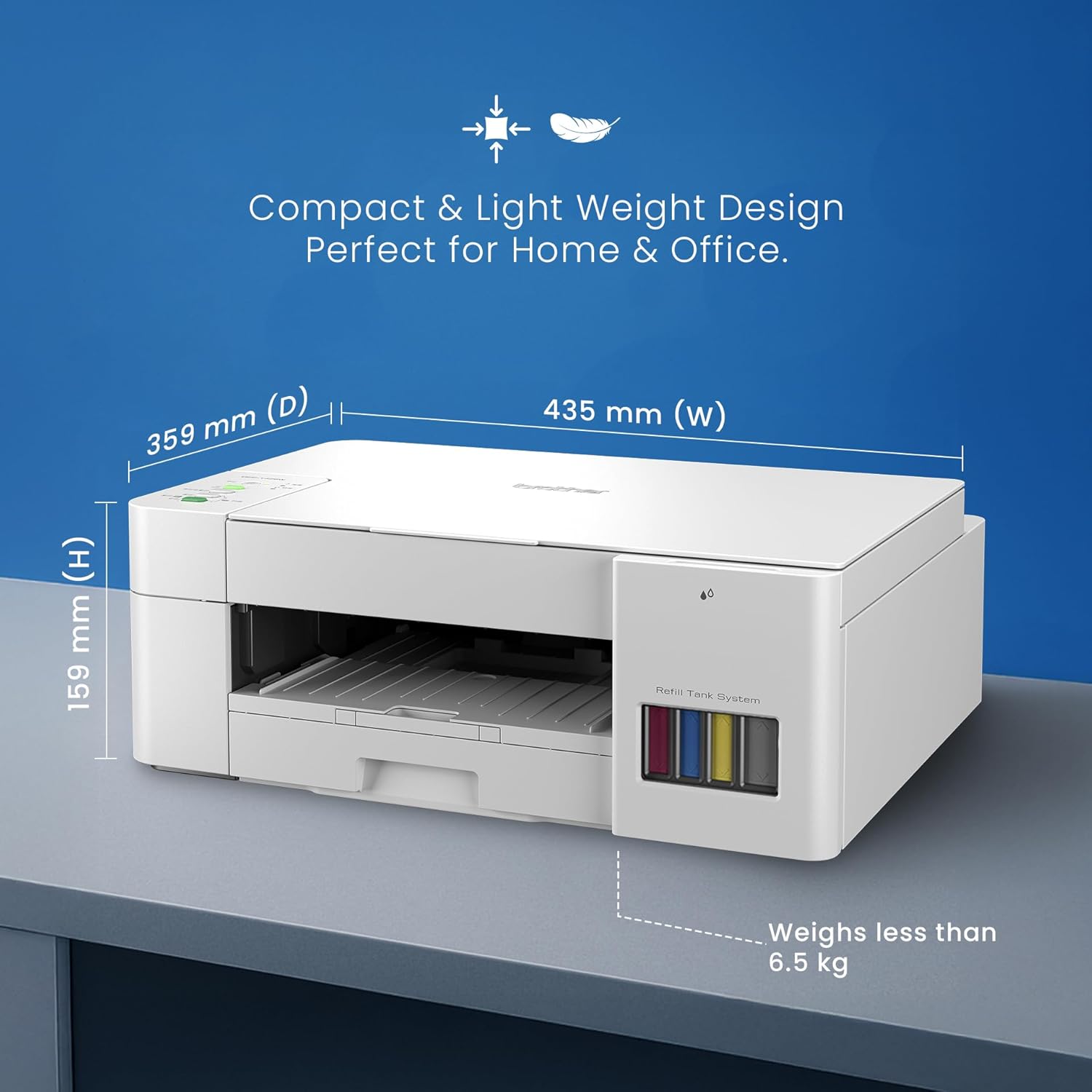
Image: The Brother DCP-T426W printer with its compact dimensions (35.9D x 43.5W x 15.9H Centimeters) highlighted, emphasizing its suitability for home and office environments.
Održavanje
Ink Level Check and Refill
Regularly check the ink levels through the transparent ink tanks on the front of the printer. Refill ink when levels are low to prevent air from entering the ink tubes, which can affect print quality.
- Use only genuine Brother ink bottles to ensure optimal performance and prevent damage to the printer.
- Refer to the 'Ink Filling' section under Setup for detailed refill instructions.
Čišćenje glave štampača
If print quality declines (e.g., missing lines, streaky prints), perform a print head cleaning:
- From your computer, open the Brother printer utility or the iPrint&Scan app.
- Navigate to 'Maintenance' or 'Utilities'.
- Select 'Head Cleaning' and follow the on-screen instructions.
- Perform a 'Nozzle Check' after cleaning to verify print quality improvement. Repeat cleaning if necessary.
Čišćenje štampača
Keep the printer clean to ensure longevity and optimal performance:
- Wipe the exterior of the printer with a soft, lint-free cloth.
- Clean the scanner glass regularly with a soft cloth and a non-abrasive glass cleaner.
- Avoid spraying cleaning solutions directly onto the printer.
Rješavanje problema
| Problem | Mogući uzrok | Rješenje |
|---|---|---|
| Štampač ne reaguje | Power off, USB cable disconnected, Wi-Fi issue, driver problem. | Ensure printer is on and connected. Check USB cable. Verify Wi-Fi connection. Reinstall printer drivers. |
| Poor print quality (streaks, faded) | Low ink, clogged print head, incorrect paper type. | Check ink levels and refill. Perform print head cleaning. Ensure correct paper settings in print driver. |
| Zaglavljivanje papira | Incorrect paper loading, foreign objects in paper path, overloaded tray. | Remove jammed paper carefully. Reload paper correctly, ensuring guides are set. Do not overload paper tray. |
| Wi-Fi veza nestabilna | Printer too far from router, network interference, incorrect password. | Move printer closer to router. Check for other devices causing interference. Re-enter Wi-Fi password. |
For more complex issues, refer to the Brother support websajtu ili kontaktirajte korisničku podršku.
Specifikacije
| Feature | Detalj |
|---|---|
| Printer Type | Štampač sa rezervoarom za mastilo |
| Funkcije | Štampajte, skenirajte, kopirajte |
| Povezivanje | Wi-Fi, USB 2.0 |
| Brzina štampanja (monohromatski) | Do 28 ppm |
| Brzina štampanja (u boji) | Do 11 ppm |
| Rezolucija ispisa (monohromatski) | Do 1200 x 6000 dpi |
| Tip skenera | Flatbed |
| Maksimalni kapacitet ulaznog lista | 150 listova |
| Podržane veličine papira | A4, Letter, Legal, Mexico Legal, India Legal, Folio, Executive, B5 (JIS), A5, B6 (JIS), A6, Envelopes (C5, Com-10, DL, Monarch), Photo (4" x 6")/(10 x 15 cm), Photo 2L (5" x 7")/(13 x 18 cm), Index card (5" x 8")/(13 x 20 cm) |
| Dimenzije proizvoda (D x Š x V) | 35.9 D x 43.5 Š x 15.9 V centimetara |
| Težina artikla | 6.4 kg |
| Potrošnja energije | 11 W (radna snaga) |
| Kompatibilan OS | Linux, Mac, Windows |
Informacije o garanciji
Brother products typically come with a standard manufacturer's warranty. For specific warranty terms and conditions, please refer to the documentation included with your product or visit the official Brother India website. Extended warranty options may also be available for purchase.
- 1 Year Extended Warranty: Dostupno za kupovinu.
- 2 Year Extended Warranty: Dostupno za kupovinu.
Korisnička podrška
For technical assistance, product inquiries, or service requests, please contact Brother customer support:
- Besplatni brojevi:
- 1-800-222-422 (For MTNL and BSNL users)
- 1-800-209-8904 (For Others and all Mobiles)
- Radno vrijeme podrške: Monday to Friday - 8:30 AM - 6:30 PM | Saturday - 9:00 AM - 6:00 PM
- Podrška putem e-pošte: customercare@brother.in
- WhatsApp podrška: 7045 450 450 (24x7)
- Službeno Webstranica: www.brother.in

Image: Contact information for Brother customer support, including phone numbers, email, and webdetalji o lokaciji.