
1. Uvod
Welcome to the HyperX Armada 25 Gaming Monitor user manual. This document provides essential information for setting up, operating, maintaining, and troubleshooting your new monitor. The HyperX Armada 25 is designed for competitive gaming, featuring a 24.5-inch Full HD (1920x1080) IPS panel, a 240Hz refresh rate, and a 1ms response time, ensuring smooth and responsive visuals. It also includes NVIDIA G-SYNC compatibility to eliminate screen tearing and minimize input latency. A desk mount is included for convenient setup and to maximize desk space.
Ključne karakteristike:
- Sve-u-jednom paket: Includes an ergonomic arm and desk mount for easy setup and space-saving.
- Visoka brzina osvježavanja i vrijeme odziva: 240Hz refresh rate and 1ms response time for ultra-smooth gaming.
- Vibrant IPS Panel: 24.5-inch Full HD (1920x1080) IPS panel delivers stunning visuals with accurate colors and wide viewing angles.
- Kompatibilnost sa NVIDIA G-SYNC: Eliminates screen tearing and reduces stuttering for a fluid gaming experience.

Zvanični video proizvoda:
2. Podešavanje
This section guides you through the initial setup of your HyperX Armada 25 Gaming Monitor, including assembly and connection to your computer.
2.1. Assembling the Desk Mount
The HyperX Armada 25 comes with an integrated ergonomic desk mount. Follow the instructions provided in the separate quick start guide for detailed assembly steps. The monitor head easily snaps into the arm, allowing for quick and secure installation.

2.2. Povezivanje monitora
Connect the monitor to your computer using the appropriate cables. The HyperX Armada 25 supports both HDMI and DisplayPort connections.
- Connect one end of the HDMI or DisplayPort cable to the corresponding port on your computer's graphics card.
- Connect the other end of the cable to an available HDMI 2.0 or DisplayPort 1.4 port on the back of your monitor.
- Spojite kabel za napajanje na monitor, a zatim na utičnicu.
- Pritisnite dugme za napajanje na monitoru da ga uključite.

3. Rukovanje monitorom
This section covers basic operation and navigation of the monitor's On-Screen Display (OSD) menu.
3.1. Navigacija putem ekranskog menija (OSD)
The OSD menu is controlled using a joystick located on the back of the monitor. This joystick allows you to power on/off the monitor and navigate through various settings.
- Press the joystick: Za otvaranje OSD menija ili potvrdu odabira.
- Move the joystick Up/Down/Left/Right: To navigate through menu options and adjust settings.
- Hold the joystick: To power off the monitor.

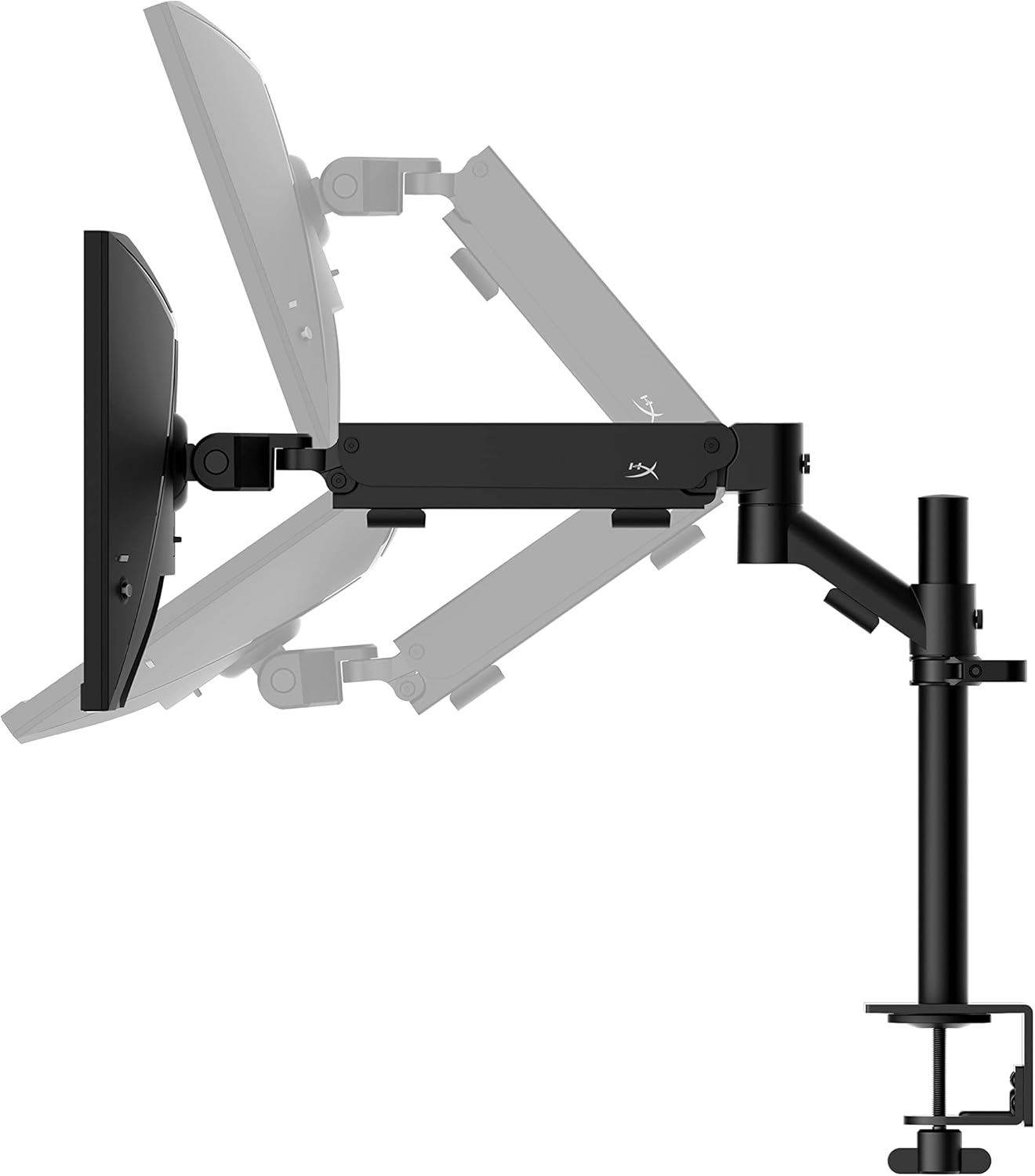
3.2. Podešavanje položaja monitora
The ergonomic desk mount allows for flexible positioning of your monitor. You can adjust the height, tilt, swivel, and pivot to find your optimal viewing kut.

4. Održavanje
Proper maintenance ensures the longevity and optimal performance of your HyperX Armada 25 Gaming Monitor.
- Čišćenje ekrana: Lagano koristite meku krpu koja ne ostavlja dlačice dampened with water or a specialized screen cleaner. Avoid using harsh chemicals, abrasive materials, or direct spraying onto the screen.
- Čišćenje C-aasing: Obrišite monitor casing mekom, suhom krpom.
- ventilacija: Pazite da ventilacijski otvori monitora nisu blokirani kako biste spriječili pregrijavanje.
- Isključite kada nije u upotrebi: Isključite monitor kada ga ne koristite duže vrijeme kako biste uštedjeli energiju i produžili njegov vijek trajanja.
5. Otkrivanje problema
Ako naiđete na probleme s monitorom, pogledajte sljedeće uobičajene korake za rješavanje problema.
- Nema napajanja:
- Proverite da li je kabl za napajanje dobro priključen i na monitor i na utičnicu.
- Provjerite da li utičnica ispravno funkcioniše.
- Pritisnite dugme za napajanje na monitoru.
- Nema signala:
- Verify that the HDMI or DisplayPort cable is securely connected to both the monitor and your computer.
- Provjerite je li računar uključen i nije u stanju mirovanja.
- Odaberite ispravan ulazni izvor pomoću OSD menija.
- Flickering Screen or Image Issues:
- Check the display cable for damage or loose connections.
- Provjerite da li su upravljački programi vaše grafičke kartice ažurirani.
- Podesite brzinu osvježavanja u postavkama ekrana vašeg računara.
- If G-SYNC is enabled, try disabling it temporarily to see if the issue persists.
- Buttons Not Responding (OSD Joystick):
- Uvjerite se da je monitor uključen.
- Try restarting the monitor by unplugging and replugging the power cable.
- Clean around the joystick to ensure no debris is obstructing its movement.
6. Specifikacije
Detailed technical specifications for the HyperX Armada 25 Gaming Monitor.
| Feature | Detalj |
|---|---|
| Dimenzije proizvoda | 21.94 x 25.79 x 31.12 inča; 16.98 funti |
| Broj modela stavke | HyperX Armada 25 |
| Datum prve dostupnosti | 24. avgusta 2022 |
| Proizvođač | HP Inc. |
| ASIN | B0B2C1G356 |
| Veličina ekrana | 24.5 inča dijagonala |
| Rezolucija | FHD (1920x1080) |
| Refresh Rate | 240Hz |
| Tip panela | IPS panel |
| Vrijeme odgovora | 1ms |
| Sync tehnologija | NVIDIA® G-SYNC® kompatibilan |
| Included Mount | Desk Mount Included |
| Povezivanje | HDMI and Display Port |
7. Garancija i podrška
For warranty information, technical support, or to access additional resources, please visit the official HyperX webstranice ili kontaktirajte njihovu korisničku službu.
- Official HyperX Webstranica: www.hyperx.com
- Stranica za podršku proizvoda: Refer to the support section on the HyperX webstranicu za vaš specifični model.