
Uvod
This manual provides essential instructions for setting up, operating, maintaining, and troubleshooting your Surfans K7 Kids Tablet. Please read this guide thoroughly to ensure proper use and to maximize the tablet's features for a safe and engaging experience for children.
Product Overview
Ključne karakteristike
- Operativni sistem Android 10.0: Provides a secure and fast user experience.
- 7-inch IPS FHD Display: Features a 1920 x 1200 resolution eye-care touchscreen with a 178-degree wide viewing kut.
- Četverojezgreni procesor: Ensures smooth performance for apps and games.
- 2GB RAM, 32GB ROM: Sufficient memory for multitasking and storage, expandable via MicroSD card.
- Dvostruke kamere: Equipped with 2MP front and 5MP rear cameras for photos and video calls.
- Povezivanje: Includes Wi-Fi and Bluetooth for wireless connections.
- Pre-installed iWAWA App: Offers updated educational content including games, videos, e-books, drawing, puzzles, and creative arts.
- Pristup Google Play trgovini: Allows downloading additional applications like YouTube Kids, Netflix, and Hulu.
- Način roditeljskog nadzora: Enables parents to manage content, set time limits, and customize child profiles.
- Izdržljiva futrola otporna na djecu: Comes with a colorful, soft, and high-quality silicone case with an integrated 360-degree adjustable stand, suitable for children aged 2 to 10 years.

Image: The Surfans K7 Kids Tablet showcasing its GMS Certified Android 10.0 operating system and access to various applications via Google Play Store.

Image: The Surfans K7 Kids Tablet in use, illustrating its key features including quad-core processor, Android 10.0, 2GB RAM, 32GB ROM, WiFi, and Parent Mode.
Tablet Components
Familiarize yourself with the physical components of your tablet:
- Dugme za napajanje: Typically located on the side, used to turn the tablet on/off or put it to sleep/wake it up.
- Dugmad za jačinu zvuka: Podesite nivo audio izlaza.
- USB-C priključak: Za punjenje tableta i povezivanje s računarom radi prijenosa podataka.
- 3.5 mm audio priključak: Za spajanje slušalica ili eksternih zvučnika.
- Utor za microSD karticu: Allows for memory expansion using a compatible MicroSD card.
- Prednja kamera: Used for video calls and taking selfies.
- stražnja kamera: Za snimanje fotografija i videa.
- govornik: Provides audio output for media and notifications.
Setup
1. Punjenje tableta
Before first use, fully charge the tablet. Connect the provided USB cable to the tablet's USB-C port and the other end to the power adapter. Plug the adapter into a wall outlet. The battery indicator on the screen will show the charging status.
2. Uključivanje / isključivanje napajanja
- Za uključivanje: Press and hold the Power Button until the screen lights up and the Surfans logo appears.
- Za isključivanje: Press and hold the Power Button until a menu appears on the screen. Select "Power off" and confirm.
- Za spavanje/buđenje: Kratko pritisnite dugme za napajanje da biste tablet stavili u stanje mirovanja ili ga probudili.
3. Početno podešavanje
Upon first power-on, follow the on-screen prompts to configure basic settings:
- Odaberite željeni jezik.
- Connect to a Wi-Fi network (see next step).
- Set up your Google account or create a new one. This is necessary for downloading apps from the Google Play Store.
- Review i prihvatite uslove i odredbe.
4. Povezivanje na Wi-Fi
To connect your tablet to the internet:
- Idi na Postavke.
- Dodirnite Mreža i internet.
- Odaberite Wi-Fi i uključite ga.
- The tablet will scan for available networks. Select your desired network from the list.
- Unesite lozinku za Wi-Fi ako se to od vas zatraži, a zatim dodirnite Povežite se.
Uputstvo za upotrebu
1. Osnovna navigacija
The Surfans K7 tablet uses a touchscreen for interaction:
- Dodirnite: Dodirnite ekran jednom da biste odabrali stavku, otvorili aplikaciju ili pritisnuli dugme.
- Prevucite: Drag your finger across the screen to scroll through pages, lists, or switch between home screens.
- Zumiranje štipanjem: Postavite dva prsta na ekran i razdvojite ih ili spojite da biste uvećali ili umanjili prikaz.
- Obavještenja i brze postavke: Prevucite prstom prema dolje s vrha ekrana da biste pristupili obavještenjima i brzim postavkama (Wi-Fi, Bluetooth, itd.).
2. Downloading Apps from Google Play Store
With a Google account set up, you can download a wide variety of applications:
- Dodirnite Play Store ikona na početnom ekranu ili u ladici s aplikacijama.
- Browse or search for apps, games, movies, and books.
- Select an item and tap Instaliraj da ga preuzmete i instalirate.
3. Using Pre-installed iWAWA App
The iWAWA app provides a safe and engaging environment for children:
- Pronađite i dodirnite iWAWA ikona.
- Explore the various categories such as games, videos, e-books, and creative activities.
- Content within iWAWA is curated to be age-appropriate and educational.
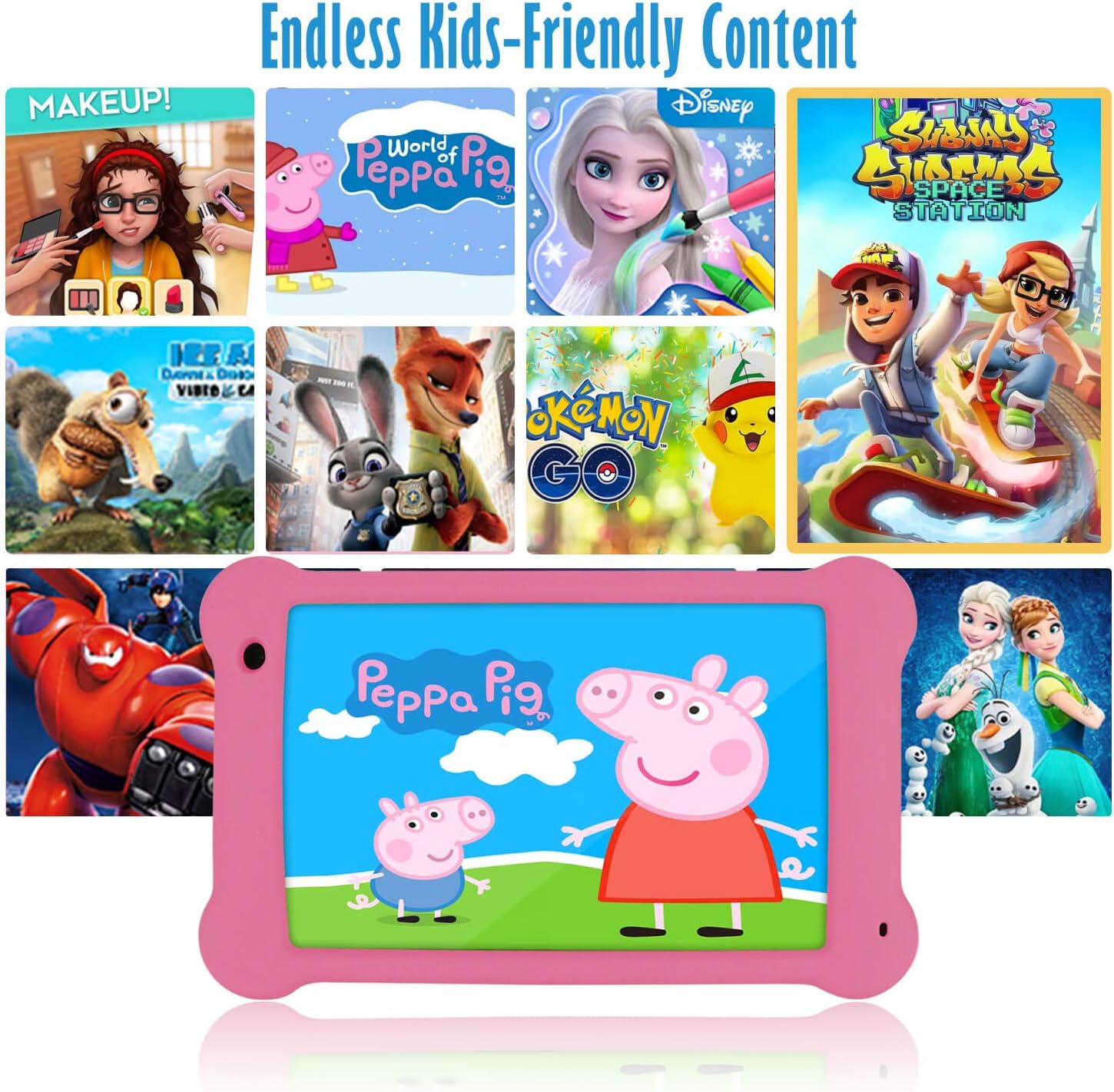
Image: The Surfans K7 Kids Tablet showcasing a variety of popular kid-friendly content, accessible through pre-installed apps and Google Play Store.
Način roditeljske kontrole
The Surfans K7 tablet includes a dedicated Parental Control Mode to manage your child's usage and ensure a safe digital environment.
1. Accessing Parental Mode
To access and configure parental controls:
- Pronađite i otvorite Roditeljski način rada or iWAWA Parent aplikacija na tabletu.
- You will be prompted to set up a password or PIN for secure access. Remember this password.
2. Setting Time Limits
Manage how long your child can use the tablet:
- Configure daily usage limits for the tablet.
- Set specific time blocks during which the tablet can or cannot be used (e.g., bedtime restrictions).
3. Content Filtering
Ensure your child accesses only appropriate content:
- Select and approve specific applications, websites, and media content that your child is allowed to access.
- Block inappropriate content categories or specific webweb stranice.
4. Managing Child Profiles
Create personalized experiences for each child:
- Kreirajte individualnog profesionalcafiles for multiple children.
- Customize settings, content access, and time limits for each profile based on age and preferences.

Image: A parent and child using the Surfans K7 Kids Tablet, demonstrating the ease of setting up and managing parental controls for time limits, child lock, and content filtering.
Održavanje
1. Čišćenje tableta
To keep your tablet clean and functional:
- Use a soft, lint-free cloth (e.g., microfiber cloth) to gently wipe the screen and tablet body.
- Za tvrdokorne mrlje, lagano dampen the cloth with water. Avoid using harsh chemicals, abrasive cleaners, or excessive moisture, as these can damage the screen or internal components.
- Ensure the tablet is powered off and unplugged before cleaning.
2. Održavanje baterije
Proper battery care extends the tablet's lifespan:
- Avoid fully discharging the tablet frequently. Charge the tablet when the battery level is low (e.g., below 20%).
- Do not expose the tablet to extreme temperatures (hot or cold), as this can degrade battery performance.
- Koristite samo priloženi punjač ili certificirani kompatibilni punjač.
3. Ažuriranja softvera
Keep your tablet's software up-to-date for optimal performance and security:
- Periodically check for system updates by going to Postavke > Sistem > Ažuriranje sistema.
- Ensure your tablet is connected to Wi-Fi and has sufficient battery charge before starting an update.
4. Protective Case Care
The included kid-proof silicone case offers protection:
- Očistite kućište oglasomamp krpu ako se zaprlja.
- Ensure the case is properly fitted around the tablet to provide maximum protection against drops and bumps.

Slika: Detaljna view of the Surfans K7 Kids Tablet's durable kid-proof case, highlighting its soft silicone material and anti-drop corner design for enhanced protection.
Rješavanje problema
This section addresses common issues you might encounter with your Surfans K7 Kids Tablet.
Tablet Does Not Turn On
- Provjerite bateriju: Ensure the tablet is charged. Connect it to the charger for at least 30 minutes, then try powering it on again.
- Prisilno ponovno pokretanje: Press and hold the Power Button for about 10-15 seconds until the tablet restarts.
Screen is Black but Audio is Playing
This can sometimes occur:
- Briefly press the Power Button to put the screen to sleep, then press it again to wake it up.
- If the issue persists, perform a force restart by pressing and holding the Power Button for 10-15 seconds.
Problemi sa Wi-Fi vezom
- Omogući Wi-Fi: Idi na Postavke > Mreža i internet > Wi-Fi and ensure Wi-Fi is turned on.
- Ponovo pokrenite ruter: Ponovo pokrenite Wi-Fi ruter i modem.
- Zaboravi mrežu: Go to Wi-Fi settings, tap on your network, and select "Forget network." Then, reconnect to the network and re-enter the password.
- Jačina signala: If the signal is weak, move closer to your Wi-Fi router.
Apps Are Slow or Crashing
- Zatvori nekorištene aplikacije: Swipe up from the bottom of the screen (or tap the square navigation button) to view nedavne aplikacije, a zatim ih prevucite prstom da biste ih zatvorili.
- Restart Tablet: A simple restart can often resolve performance issues.
- Obriši keš memoriju aplikacije: Idi na Postavke > Aplikacije > [Naziv aplikacije] > Pohrana i keš memorija > Obriši keš memoriju.
Tablet is Unresponsive
If the tablet freezes and does not respond to touch:
- Perform a force restart by pressing and holding the Power Button for approximately 10-15 seconds until the device powers off and restarts.
Vraćanje na tvorničke postavke (posljednja opcija)
If all other troubleshooting steps fail, a factory reset may be necessary. Warning: This will erase all data on the tablet, including apps, photos, and user settings. Back up any important data before proceeding.
- Idi na Postavke > Sistem > Opcije resetiranja.
- Dodirnite Izbriši sve podatke (vraćanje na fabričke postavke).
- Potvrdite svoju odluku i slijedite upute na ekranu.
Specifikacije

Image: Visual comparison highlighting the superior clarity of the 1920x1200 FHD IPS display with a 178-degree wide viewing angle on the Surfans K7 Kids Tablet.
| Feature | Specifikacija |
|---|---|
| Brand | Surfani |
| Naziv modela | K7 |
| Operativni sistem | Android 10.0 |
| Veličina ekrana | 7 inča |
| Maksimalna rezolucija ekrana | 1920 x 1200 piksela |
| Marka procesora | ARM (Quad-core 1.6GHz) |
| Installed RAM Memory | 2 GB |
| Kapacitet memorije | 32 GB |
| Proširiva pohrana | Slot za MicroSD karticu |
| Front Photo Sensor Resolution | 2 MP |
| Max Webcam Rezolucija slike | 5 MP |
| Rezolucija snimanja video zapisa | FHD 1080p |
| Tehnologija povezivanja | Bluetooth, USB, Wi-Fi |
| Bežična kompatibilnost | 802.11a/b/g/n |
| Hardversko povezivanje | 3.5 mm Audio Jack, USB-C Port |
| Vrsta baterije | Lithium Polymer |
| Kapacitet baterije | 3000 mAh |
| Prosječno trajanje baterije | 8 sata |
| Težina artikla | 450 grama |
| Boja | Pink |
| Opis starosne dobi | Baby, Children (2-10 years) |
Garancija i podrška
The Surfans K7 Kids Tablet comes with a standard manufacturer's warranty. For specific warranty terms, conditions, and duration, please refer to the warranty card included in the product packaging or contact Surfans customer support.
For technical assistance, troubleshooting beyond this manual, or further inquiries, please visit the official Surfans webweb-mjestu ili kontaktirajte njihovu službu za korisnike putem kontaktnih podataka navedenih uz kupovinu ili na njihovoj website.