
1. Uvod
Thank you for choosing the iClever GK08 Wireless Keyboard and Mouse Combo. This full-size keyboard with a numeric keypad and a silent mouse offers a stable 2.4 GHz connection, USB-C recharging, and dual-layout compatibility for Mac and Windows systems. This manual provides detailed instructions to help you set up, operate, and maintain your new device.
2. Sigurnosne informacije
- Držite uređaj dalje od vode, vatre i visokih temperatura.
- Ne pokušavajte rastaviti ili modificirati uređaj.
- Za punjenje koristite samo priloženi USB-C kabel.
- Izbjegavajte ispuštanje ili izlaganje uređaja jakim udarima.
- Odgovorno odložite baterije i elektroničke komponente u skladu s lokalnim propisima.
3. Vodič za postavljanje
3.1 Sadržaj paketa
- iClever GK08 Wireless Keyboard
- iClever Wireless Mouse
- USB-A Nano Receiver (stored inside the mouse)
- USB-C kabl za punjenje
- Washable Dust Cover
- Uputstvo za upotrebu
3.2 Početno punjenje
Before first use, ensure both the keyboard and mouse are fully charged.
- Connect the provided USB-C charging cable to the keyboard's USB-C port (located on the top edge).
- Drugi kraj kabla priključite na USB izvor napajanja (npr. USB priključak računara, USB adapter za zid).
- Indikator punjenja na tastaturi će svijetliti tokom punjenja i ugasiti se kada se potpuno napuni.
- For the mouse, connect the USB-C cable to its charging port. The mouse also has an indicator light.
- A full charge takes approximately 2 hours and provides up to 45 days of use for the keyboard.
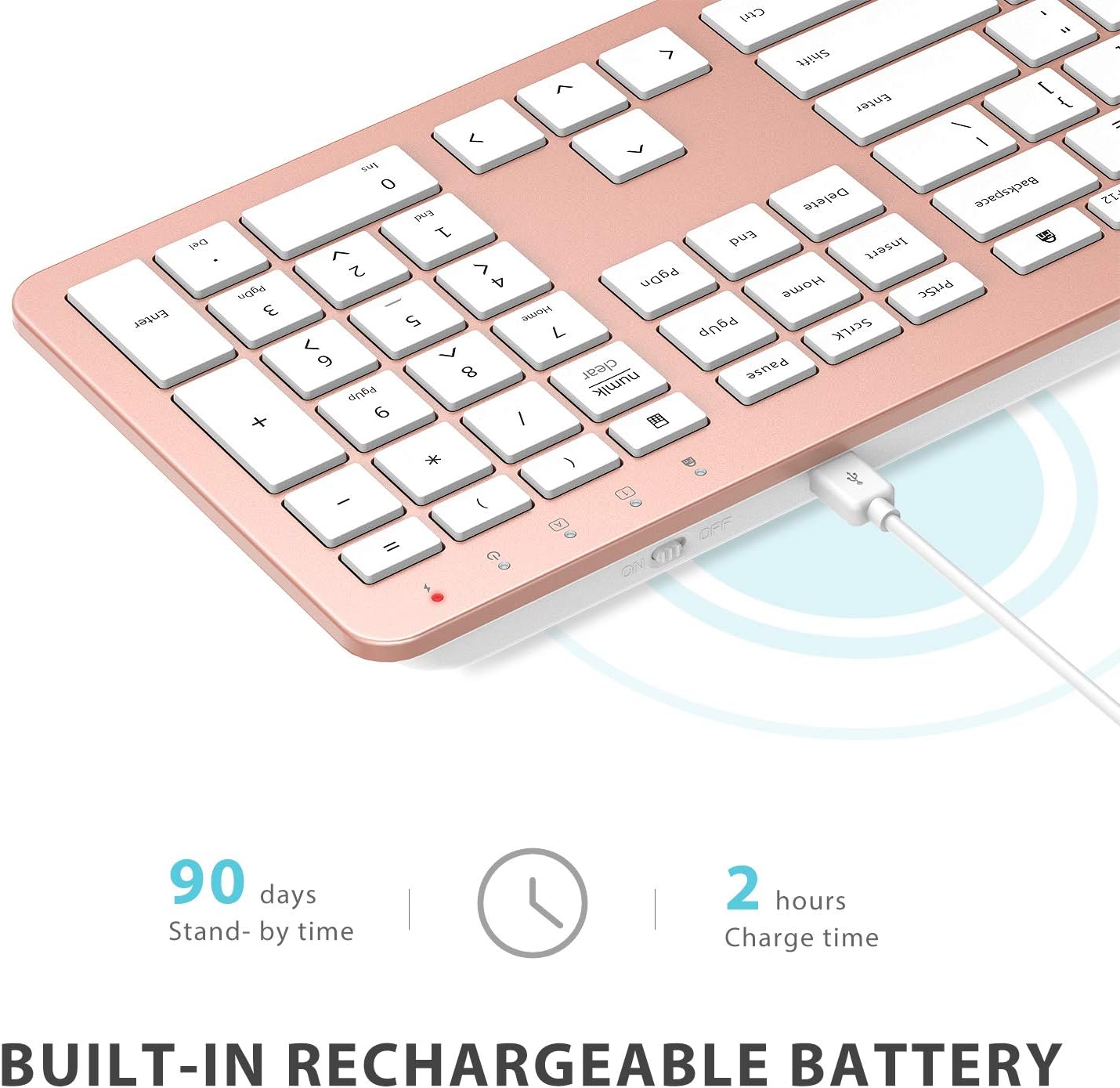
Image: The iClever GK08 keyboard connected to a USB-C charging cable, illustrating the charging process and battery life indicators.
3.3 Connecting to Your Computer (2.4 GHz Wireless)
The keyboard and mouse connect via a single 2.4 GHz USB-A nano receiver.
- Locate the USB-A nano receiver. It is typically stored in a compartment on the underside of the mouse.
- Plug the nano receiver into an available USB-A port on your computer.
- Turn on the keyboard using the ON/OFF switch (usually on the top edge).
- Turn on the mouse using the ON/OFF switch (located on the underside).
- Your computer should automatically detect and install the necessary drivers. The devices are ready for use once recognized.
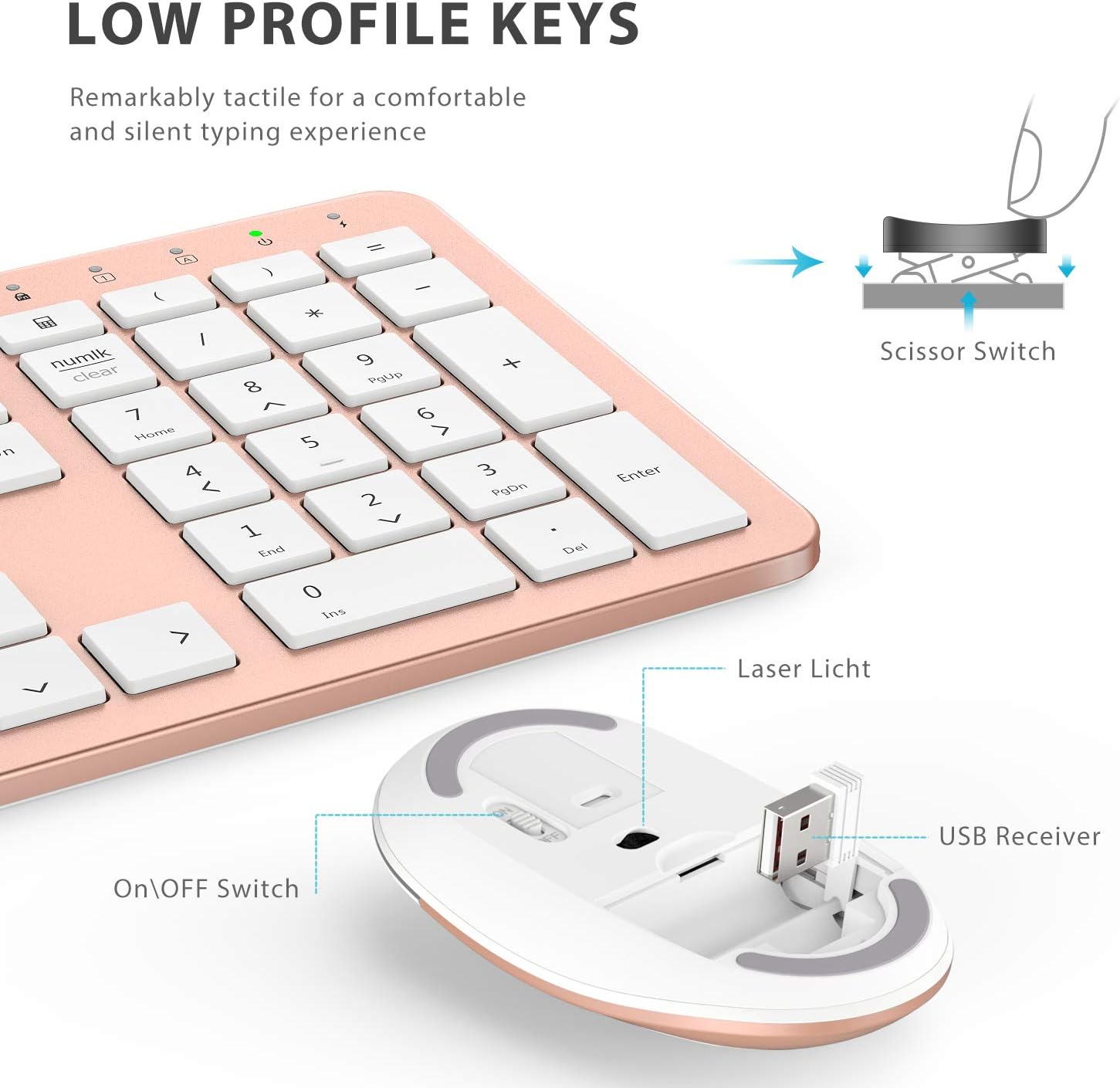
Slika: Krupni plan view of the iClever mouse, highlighting the compartment where the USB nano receiver is stored for convenience.
3.4 Provjera kompatibilnosti
This combo requires an available USB-A port for the nano receiver. For newer Macs with only USB-C ports, a USB-C to USB-A adapter (not included) is required. It is compatible with:
- Windows 10/11 PC & laptop
- macOS desktops / notebooks with USB-A port (e.g., iMac Retina 4K/5K, MacBook Air/Pro ≤ 2017)
- Chrome OS

Image: A visual representation emphasizing the requirement of a USB-A port for the 2.4G wireless receiver, with a note about USB-C adapters for newer devices.
4. Uputstvo za upotrebu
4.1 Funkcije tastature
- Izgled pune veličine: The keyboard features a 110-key layout with a dedicated numeric keypad for efficient data entry.
- Tihi prekidači sa makazama: Enjoy a comfortable and quiet typing experience with low-profile keys that produce less than 50 dB of sound.
- Media Shortcuts: Access common media functions directly from the keyboard.
- Dual-Layout Compatibility: The keyboard has clearly printed Mac and PC legends.
Switching Between Mac and Windows Layouts:
- Za Windows: Pritisnite Fn + W to activate Win, Alt, NumLK functions.
- Za Mac OS: Pritisnite Fn + Q to activate Alt (Option), Cmd, Clear functions.

Image: The iClever GK08 keyboard displaying the dual Mac and Windows key legends, with instructions for switching between operating system layouts using the Fn key combinations.
4.2 Funkcije miša
- Tihi klik: The mouse is designed for quiet operation, minimizing distractions.
- Podesivi DPI: The mouse features 3 adjustable DPI levels (800/1200/1600) to customize cursor sensitivity. Press the DPI button (usually located near the scroll wheel) to cycle through the settings.

Image: A visual demonstrating the quiet operation of the iClever mouse and the three adjustable DPI settings (800, 1200, 1600) for varied precision needs.
4.3 Auto-Sleep Feature
To conserve battery life, both the keyboard and mouse will enter an auto-sleep mode after 10 minutes of inactivity. To wake them up, simply press any key on the keyboard or move the mouse.
Video: A seller-provided video demonstrating the plug-and-play functionality and long battery life of the iClever Wireless Keyboard and Mouse. This video highlights the ease of setup and extended usage between charges.
5. Održavanje
- čišćenje: Koristite meku, damp cloth to clean the surfaces of the keyboard and mouse. Avoid harsh chemicals.
- Poklopac za prašinu: Utilize the included washable dust cover to protect the keyboard from dust and spills when not in use.
- Skladištenje: When not in use for extended periods, turn off both devices to conserve battery. Store the USB receiver inside the mouse.
6. Otkrivanje problema
- Nema konekcije:
- Ensure both keyboard and mouse are turned ON.
- Verify the USB nano receiver is securely plugged into a working USB-A port on your computer.
- Try plugging the receiver into a different USB-A port.
- Check if the devices are charged.
- Kašnjenje ili povremena veza:
- Ensure the devices are within the 33 ft / 10 m operating range of the receiver.
- Izbjegavajte postavljanje prijemnika u blizinu jakih izvora smetnji (npr. drugih bežičnih uređaja, velikih metalnih predmeta).
- Re-pair the devices by unplugging and re-plugging the receiver.
- Keyboard Not Typing Correctly (Mac/Windows):
- Ensure you have selected the correct operating system layout using Fn + W za Windows ili Fn + Q za Mac.
- Kursor miša skače ili je netačan:
- Podesite DPI postavku pomoću dugmeta DPI na mišu.
- Provjerite je li senzor miša čist i bez prepreka.
- Koristite miš na odgovarajućoj površini (koja nije jako reflektirajuća ili prozirna).
7. Specifikacije
| Feature | Detalj |
|---|---|
| Brand | iClever |
| Broj modela | GK08 |
| Boja | Rose Gold |
| Tehnologija povezivanja | 2.4 GHz wireless (USB-A nano receiver) |
| bežični domet | Do 33 stopa / 10 m |
| Raspored tipkovnice | QWERTY, Full-size 110-key with Numpad |
| Tip ključa | Scissor Switch (Quiet typing < 50 dB) |
| Izvor napajanja | Rechargeable Lithium Ion Battery (Keyboard) |
| Port za punjenje | USB-C |
| Vrijeme punjenja | Pribl. 2 sati |
| Trajanje baterije (tastatura) | Do 45 dana (tipična upotreba) |
| Postavke DPI miša | 800 / 1200 / 1600 DPI |
| Kompatibilni operativni sistemi | Windows 8/10/11, macOS, Chrome OS |
| Posebne karakteristike | Dual Mac/Windows layout, 10-min auto-sleep, Washable dust cover |
8. Garancija i podrška
iClever products typically come with a standard manufacturer's warranty. Please refer to the warranty card included in your product packaging or visit the official iClever webstranicu za detaljne uslove i odredbe garancije.
Za tehničku podršku, pomoć u rješavanju problema ili bilo kakva pitanja vezana za proizvod, obratite se iClever korisničkoj službi putem njihove službene webweb-mjesto ili kontakt informacije navedene u dokumentaciji vašeg proizvoda.
Online podrška: www.iclever.com/support