
1. Uvod
The HUAWEI MateDock 3 is a compact and versatile docking station designed to expand the connectivity options of your compatible devices. It provides multiple ports including HDMI, VGA, USB-A, USB-C, an integrated microSD card reader, and a LAN (RJ45) connection. This manual provides instructions for setting up, operating, and maintaining your MateDock 3.

Slika 1.1: Vrh view of the HUAWEI MateDock 3, showcasinzahvaljujući kompaktnom dizajnu i integriranom USB-C kabelu.
2. Sadržaj paketa
Provjerite da li su sve stavke prisutne u paketu:
- HUAWEI MateDock 3 Multi-Port Docking Station
- Korisnički priručnik (ovaj dokument)
3. Proizvod je gotovview
The MateDock 3 features a range of ports to enhance your device's connectivity. Familiarize yourself with the port layout:

Image 3.1: Detailed diagram of the HUAWEI MateDock 3 ports, including LAN, USB-A, HDMI, VGA, microSD, and USB-C.
- USB-C ulazni kabel: Connects to your host device (laptop, tablet, smartphone).
- HDMI priključak: Connects to an external display for video and audio output.
- VGA port: Connects to an external display for video output.
- USB-A port: Connects to USB peripherals such as keyboards, mice, or external storage.
- USB-C priključak: For power delivery to the host device or connecting other USB-C peripherals.
- LAN (RJ45) port: Provides wired Ethernet network connectivity.
- Čitač microSD kartica: Za čitanje i pisanje podataka na microSD kartice.
4. Postavljanje i instalacija
The HUAWEI MateDock 3 is designed for plug-and-play functionality, requiring no driver installation for most operating systems.
- Poveži se s host uređajem: Plug the integrated USB-C cable of the MateDock 3 into an available USB-C port on your laptop, tablet, or smartphone.
- Priključak za napajanje (opciono): If your host device requires charging or if you are connecting power-intensive peripherals, connect a USB-C power adapter to the USB-C port on the MateDock 3.
- Povežite periferne uređaje: Connect your desired external devices (monitor, keyboard, mouse, Ethernet cable, microSD card) to the corresponding ports on the MateDock 3.
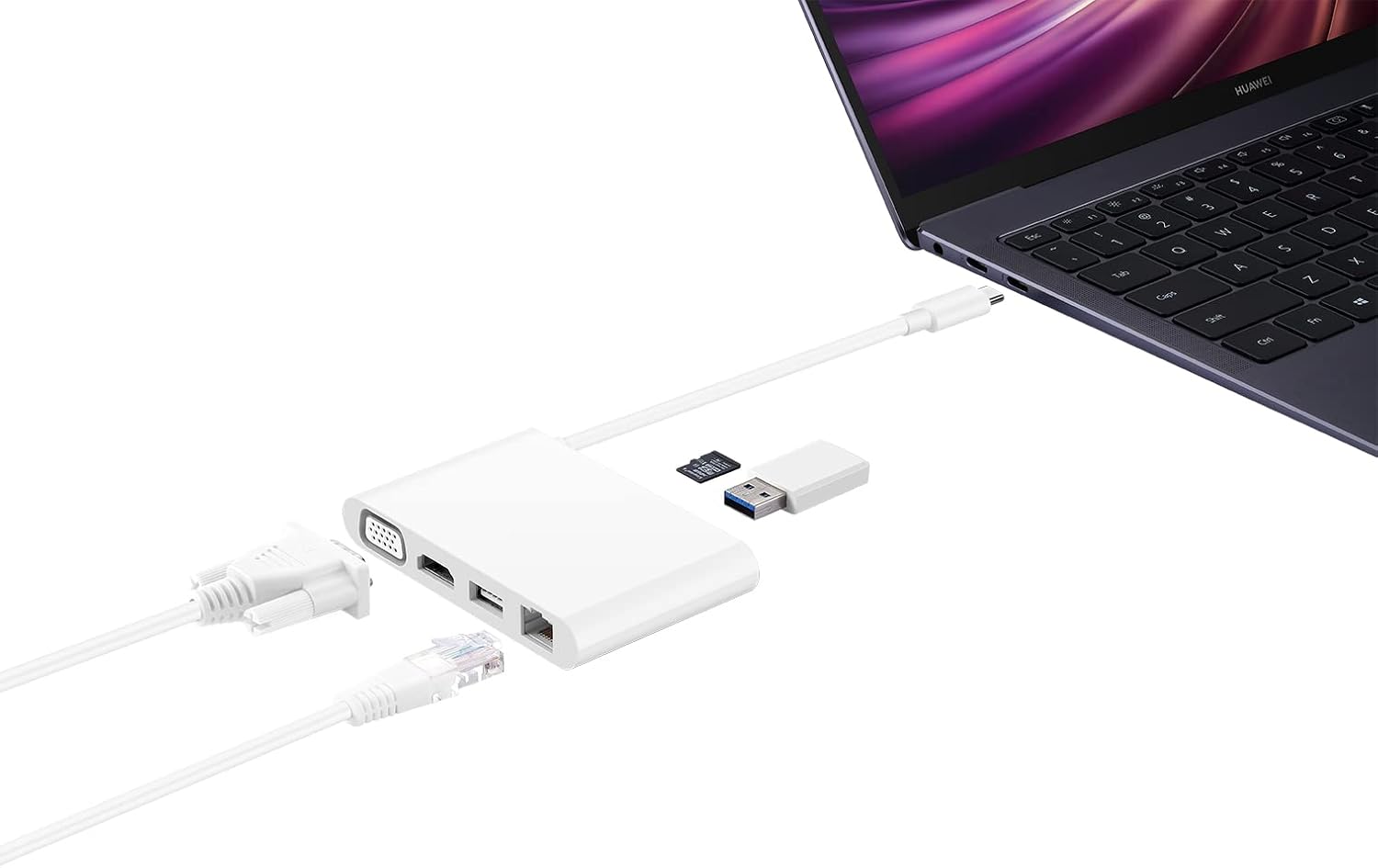
Image 4.1: The MateDock 3 in use, connected to a laptop, demonstrating connections for a monitor, Ethernet, and USB devices.
5. Uputstvo za upotrebu
5.1. Video Output (HDMI / VGA)
- Connect an HDMI cable from your monitor/TV to the HDMI port on the MateDock 3.
- Alternatively, connect a VGA cable from your monitor/projector to the VGA port on the MateDock 3.
- Your host device should automatically detect the external display. You may need to adjust display settings (e.g., mirror, extend) in your operating system.
- Napomena: Only one video output (HDMI or VGA) can be used at a time.
5.2. USB Peripherals (USB-A / USB-C)
- Plug your USB-A devices (e.g., mouse, keyboard, USB flash drive) into the USB-A port.
- The USB-C port on the dock can be used for power delivery to your host device or for connecting other USB-C peripherals.
5.3. Network Connection (LAN)
- Connect an Ethernet cable from your router or network switch to the LAN (RJ45) port on the MateDock 3.
- Your host device will establish a wired network connection.
5.4. Čitač microSD kartica
- Insert a microSD card into the designated slot on the MateDock 3.
- The card will appear as a removable drive on your host device, allowing you to access its contents.
6. Održavanje i njega
- Keep the MateDock 3 clean and dry. Avoid exposure to liquids or excessive humidity.
- Ne izlažite uređaj ekstremnim temperaturama.
- Clean the exterior with a soft, dry cloth. Avoid abrasive cleaners.
- Handle the integrated USB-C cable with care to prevent damage.
7. Otkrivanje problema
- Nema izlaza za prikaz:
- Ensure the MateDock 3's USB-C cable is securely connected to your host device.
- Verify that the HDMI or VGA cable is firmly connected to both the dock and the display.
- Check your host device's display settings to ensure the external monitor is detected and configured correctly.
- Try connecting only one video output (HDMI or VGA) at a time.
- USB uređaji ne rade:
- Ensure the USB device is properly inserted into the USB-A or USB-C port.
- If the device requires external power, ensure the MateDock 3 is connected to a power source via its USB-C port.
- Test the USB device directly with your host device to rule out device-specific issues.
- Nema mrežne veze:
- Verify that the Ethernet cable is securely connected to both the MateDock 3 and your router/switch.
- Check your host device's network settings.
- Ensure your router/switch is functioning correctly.
- microSD Card Not Detected:
- Ensure the microSD card is fully inserted into the slot.
- Check if the card is formatted correctly and readable by your host device.
8. Specifikacije
| Feature | Detalj |
|---|---|
| Broj modela | 55031424 |
| Dimenzije (D x Š x V) | 9.4 x 5.9 x 1.4 cm |
| Težina | 86 g |
| Hardversko sučelje | HDMI, VGA, USB-A, USB-C, LAN (RJ45), microSD |
| Broj portova | 5 (excluding input USB-C cable and microSD slot) |
| Kompatibilni uređaji | Devices with USB-C ports supporting video output and power delivery |
| Boja | Bijelo |
9. Informacije o garanciji
For detailed warranty information, please refer to the warranty card included with your product packaging or visit the official Huawei webSačuvajte račun kao dokaz o kupovini za reklamacije u slučaju reklamacije.
10. Korisnička podrška
If you encounter any issues or have questions not covered in this manual, please contact Huawei customer support through their official webweb-mjesto ili kontakt informacije navedene u dokumentaciji vašeg proizvoda.