
1. Uvod
This manual provides essential information for the proper setup, operation, and maintenance of your VIOTEK GNV34DB 34-inch Ultrawide Gaming Monitor. Please read this manual thoroughly before using the product to ensure optimal performance and longevity. Keep this manual for future reference.

Image: The VIOTEK GNV34DB monitor from a front-right angle, showcasing njegov zakrivljeni ekran.
2. Sadržaj paketa
Prilikom otvaranja paketa provjerite da li su sve dolje navedene stavke prisutne i u dobrom stanju. Ako neke stavke nedostaju ili su oštećene, obratite se korisničkoj podršci.
- VIOTEK GNV34DB 34-Inch Ultrawide Gaming Monitor
- AC adapter
- HDMI kabl
- DisplayPort kabel
- Korisnički priručnik (ovaj dokument)
3. Podešavanje
3.1 Sastavljanje postolja
- Pažljivo izvadite komponente monitora i postolja iz ambalaže.
- Pričvrstite bazu postolja na vrat postolja pomoću priloženih vijaka.
- Secure the assembled stand to the back of the monitor. Ensure all connections are firm.
3.2 VESA montaža
The monitor supports VESA mounting (75x75mm) for alternative mounting solutions. Remove the stand before attaching a VESA-compatible mount.
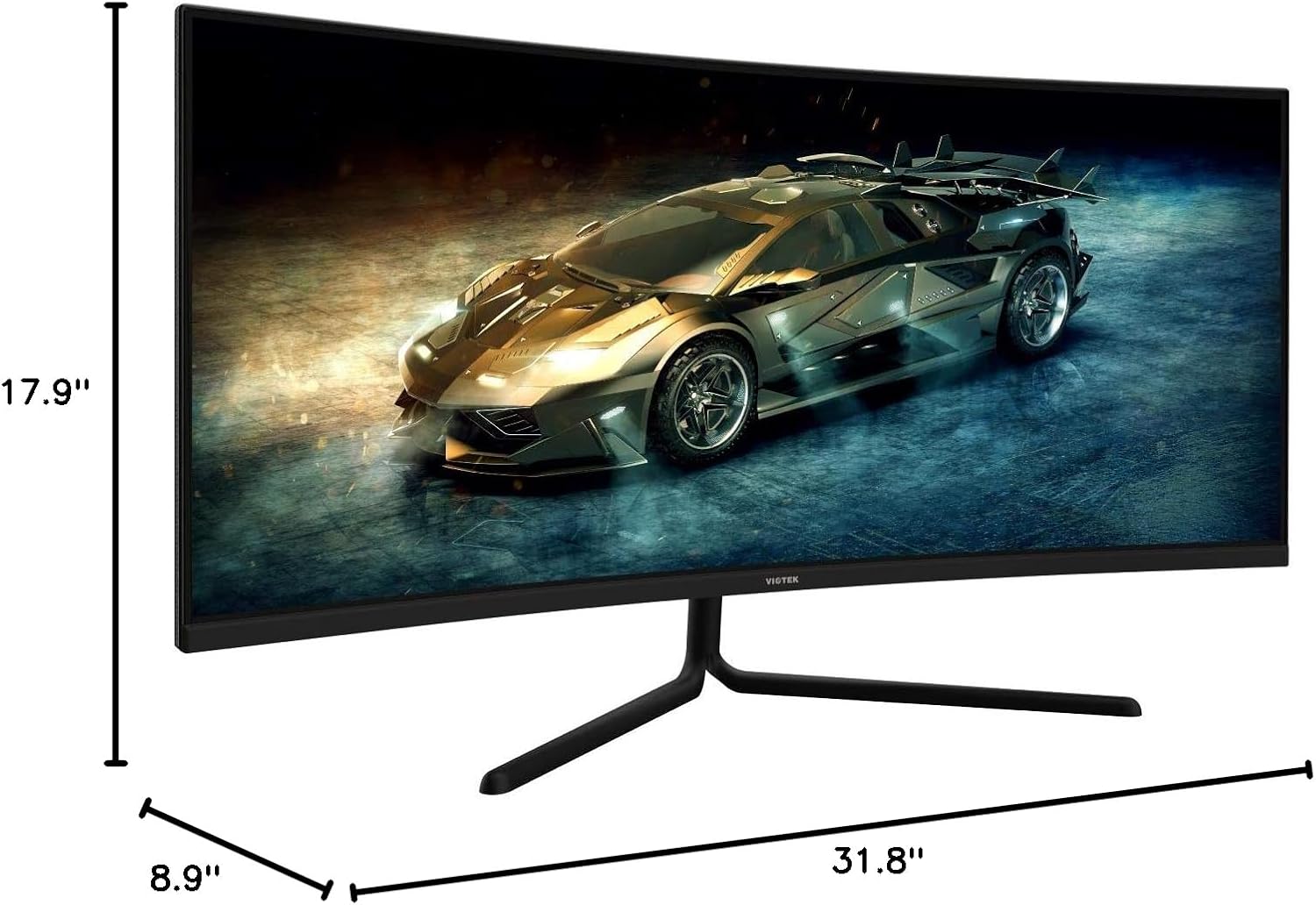
Image: Monitor dimensions are shown as 31.8 inches wide, 17.9 inches high, and 8.9 inches deep, indicating the physical size for placement and VESA compatibility.
3.3 Povezivanje na uređaj
Connect your computer or other devices to the monitor using the appropriate ports. Ensure the monitor is powered off before making connections.
- DisplayPort (DP 1.2): For optimal performance, use the included DisplayPort cable to connect to your graphics card.
- HDMI (HDMI 1.4 / HDMI 2.0): Use an HDMI cable to connect to devices supporting HDMI output.
- 3.5 mm audio izlaz: Connect external speakers or headphones to this port for audio output.

Slika: Stražnji dio view of the monitor highlighting the available input ports: DisplayPort 1.2, 3.5mm Audio Out, two HDMI 1.4 ports, and one HDMI 2.0 port.
4. Uputstvo za upotrebu
4.1 Uključivanje/isključivanje napajanja
Pritisnite dugme za napajanje koje se nalazi na monitoru da biste ga uključili ili isključili. Indikator napajanja će svijetliti kada je monitor aktivan.
4.2 On-Screen Display (OSD) meni
OSD meni vam omogućava podešavanje različitih postavki monitora. Koristite kontrolne dugmad (obično se nalaze na zadnjoj ili donjoj strani monitora) za navigaciju kroz meni.
- Svjetlina/kontrast: Podesite nivoe svjetline i kontrasta ekrana.
- Postavke boja: Promijenite temperaturu boje, gamu i pojedinačne RGB vrijednosti.
- Izvor ulaza: Manually select the active input (DP, HDMI 1, HDMI 2, HDMI 3).
- Način slike: Select from preset display modes optimized for different content types (e.g., Standard, Movie, Game).
- Overdrive: Adjust response time for reduced motion blur.
4.3 Ključne karakteristike
- AMD FreeSync: This technology synchronizes the monitor's refresh rate with your graphics card's frame rate to eliminate screen tearing and stuttering during gaming. Enable FreeSync in the OSD menu and in your graphics card's control panel.

Image: A visual comparison demonstrating the effect of AMD FreeSync, showing a distorted image when FreeSync is off and a smooth image when FreeSync is on.
- GAMEPLUS: Activate on-screen crosshairs for enhanced aiming accuracy in games.

Image: A gaming scene on the monitor with three different GAMEPLUS crosshair options displayed at the bottom, indicating enhanced aiming features.
- Optimizacija FPS/RTS-a: Specific display modes designed to enhance visibility in First-Person Shooter (FPS) and Real-Time Strategy (RTS) games, often by adjusting gamma and contrast in dark areas.
- Zakrivljenost 1500R: The monitor's 1500R curve provides a more immersive viewing experience by matching the natural curvature of the human eye, reducing eye strain and expanding the perceived field of view.

Slika: Pogled odozgo view of the curved monitor on a desk, illustrating the 1500R curvature and its benefit of providing full field of view pokrivenost.
- UWQHD (3440x1440) Resolution & 21:9 Aspect Ratio: Offers a wide workspace and immersive cinematic experience.

Image: The monitor displaying a vibrant game scene, with an overlay highlighting its 34-inch size, 21:9 aspect ratio, and 3440x1440p UWQHD resolution.
5. Specifikacije
| Feature | Specifikacija |
|---|---|
| Veličina ekrana | 34 inča |
| Tip panela | VA Panel |
| Zakrivljenost | 1500R |
| Rezolucija | 3440x1440p (UWQHD) |
| Aspect Ratio | 21:9 |
| Refresh Rate | 100Hz |
| Vrijeme odgovora | 6ms GTG (5ms Overdrive) |
| Viewing Angle | H178° / V178° |
| Display Colors | 16.7 miliona |
| Gamut boja | sRGB: 99%, NTSC: 85% |
| Kontrast Ratio | 3000:1 (Static), 1M:1 (Dynamic) |
| Osvetljenost | 300 cd/m² |
| VESA kompatibilnost | 75x75mm |
| Luke | 1x DP 1.2, 2x HDMI 1.4, 1x HDMI 2.0, 1x 3.5mm audio izlaz |
| Podešavanje nagiba | -5° ~ 15° |
| Dimenzije (sa postoljem) | 31.8 x 17.9 x 8.9 inča (808.65 x 454.19 x 225.58 mm) |
| Težina | 15.5 lbs (7.02 kg) |
6. Otkrivanje problema
Ako imate problema s monitorom, pogledajte sljedeće uobičajene probleme i rješenja:
- Nema napajanja:
- Provjerite je li kabel za napajanje sigurno spojen na monitor i ispravnu utičnicu.
- Provjerite da li adapter za napajanje ispravno funkcioniše.
- Nema signala:
- Check that the video cable (DP or HDMI) is firmly connected to both the monitor and your computer.
- Odaberite ispravan ulazni izvor putem OSD menija.
- Ensure your computer's graphics card is properly installed and drivers are up to date.
- Treperenje ekrana:
- Ensure the video cable is not damaged and is properly connected.
- Podesite brzinu osvježavanja u postavkama ekrana vašeg računara.
- Disable or enable FreeSync in the OSD menu and graphics card settings to see if it resolves the issue.
- Mrtvi pikseli:
- Refer to the warranty section for information on Viotek's Zero-Tolerance Dead Pixel Policy.
7. Održavanje
Follow these guidelines to maintain your monitor's performance and appearance:
- Čišćenje ekrana: Nježno obrišite ekran mekom krpom koja ne ostavlja dlačice. Za tvrdokorne mrlje koristite sredstvo za čišćenje specifično za monitore naneseno na krpu, a ne direktno na ekran.
- Čišćenje C-aasing: Koristite meku, suhu krpu za čišćenje površine monitoraasing. Izbjegavajte abrazivna sredstva za čišćenje ili rastvarače.
- ventilacija: Pazite da ventilacijski otvori monitora nisu blokirani kako biste spriječili pregrijavanje.
- Skladištenje: Kada se monitor ne koristi duži period, čuvajte ga na hladnom i suhom mjestu, idealno u originalnom pakovanju.
8. Garancija i podrška
Your VIOTEK GNV34DB monitor is covered by a 3-godišnja ograničena garancija. This warranty includes Viotek's Zero-Tolerance Dead Pixel Policy, ensuring that your display is free from dead pixels upon purchase.

Image: A graphic highlighting the 3-year warranty and Zero Dead Pixel policy for parts and labor.
For warranty claims, technical support, or any inquiries, please contact Viotek customer service. Details can typically be found on the official Viotek webweb-mjestu ili putem dokumentacije o kupovini.