
1. Uvod
The GameMax Mirage 120mm PC Cooling Fan is designed to provide efficient cooling for computer components while offering customizable RGB lighting. This fan features a dual-ring Rainbow LED design, a hydraulic bearing for quiet operation, and a 7-blade fan structure. It is compatible with 5V addressable 3-pin Aura Sync systems, allowing for synchronized lighting effects with compatible motherboards or controllers.

Slika 1.1: Prednja strana view of the GameMax Mirage fan with active Rainbow LED lighting.
2. Sigurnosne informacije
- Prije instalacije ili održavanja provjerite je li vaš računar isključen iz struje i iskopčan iz zidne utičnice.
- Pažljivo rukujte komponentama kako biste izbjegli oštećenja od statičkog elektriciteta. Razmislite o upotrebi antistatičke narukvice.
- Ne forsirajte konektore. Prije spajanja kablova provjerite njihovu ispravnu orijentaciju.
- Držite ventilator dalje od tekućina i prekomjerne vlage.
- Do not attempt to disassemble the fan unit beyond what is described in this manual.
3. Sadržaj paketa
Provjerite da li se sve stavke nalaze u vašem paketu:
- 1 x GameMax Mirage 120mm PC Cooling Fan
- 4 x Vijci za montažu
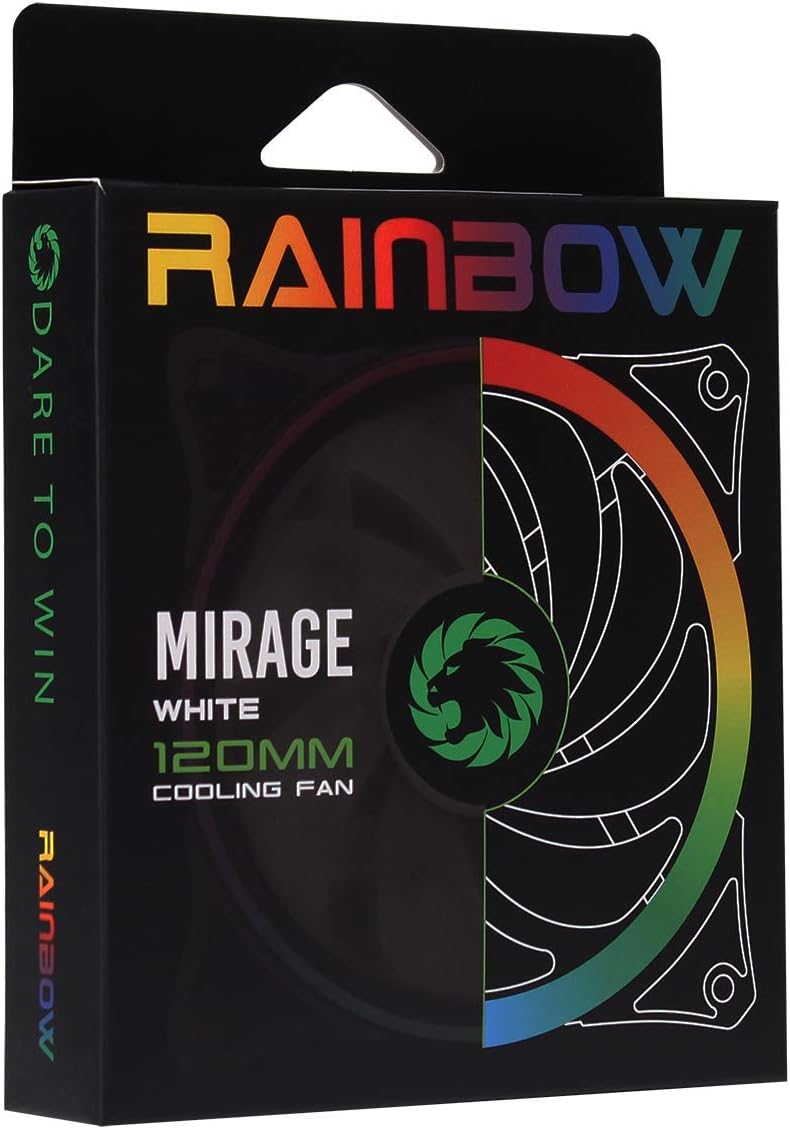
Image 3.1: Retail packaging for the GameMax Mirage fan.
4. Postavljanje i instalacija
Follow these steps to install your GameMax Mirage 120mm PC Cooling Fan:
- Pripremite svoj sistem: Isključite računar i iskopčajte ga iz utičnice. Otvorite kućište računara da biste pristupili mjestima za montažu ventilatora.
- Montirajte ventilator: Position the fan in your desired location (e.g., case front, rear, top, or radiator). Ensure the airflow direction is correct for your cooling setup. Use the four included mounting screws to secure the fan to the chassis or radiator. The fan features rubber pads on the corners to help reduce vibration.
- Connect Fan Power: Locate the 3-pin power connector on the fan cable. Connect this cable to an available 3-pin fan header on your motherboard or a fan controller.
- Connect RGB Lighting: Locate the 5V addressable 3-pin Aura connector on the fan cable. Connect this to a compatible 5V ARGB header on your motherboard (often labeled 'VDG' or 'ARGB') or an external RGB controller/hub. Warning: Do not connect this to a 12V RGB header, as it will damage the LEDs.

Image 4.1: The 3-pin power connector (top) and 5V addressable 3-pin Aura connector (bottom).
The fan cables are braided for improved aesthetics and durability, helping to keep your build neat and tidy.
5. Uputstvo za upotrebu
Once installed, the GameMax Mirage fan operates as follows:
- Kontrola brzine ventilatora: The fan speed is controlled via the 3-pin power connector. If connected to a motherboard fan header, the speed can typically be adjusted through your motherboard's BIOS/UEFI settings or dedicated software.
- Kontrola RGB osvjetljenja: The Rainbow LED lighting is controlled via the 5V addressable 3-pin Aura connector.
- If connected to a compatible motherboard (e.g., ASUS Aura Sync, MSI Mystic Light, Gigabyte RGB Fusion, ASRock Polychrome Sync), you can use the motherboard's software to customize lighting effects, colors, and synchronization with other ARGB components.
- If connected to an external RGB hub/controller, refer to the instructions provided with your specific hub/controller for lighting customization options.

Slika 5.1: Pod uglom view of the GameMax Mirage fan showcasing its dual-ring Rainbow LED lighting.
6. Održavanje
Regular maintenance helps ensure optimal performance and longevity of your cooling fan:
- Čišćenje prašine: Periodically inspect the fan blades and frame for dust accumulation. Use compressed air or a soft brush to gently remove dust. Ensure the fan is powered off and unplugged before cleaning.
- Inspekcija kablova: Occasionally check the power and RGB cables for any signs of wear or damage.
7. Otkrivanje problema
- Ventilator se ne okreće:
- Ensure the 3-pin power connector is securely plugged into a functional fan header on the motherboard or controller.
- Check motherboard BIOS/UEFI settings to ensure the fan header is enabled and configured correctly.
- LEDs Not Lighting Up or Incorrect Colors:
- Verify the 5V addressable 3-pin Aura connector is securely connected to a compatible 5V ARGB header (not 12V RGB).
- Ensure your motherboard's RGB software or external controller is properly installed and configured.
- If using a splitter or hub, ensure it is powered and functioning correctly.
- Pretjerana buka:
- Check for any cables or obstructions interfering with the fan blades.
- Ensure the fan is securely mounted and the rubber pads are properly seated to absorb vibrations.
- Dust accumulation can cause imbalance and noise; clean the fan as described in the Maintenance section.
8. Specifikacije
| Feature | Specifikacija |
|---|---|
| Model | MIRAGEWHITE FINS |
| Veličina ventilatora | 120 mm x 120 mm x 25 mm (0.98 x 4.72 x 4.72 inča) |
| Bearing Type | Hidraulični ležaj |
| Ventilatorske lopatice | 7 oštrice |
| LED tip | Addressable Rainbow LED (Dual-Ring) |
| Konektor za napajanje ventilatora | 3-Pin |
| RGB konektor | 5V Addressable 3-Pin Aura Connector |
| Operating Voltage | 5 Volts (for RGB) / 12 Volts (for fan motor, typical for 3-pin) |
| Nazivni Wattage | 3 Watts |
| Maksimalna brzina rotacije | 1800 RPM |
| Nivo buke | Približno 25 dB(A) |
| Materijal | Rubber (for vibration dampvečer) |

Slika 8.1: Stražnja strana view of the GameMax Mirage fan, displaying the product label with model and electrical specifications.
9. Garancija i podrška
Za informacije o garanciji i tehničkoj podršci, molimo vas da se obratite službenim stranicama GAMEMAX-a. webweb-mjesto ili kontaktirajte prodavača. Sačuvajte dokaz o kupovini za slučaj reklamacije.