
PIX-LINK LV-WR07
PIX-LINK LV-WR07 bežični ruter - uputstvo za upotrebu
Model: LV-WR07
1. Uvod
Thank you for choosing the PIX-LINK LV-WR07 Wireless Router. This device is designed to provide a high-speed wireless network connection for your home or small office. With 300Mbps wireless speed and two external antennas, it ensures stable and wide-ranging Wi-Fi coverage. This manual will guide you through the setup, operation, and maintenance of your new router.

Image 1.1: The PIX-LINK LV-WR07 Wireless Router, showcasinzahvaljujući kompaktnom dizajnu i dvije vanjske antene.
2. Značajke proizvoda
- Bežična veza velike brzine: Up to 300Mbps data transmission rate, ideal for smooth HD streaming, online gaming, and fast web pregledavanje.
- Proširena pokrivenost: Equipped with two external antennas to ensure a strong and stable Wi-Fi signal across your space.
- Više portova: Features 5 LAN ports for reliable wired connections to devices like desktop computers, smart TVs, and gaming consoles.
- WPS funkcionalnost: Supports Wi-Fi Protected Setup (WPS) for easy and secure wireless connection setup.
- Široka kompatibilnost: Connects seamlessly with various devices including gaming consoles, tablets, and smart televisions.

Image 2.1: Illustration of the router's network coverage and compatibility with various devices, including laptops, smartphones, and PCs.
3. Sadržaj paketa
Molimo Vas da provjerite da li se u Vašem paketu nalaze svi artikli:
- PIX-LINK LV-WR07 Wireless Router
- Adapter za napajanje
- Ethernet kabl
- Vodič za brzu instalaciju (ovaj priručnik)
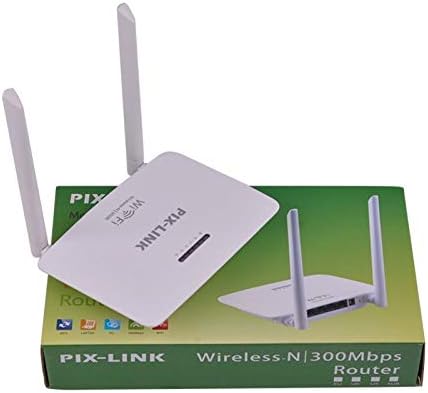
Image 3.1: The PIX-LINK LV-WR07 Wireless Router shown with its retail packaging, indicating the product as it appears in the box.

Image 3.2: The essential accessories included with the router: the power adapter for electrical connection and an Ethernet cable for wired network setup.
4. Vodič za postavljanje
4.1 Povezivanje hardvera
- Uključeno: Connect the power adapter to the router's power port and then plug the adapter into a standard electrical outlet. The power indicator light on the router should illuminate.
- Povežite se s internetskim izvorom: Connect one end of the provided Ethernet cable to your modem's LAN port or your internet service provider's (ISP) Ethernet wall jack. Connect the other end of the Ethernet cable to the WAN port (usually labeled differently or colored) on your PIX-LINK LV-WR07 router.
- Povežite svoj uređaj:
- Žična veza: For initial setup or stable connection, connect your computer to one of the router's LAN ports (usually yellow) using another Ethernet cable.
- Bežična veza: Locate the default Wi-Fi network name (SSID) and password printed on a label on the bottom or back of your router. Connect your wireless device (laptop, smartphone, tablet) to this network.
4.2 Početna konfiguracija (Web Sučelje)
After connecting the hardware, you can configure your router via a web pretraživač.
- Pristup postavkama rutera: Otvori a web browser (e.g., Chrome, Firefox, Edge) on a device connected to the router. In the address bar, type the default IP address (e.g.,
192.168.1.1or192.168.0.1) and press Enter. This IP address is usually found on the router's label. - Prijava: A login window will appear. Enter the default username and password (commonly
adminfor both, or as specified on the router's label). - Pokrenite čarobnjaka za podešavanje: Most routers have a Quick Setup Wizard. Follow the on-screen instructions to configure your internet connection type (e.g., DHCP, Static IP, PPPoE) and set up your new Wi-Fi network name (SSID) and a strong password.
- Sačuvaj postavke: After configuring, save your settings and restart the router if prompted.
5. Upravljanje ruterom
5.1 Povezivanje uređaja na Wi-Fi
Da biste povezali uređaj na vašu Wi-Fi mrežu:
- On your device, go to Wi-Fi settings.
- Izaberite naziv vaše Wi-Fi mreže (SSID) sa liste.
- Enter the Wi-Fi password you set during configuration.
- Vaš uređaj bi sada trebao biti povezan s internetom.
5.2 Korištenje WPS-a (Wi-Fi zaštićeno podešavanje)
WPS allows you to connect devices to your Wi-Fi network without entering the password manually.
- Press the WPS button on your router (usually located on the back or side, labeled 'WPS'). The WPS LED indicator will start blinking.
- Within two minutes, activate WPS on your client device (e.g., a wireless adapter, smartphone, or printer). Refer to your device's manual for specific instructions on activating WPS.
- The device will automatically connect to your Wi-Fi network.
5.3 Wired Connections (LAN Ports)
The router provides multiple LAN ports for wired connections, offering stable and fast connectivity for devices like desktop computers, gaming consoles, and smart TVs.
- Simply connect an Ethernet cable from the device's Ethernet port to any available LAN port on the router.
- The corresponding LAN indicator light on the router should illuminate, indicating a successful connection.
6. Održavanje
- Optimalni plasman: Place the router in a central location, away from obstructions (thick walls, metal objects) and interference sources (microwaves, cordless phones) to maximize Wi-Fi coverage.
- Održavajte čistoću: Regularly clean the router's exterior with a soft, dry cloth. Ensure ventilation holes are not blocked to prevent overheating.
- Ažuriranja firmvera: Periodically check the PIX-LINK official website for firmware updates. Updating firmware can improve performance, add new features, and fix bugs. Follow the instructions provided on the websajt pažljivo.
- Periodično ponovo pokreni: Restarting your router every few weeks can help clear its memory and resolve minor network issues, improving overall performance.
7. Otkrivanje problema
7.1 Nema internetske veze
- Check if the power adapter is securely connected and the router is powered on.
- Ensure the Ethernet cable from your modem/ISP is securely connected to the router's WAN port.
- Restart your modem and then your router. Wait a few minutes for them to fully boot up.
- Provjerite postavke vrste internet veze u ruteru web interface (e.g., DHCP, Static IP, PPPoE).
- Obratite se svom provajderu internet usluga (ISP) kako biste potvrdili da nema prekida u radu.tages u vašem području.
7.2 Slow Wi-Fi Speed or Intermittent Connection
- Relocate the router to a more central position, away from obstacles and interference.
- Provjerite je li firmver vašeg rutera ažuriran.
- Reduce the number of devices connected to the network, especially those performing high-bandwidth activities.
- Pokušajte promijeniti Wi-Fi kanal u postavkama rutera kako biste izbjegli smetnje od susjednih mreža.
7.3 Cannot Access Router's Web Interface
- Ensure your device is connected to the router (either via Ethernet cable or Wi-Fi).
- Verify that you are typing the correct IP address (e.g.,
192.168.1.1) in the browser's address bar. - Obrišite keš memoriju i kolačiće preglednika ili pokušajte s drugim web pretraživač.
- If you forgot the login credentials, you may need to perform a factory reset (see section 7.4).
7.4 Kako izvršiti fabričko vraćanje na postavke
A factory reset will restore the router to its default settings, including the default Wi-Fi name and password, and login credentials.
- With the router powered on, locate the Reset button (often a small pinhole) on the back or bottom of the router.
- Use a paperclip or a thin object to press and hold the Reset button for about 5-10 seconds until the router's lights flash or change behavior.
- Release the button and wait for the router to restart. You will then need to reconfigure it using the initial setup steps.
8. Tehničke specifikacije
| Feature | Opis |
|---|---|
| Brand | PIX-LINK |
| Model | LV-WR07 |
| Bežična brzina | 300 megabita u sekundi (Mbps) |
| Antene | 2 vanjske antene |
| Broj portova | 5 (1 WAN, 4 LAN) |
| Tehnologija povezivanja | Wi-Fi, LAN |
| Posebne karakteristike | WPS (Wi-Fi zaštićena postavka) |
| Kompatibilni uređaji | Gaming Consoles, Tablets, Smart Televisions |
9. Informacije o garanciji
PIX-LINK products are designed for reliability and performance. For specific warranty terms and conditions, please refer to the warranty card included with your product or visit the official PIX-LINK webSačuvajte račun kao dokaz o kupovini za reklamacije u slučaju reklamacije.
10. Korisnička podrška
If you encounter any issues that are not covered in this manual or require further assistance, please contact PIX-LINK customer support. You can usually find contact information (phone number, email, or support portal) on the official PIX-LINK webweb-mjestu ili na ambalaži proizvoda.
Prije kontaktiranja podrške, pripremite sljedeće informacije:
- Product Model: LV-WR07
- Serial Number (found on the product label)
- Detaljan opis problema s kojim se susrećete
- Steps you have already taken to troubleshoot