
Uvod
This manual provides detailed instructions for the installation, operation, and maintenance of the ECS Elitegroup B350AM4-M2 Micro ATX Motherboard. This motherboard is designed to support AMD AM4 socket processors, including AMD Ryzen and 7th Gen Athlon processors. It features a 4+2 phase thermal design, 100% solid capacitor design, and dual-channel DDR4 memory architecture supporting up to 64 GB across four DIMM sockets.
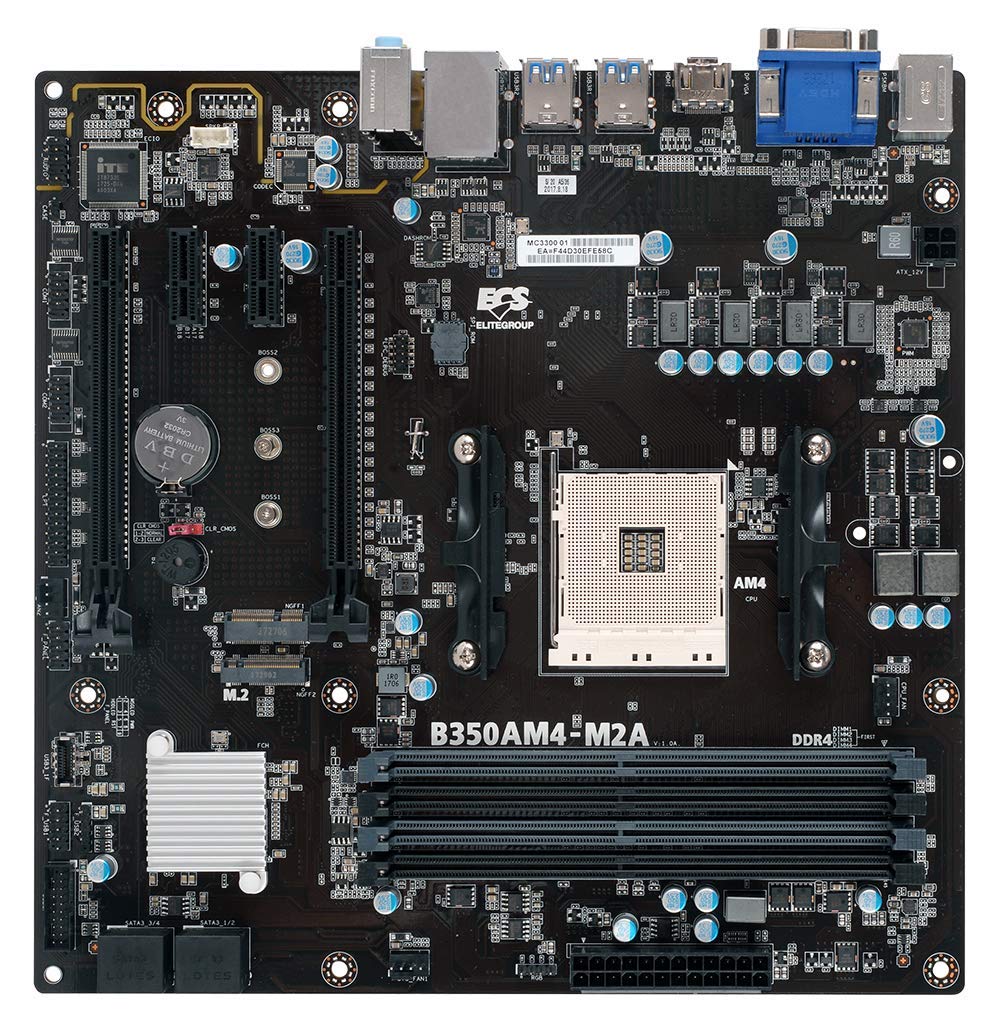
Slika 1: Gotovoview of the ECS B350AM4-M2 Motherboard, showing its general layout and components.
Sadržaj paketa
Verify that all items listed below are present in the package. If any item is missing or damaged, contact your retailer.
- ECS B350AM4-M2 Motherboard
- CD sa drajverom
- Korisnički priručnik (ovaj dokument)
- SATA kablovi
Postavljanje i instalacija
Prije početka instalacije, provjerite je li vaš sistem isključen iz napajanja i iskopčan iz utičnice. Nosite antistatičku narukvicu kako biste spriječili oštećenje komponenti elektrostatičkim pražnjenjem (ESD).
1. Instalacija CPU-a
- Pronađite AM4 CPU socket na matičnoj ploči.
- Podignite polugu za opterećenje sa strane utičnice.
- Pažljivo poravnajte trouglastu oznaku na procesoru s odgovarajućom oznakom na utičnici.
- Pažljivo postavite CPU u utičnicu bez upotrebe sile.
- Lower the load lever back into its locked position to secure the CPU.
- Apply thermal paste to the CPU surface and install the CPU cooler according to its manufacturer's instructions.
Figure 2: The AM4 CPU socket and surrounding area on the motherboard, where the processor is installed.
2. Instalacija memorije (RAM)
The B350AM4-M2 motherboard has four 288-pin DDR4 DIMM sockets. For optimal performance, install memory modules in pairs for dual-channel operation. Refer to the motherboard's silkscreen for recommended slot population order.
- Open the clips at both ends of the DIMM socket.
- Align the notch on the DDR4 memory module with the key in the DIMM socket.
- Insert the module firmly into the socket until the clips snap into place.
- Repeat for additional memory modules.
Figure 3: Location of the four DDR4 DIMM slots for memory installation.
3. Instalacija uređaja za pohranu podataka (SATA i M.2)
Connect SATA storage devices (HDDs/SSDs) to the SATA 6Gb/s ports. For M.2 SSDs, locate the M.2 slot.
- For SATA devices: Connect one end of the SATA data cable to the storage device and the other end to a SATA port on the motherboard. Connect the SATA power cable from your power supply to the device.
- For M.2 SSDs: Insert the M.2 SSD into the M.2 slot at an angle. Push it down and secure it with the provided screw.
4. Instalacija kartice za proširenje (PCIe)
Install graphics cards or other expansion cards into the appropriate PCI Express slots.
- Align the expansion card with the chosen PCIe slot.
- Press down firmly until the card is seated correctly and the retention clip (if present) locks into place.
- Pričvrstite karticu na kućište vijkom.
5. Priključci za napajanje
Povežite kablove za napajanje na matičnu ploču.
- 24-pinski ATX konektor za napajanje: Connect the main 24-pin power cable from your power supply to the corresponding connector on the motherboard.
- 4-pinski konektor za napajanje procesora: Connect the 4-pin CPU power cable (often labeled P4 or ATX12V) from your power supply to the connector near the CPU socket.
6. Prednja ploča i USB priključci
Connect your chassis's front panel connectors (power button, reset button, HDD LED, power LED, front USB ports, front audio) to the corresponding headers on the motherboard. Refer to the motherboard layout diagram in the full manual for exact header locations.
Uputstvo za upotrebu
1. Podešavanje BIOS-a/UEFI-ja
The BIOS (Basic Input/Output System) or UEFI (Unified Extensible Firmware Interface) is the firmware that initializes hardware during startup. To access the BIOS/UEFI setup utility:
- Uključite računar.
- Pritisnite DEL key repeatedly during the initial boot screen. The exact key may vary; consult the on-screen prompts.
Within the BIOS/UEFI, you can configure system settings such as boot order, date/time, CPU/memory frequencies, and enable/disable integrated peripherals. Save changes before exiting.
2. Instalacija operativnog sistema
After assembling your system, you will need to install an operating system (e.g., Windows 10, Windows Vista, Linux).
- Insert your operating system installation media (USB drive or DVD) into the computer.
- Access the BIOS/UEFI setup and set the boot order to prioritize your installation media.
- Save changes and exit. The system will boot from the installation media.
- Slijedite upute na ekranu da biste instalirali operativni sistem.
- After installation, install the necessary drivers from the provided driver CD or the ECS Elitegroup website.
Održavanje
Pravilno održavanje osigurava dugotrajnost i stabilan rad vaše matične ploče.
- Uklanjanje prašine: Regularly clean dust from inside your computer case using compressed air. Ensure fans and heatsinks are free from obstructions.
- Ažuriranja BIOS-a: Periodically check the ECS Elitegroup website for updated BIOS versions. BIOS updates can improve compatibility, stability, and performance. Follow the update instructions carefully to avoid system damage.
- Upravljanje kablovima: Osigurajte da su unutrašnji kablovi uredno usmjereni kako biste poboljšali protok zraka i spriječili smetnje.
Rješavanje problema
Ovaj odjeljak se bavi uobičajenim problemima s kojima se možete susresti.
Nema napajanja / Sistem se ne uključuje
- Check all power connections: 24-pin ATX, 4-pin CPU, and power cables to peripherals.
- Provjerite je li prekidač za napajanje u položaju 'UKLJUČENO'.
- Verify the front panel power button connector is correctly attached to the motherboard header.
- Test the power supply with another system or a power supply tester if available.
No Display / No POST (Power-On Self-Test)
- Ensure the monitor is connected to the correct display output (motherboard integrated graphics or discrete graphics card).
- Ponovo postavite grafičku karticu i memorijske module.
- Check if the CPU cooler is properly installed and connected.
- Listen for beep codes. A series of 9 short beeps often indicates a BIOS ROM error, suggesting a potential issue with the motherboard's firmware.
- Try booting with only essential components (CPU, one RAM stick, graphics card if no integrated graphics) to isolate the problem.
Nestabilnost sistema / Ruševi sistema
- Provjerite da li su svi upravljački programi ažurirani.
- Check CPU and GPU temperatures to prevent overheating.
- Pokrenite alate za dijagnostiku memorije da biste provjerili da li postoji neispravan RAM.
- Verify that the power supply provides sufficient wattage za sve komponente.
Specifikacije
| Feature | Detalj |
|---|---|
| Brand | ECS Elitegroup |
| Broj modela | B350AM4-M2 |
| CPU Socket | Socket AM4 |
| Kompatibilni procesori | AMD Ryzen Processors, AMD 7th Gen Athlon Processors |
| Tip čipseta | AMD B350 |
| Tehnologija RAM memorije | DDR4 |
| Dostupni memorijski slotovi | 4 x 288-pin DDR4 DIMM sockets |
| Maksimalna veličina RAM memorije | 64 GB |
| Brzina memorije | 2667/2400 MHz (non-ECC, Un-buffered SDRAM) |
| Interfejs grafičke kartice | PCI Express |
| Total Number of HDMI Ports | 1 (HDMI 1.4a) |
| DisplayPort | Integrated DP with up to 2560x1600 resolution |
| USB 2.0 portovi | 1 (internal header, total ports may vary) |
| S/PDIF Connector Type | Optički |
| System Bus Standard Supported | SATA 3 |
| Platforma | Windows 10, Windows Vista |
| Težina artikla | 1.15 funti |
Garancija i podrška
The ECS Elitegroup B350AM4-M2 Motherboard comes with a 2 godine garancije from the date of purchase. This warranty covers defects in materials and workmanship under normal use. For warranty claims or technical support, please contact your retailer or visit the official ECS Elitegroup webstranica za resurse podrške i kontakt informacije.
Online podrška: For the latest drivers, BIOS updates, and additional support, please visit the ECS Elitegroup official website.