
Uvod
This manual provides instructions for setting up, operating, maintaining, and troubleshooting your Logitech Slim Folio Keyboard Case for iPad (5th and 6th Generation). Please read this manual thoroughly before using the product to ensure optimal performance and longevity.
Setup
1. Check iPad Compatibility
Ensure your iPad is a 5th or 6th Generation model. The model numbers for compatible iPads are A1822 and A1823.
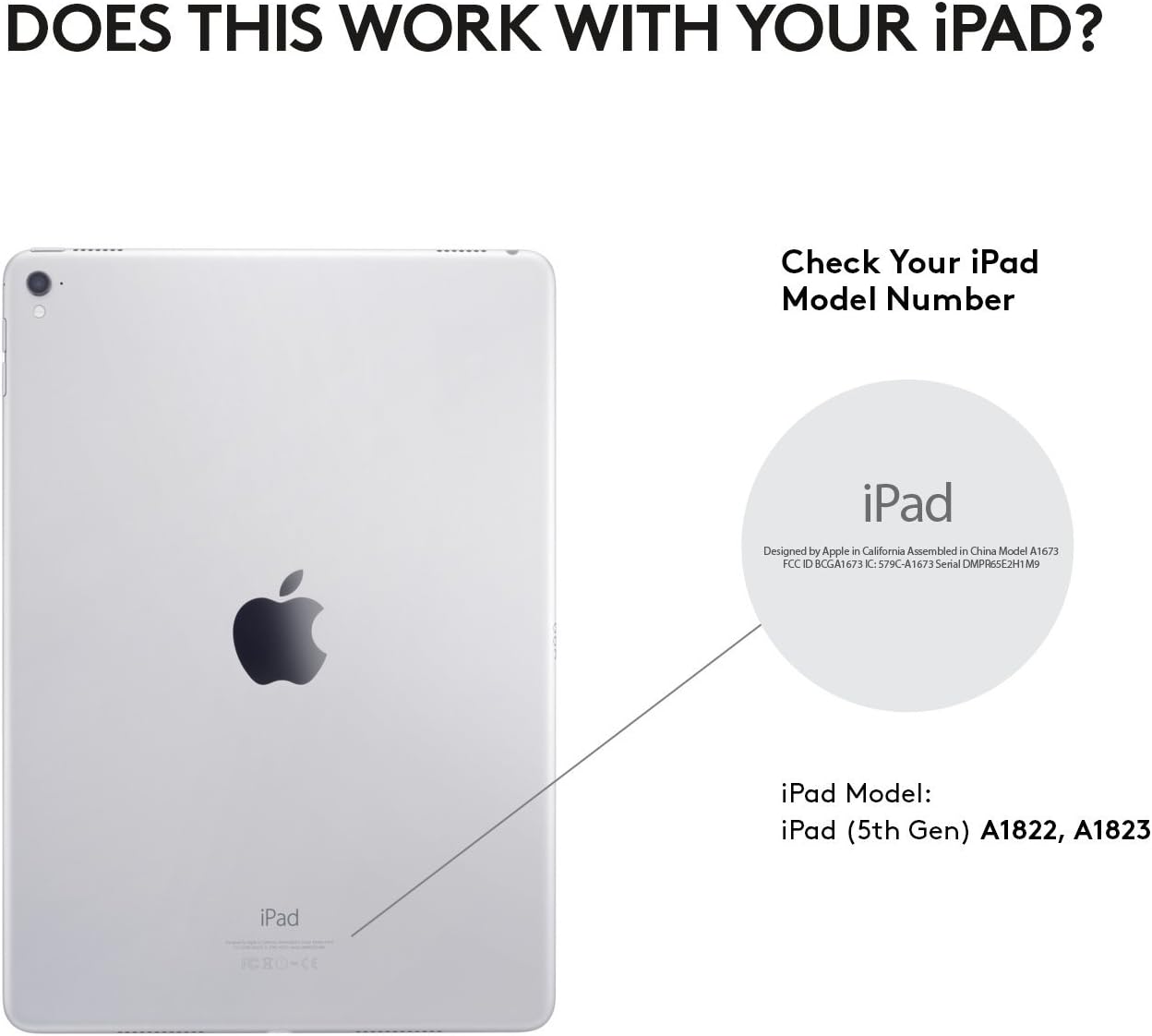
Slika 1: Locate your iPad model number on the back of your device to confirm compatibility.
2. Insert iPad into the Case
Carefully align your iPad with the case and press it firmly into place. Ensure all ports, buttons, and the camera are accessible through the case's cutouts.

Slika 2: The Slim Folio case provides comprehensive front and back protection for your iPad, with precise cutouts for all functionalities.
3. Initial Keyboard Activation and Bluetooth Pairing
The keyboard is powered by replaceable coin cell batteries, designed for a long lifespan. To activate the keyboard and pair it with your iPad:
- Open the Slim Folio case and place your iPad into the typing position. The keyboard will automatically power on.
- Na vašem iPadu idite na Postavke > Bluetooth.
- Select "Logitech Slim Folio" from the list of available devices to pair.
- A green light on the keyboard indicates it is powered on and ready for connection.

Slika 3: The Slim Folio features a replaceable battery with up to 4 years of life (based on 2 hours daily use) and an auto sleep/wake function.
For a visual guide on setting up your Logitech Slim Folio, please watch the official video below:
Klip 1: Official Logitech video demonstrating the setup process for the iPad Keyboard Case.
Uputstvo za upotrebu
Način tipkanja
To use the keyboard, simply open the case and position your iPad in the magnetic typing stand. The keyboard will automatically activate, allowing you to type comfortably. The keys are well-spaced for a laptop-like typing experience.

Slika 4: The Slim Folio transforms your iPad into a laptop-like device, offering a comfortable typing experience with perfectly spaced keys and iOS shortcut keys.
Viewing mode
For media consumption or browsing, you can fold the keyboard behind the iPad. The case is designed to hold the iPad securely at an optimal viewing angle. The keyboard will automatically deactivate in this mode to prevent accidental key presses and conserve battery.

Slika 5: The Slim Folio offers versatile modes for typing, viewing, and protecting your iPad.
iOS Shortcut Keys
The keyboard features a dedicated row of iOS shortcut keys for quick access to common functions:
- Početna: Vratite se na početni ekran.
- Siri: Aktivirajte Siri.
- Osvetljenost ekrana: Podesite svjetlinu ekrana.
- Traži: Open the search function.
- Kontrole medija: Reprodukcija/pauza, preskakanje pjesama.
- Kontrole jačine zvuka: Podesite jačinu zvuka.
- I više.
Održavanje
Čišćenje kućišta
The Slim Folio case is made from water-repellent, easy-to-clean fabric and durable plastic material. To clean, gently wipe with a damp krpom. Izbjegavajte jake hemikalije ili abrazivna sredstva za čišćenje.
Zamjena baterije
The keyboard uses replaceable coin cell batteries (CR2032). The battery life is approximately 4 years based on 2 hours of daily use. When the battery is low, the indicator light on the keyboard may flash. To replace the battery:
- Locate the battery compartment on the side of the keyboard.
- Use a small coin or tool to open the compartment.
- Remove the old batteries and insert new CR2032 batteries, ensuring correct polarity.
- Čvrsto zatvorite odeljak za baterije.
Rješavanje problema
Tastatura ne reaguje
- Provjerite bateriju: Provjerite da baterije nisu prazne. Zamijenite ih ako je potrebno.
- Ponovno uparivanje Bluetootha: Go to iPad Settings > Bluetooth, forget the "Logitech Slim Folio" device, and then re-pair it.
- Ponovo pokrenite iPad: Sometimes a simple restart of your iPad can resolve connectivity issues.
Keys Not Functioning Correctly
- Čisti ključevi: Pazite da se ispod tipki ne zaglave ostaci.
- Ažuriranje softvera: Check if your iPad's iOS is up to date.
iPad Not Staying in Typing Position
The magnetic strip that holds the iPad in typing position is strong. If your iPad is not staying securely, ensure it is correctly aligned with the magnetic strip and that no foreign objects are interfering with the connection.
Specifikacije
| Brand | Logitech |
| Broj modela | 920-008617 |
| Kompatibilni uređaji | iPad 5th Generation, iPad 6th Generation (Models A1822, A1823) |
| Tehnologija povezivanja | Bluetooth LE |
| Opis tastature | Membrane |
| Broj ključeva | 78 |
| Vrsta baterije | Replaceable Coin Cell (CR2032) |
| Procijenjeni vijek trajanja baterije | Up to 4 years (based on 2 hours daily use) |
| Materijal | Plastic, Water-repellent Fabric |
| Boja | Carbon Black |
| Težina artikla | 1 funta |
Garancija i podrška
Logitech Slim Folio futrola za tastaturu dolazi sa 1 godine ograničene garancije. For warranty claims, technical support, or further assistance, please visit the official Logitech support webstranice ili kontaktirajte njihovu korisničku službu.
For additional information and resources, please visit: www.logitech.com