
1. Uvod
This manual provides instructions for the installation, operation, and maintenance of your DIGITUS DN-70542 Wireless LAN USB 2.0 Adapter. This device allows your computer to connect to a wireless network using the 802.11n standard, offering data transfer rates of up to 300 Mbps.
The adapter is backward compatible with IEEE 802.11g and 802.11b standards and operates within the 2.4-2.4835GHz frequency range. It also features a Wireless Protected Setup (WPS) function for easy and secure network connection.

Slika 1.1: Vrh view of the DIGITUS DN-70542 Wireless LAN USB 2.0 Adapter.

Slika 1.2: Pod uglom view of the DIGITUS DN-70542 adapter, highlighting its compact design.

Slika 1.3: Detaljno view of the USB 2.0 connector of the DIGITUS DN-70542 adapter.
2. Sadržaj paketa
Molimo Vas da provjerite da li se u paketu nalaze svi artikli:
- 1 x DIGITUS DN-70542 Mini USB WiFi Adapter
- 1 x Product Support CD-ROM (containing drivers and utilities)
- 1 x Korisnički priručnik (ovaj dokument)
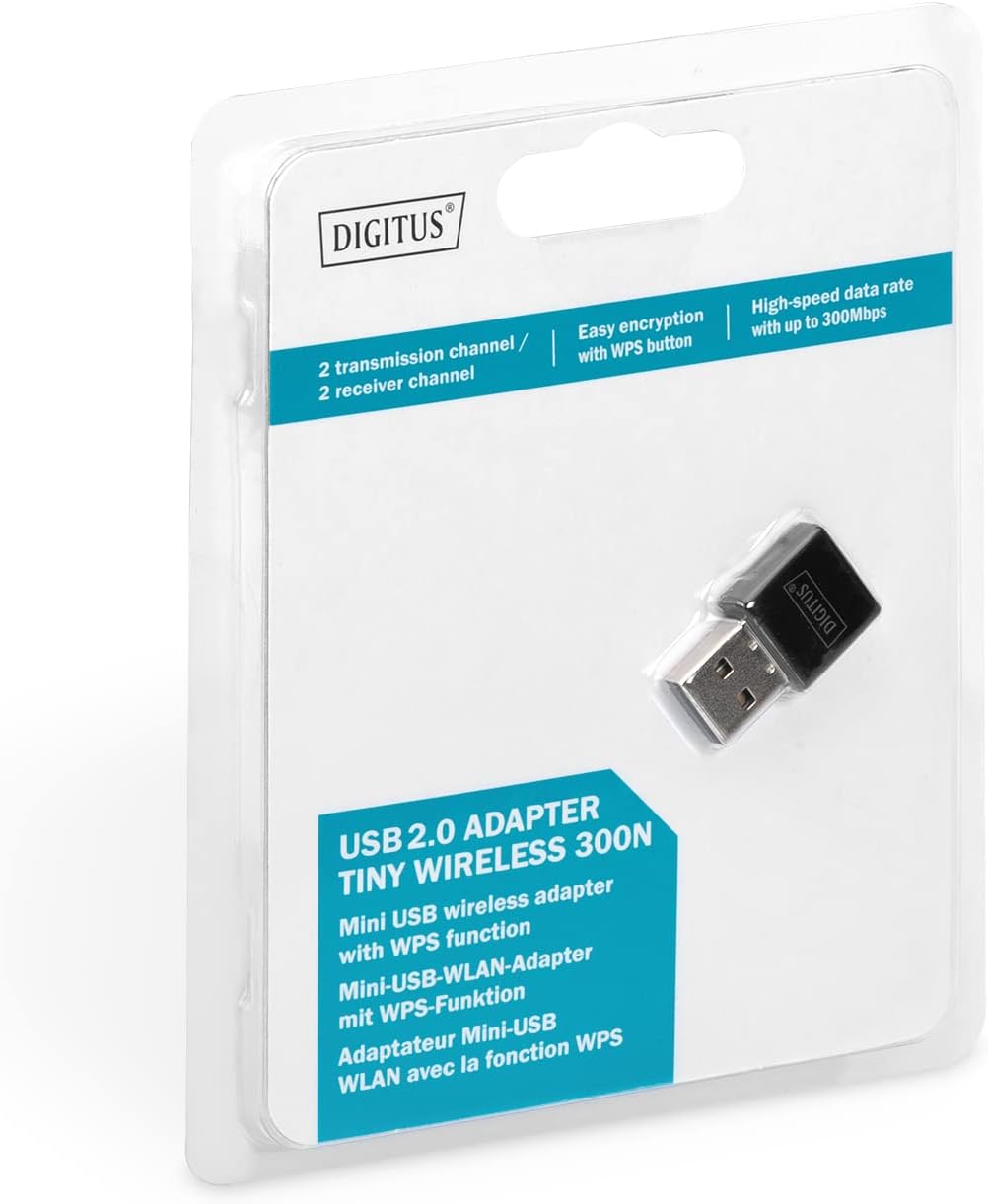
Figure 2.1: Retail packaging of the DIGITUS DN-70542 adapter, showing the adapter and its key features.
3. Vodič za postavljanje
Follow these steps to install your Wireless LAN USB Adapter:
- Instalirajte drajvere: Before connecting the adapter, insert the included Product Support CD-ROM into your computer's optical drive. Follow the on-screen instructions to install the necessary drivers. If your computer does not have an optical drive, or if you encounter issues, please visit the official DIGITUS website to download the latest drivers for your operating system (Windows).
Note: Some operating systems, particularly older versions of Windows, may require driver installation prior to connecting the device. Refer to the Troubleshooting section if you encounter issues during this step.
- Povežite adapter: Locate an available USB 2.0 port on your computer. Carefully insert the DIGITUS DN-70542 Wireless LAN USB 2.0 Adapter into the USB port.
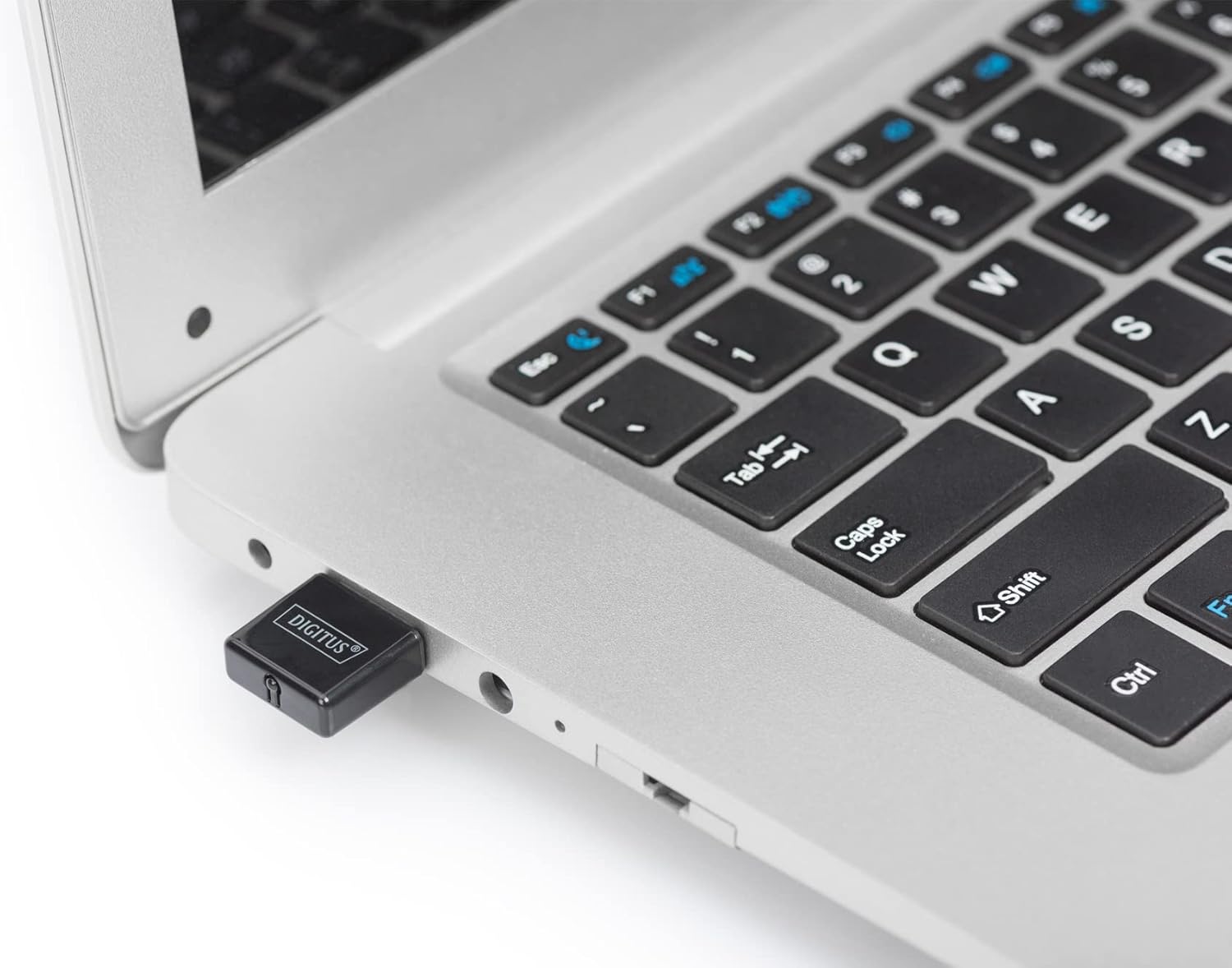
Figure 3.1: The DIGITUS DN-70542 adapter inserted into a laptop's USB port.

Slika 3.2: Zatvarač view of the adapter connected to a laptop, showing its compact size.
- Provjerite instalaciju: After connecting, your operating system should detect the new hardware and complete the installation. You can verify the installation by checking your computer's Device Manager (for Windows) to ensure the wireless adapter is listed and functioning correctly.
4. Uputstvo za upotrebu
Once the adapter is successfully installed, you can connect to a wireless network.
- Povezivanje na bežičnu mrežu:
- Open your computer's wireless network settings.
- Skenirajte dostupne bežične mreže.
- Select your desired network (SSID) from the list.
- Unesite sigurnosni ključ mreže (lozinku) ako se to od vas zatraži.
- Kliknite na "Poveži se" da biste uspostavili bežičnu vezu.
- Korištenje WPS-a (Wi-Fi zaštićeno podešavanje):
The adapter supports WPS for a simplified and secure connection to compatible routers.
- Pritisnite dugme WPS na vašem bežičnom ruteru.
- Within two minutes, press the WPS button on the DIGITUS DN-70542 adapter. The WPS button is a small, recessed button on the side of the adapter.
- Adapter i ruter će automatski uspostaviti sigurnu vezu.

Figure 4.1: The WPS button located on the side of the adapter.
5. Održavanje
To ensure optimal performance and longevity of your DIGITUS DN-70542 adapter, follow these guidelines:
- Održavajte adapter čistim i bez prašine. Za čišćenje koristite meku, suhu krpu.
- Izbjegavajte izlaganje adaptera ekstremnim temperaturama, vlazi ili direktnoj sunčevoj svjetlosti.
- Do not attempt to disassemble or repair the adapter yourself. This will void the warranty.
- Adapter čuvajte na sigurnom mjestu kada ga ne koristite kako biste spriječili fizička oštećenja.
6. Otkrivanje problema
If you encounter issues with your DIGITUS DN-70542 Wireless LAN USB 2.0 Adapter, refer to the following common problems and solutions:
- Adapter Not Detected / Driver Installation Issues:
- Provjerite je li adapter potpuno umetnut u ispravan USB priključak.
- Pokušajte s drugim USB portom.
- Reinstall the drivers from the provided CD-ROM.
- Download the latest drivers from the official DIGITUS website.
- If using Windows 8.1 or newer and encountering issues like "Bluescreen" or "infected file" warnings during driver installation, temporarily disable antivirus software (like Windows Defender) during driver installation, then re-enable it immediately after. Ensure you are downloading drivers from a trusted source (DIGITUS official webweb lokacija).
- Check Device Manager to see if the adapter is listed with any error symbols.
- Cannot Connect to Wireless Network:
- Verify that your wireless router is powered on and broadcasting a signal.
- Ensure you are entering the correct network security key (password).
- Move closer to the wireless router to improve signal strength.
- Restart your computer and the wireless router.
- Check if other devices can connect to the same wireless network.
- Spora brzina veze:
- Ensure your router supports 802.11n for optimal speeds.
- Minimizirajte smetnje od drugih elektronskih uređaja (npr. mikrovalnih pećnica, bežičnih telefona).
- Ažurirajte firmver vašeg rutera.
- Check for other devices consuming bandwidth on your network.
7. Specifikacije
| Feature | Opis |
|---|---|
| Model | DN-70542 |
| Hardversko sučelje | USB 2.0 |
| Wireless Standards | IEEE 802.11n, IEEE 802.11g, IEEE 802.11b |
| Brzina prijenosa podataka | Do 300 Mbps |
| Frekvencijski opseg | 2.4 - 2.4835 GHz |
| Sigurnosne karakteristike | WPS (Wireless Protected Setup) function |
| Podrška za operativni sistem | Windows |
| Dimenzije proizvoda | 24 x 15 x 2 mm (approximate); 15 g |
| Proizvođač | ASSMANN Electronic GmbH PES - BO DE |
8. Garancija i podrška
For warranty information and technical support, please refer to the documentation included with your product or visit the official DIGITUS website. Contact details for customer support can typically be found on the manufacturer's website.
Molimo sačuvajte dokaz o kupovini za bilo kakve reklamacije u vezi s garancijom.